Manufacturing
Introduction to manufacturing in Odoo
Odoo's Manufacturing module lets you run your whole production process, from the design of the products through to making them.
Overview
Manufacturing in Odoo covers several key aspects:
- handling bills of materials;
- planning and carrying out manufacturing orders;
- handling resources: machines, tools, labour;
- following production costs;
- quality control.
Note
The Manufacturing module integrates smoothly with Inventory, Purchase and Sales for complete management of the value chain.
Initial configuration
Enabling and setting up
To start using the Manufacturing module:
- Install the module from Apps.
- Open Manufacturing › Configuration › Settings.
- Configure the options to suit your needs: - the costing method: standard, average, FIFO and so on; - the handling of work units; - whether scrap is taken into account; - the default scheduling.
Work centres
Work centres represent your production resources:
- Open Manufacturing › Configuration › Work Centers.
- Create a new centre, stating: - its name and description; - its capacity and its working hours; - its costs: hourly, setup, cleanup; - its waiting time and its efficiency.
- Configure the availability calendars where needed.
Tip
Organise your work centres hierarchically to reflect the structure of your workshop. A department can hold several work centres, for instance.
Bills of materials and routings
Creating bills of materials
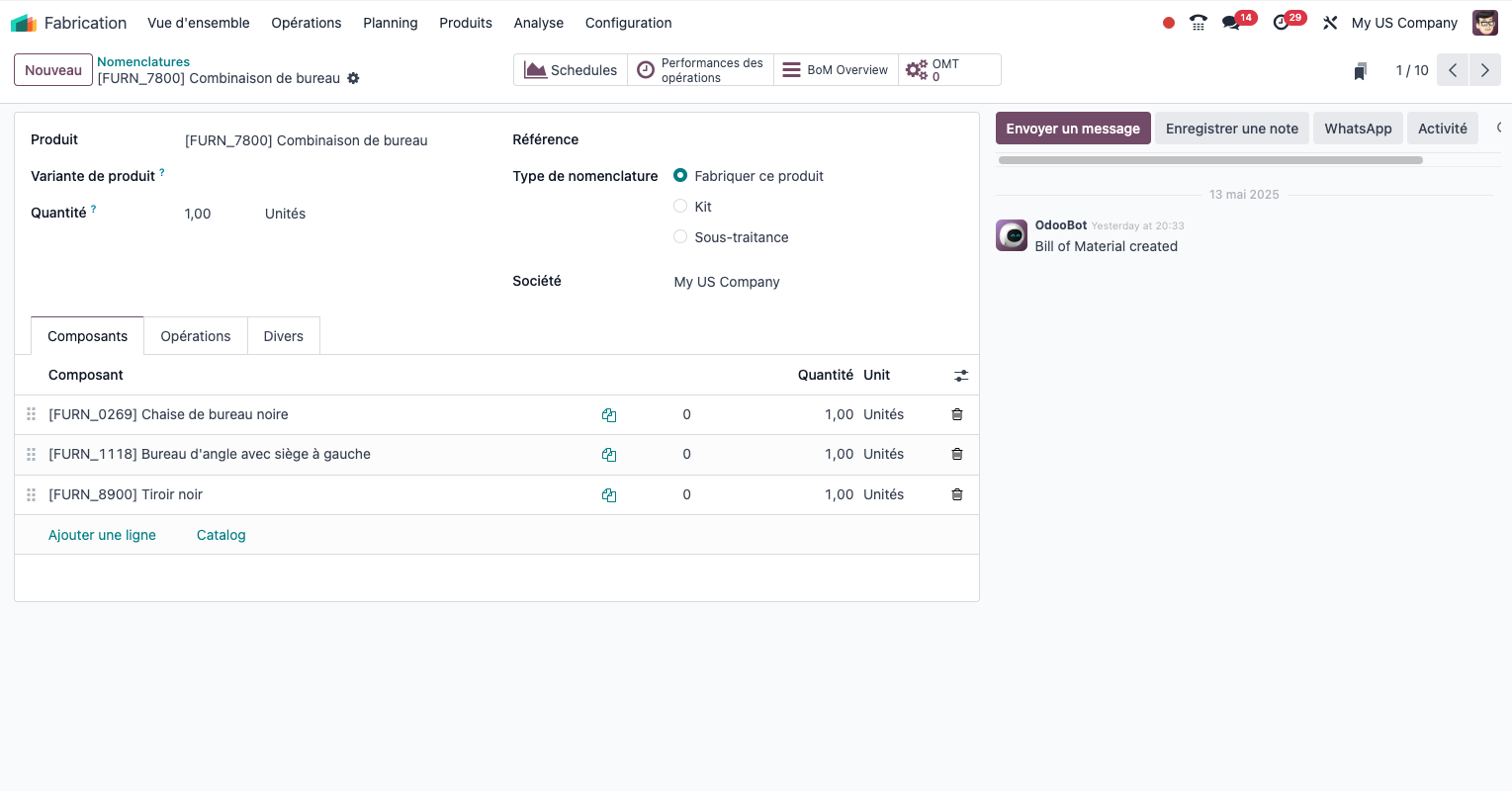
The bill of materials defines the components needed to make a product:
- Open Manufacturing › Products › Bills of Materials.
- Click New.
- Select the finished product.
- Add the components with their quantities.
- State any by-products.
- State the production yield.
- Save the bill of materials.
Types of bill of materials
Odoo supports several types of bill of materials:
- Standard bill of materials: the list of components needed to produce an item.
- Variant bill of materials: suited to products with variants (size, colour and so on).
- Kit bill of materials: for products sold as a kit but stored separately.
- Phantom bill of materials: for sub-assemblies that never exist physically in stock.
Routings
Routings define the manufacturing steps:
- Open Manufacturing › Configuration › Operations.
- Create a new routing.
- Add the operations in the order they are carried out.
- For each operation, state: - the work centre; - the setup and run times; - the work instructions; - the tools and skills needed.
- Attach the routing to the matching bill of materials.
Note
Routings are essential for capacity planning and for computing labour costs accurately.
Manufacturing orders
Creating an order by hand
To launch a production run:
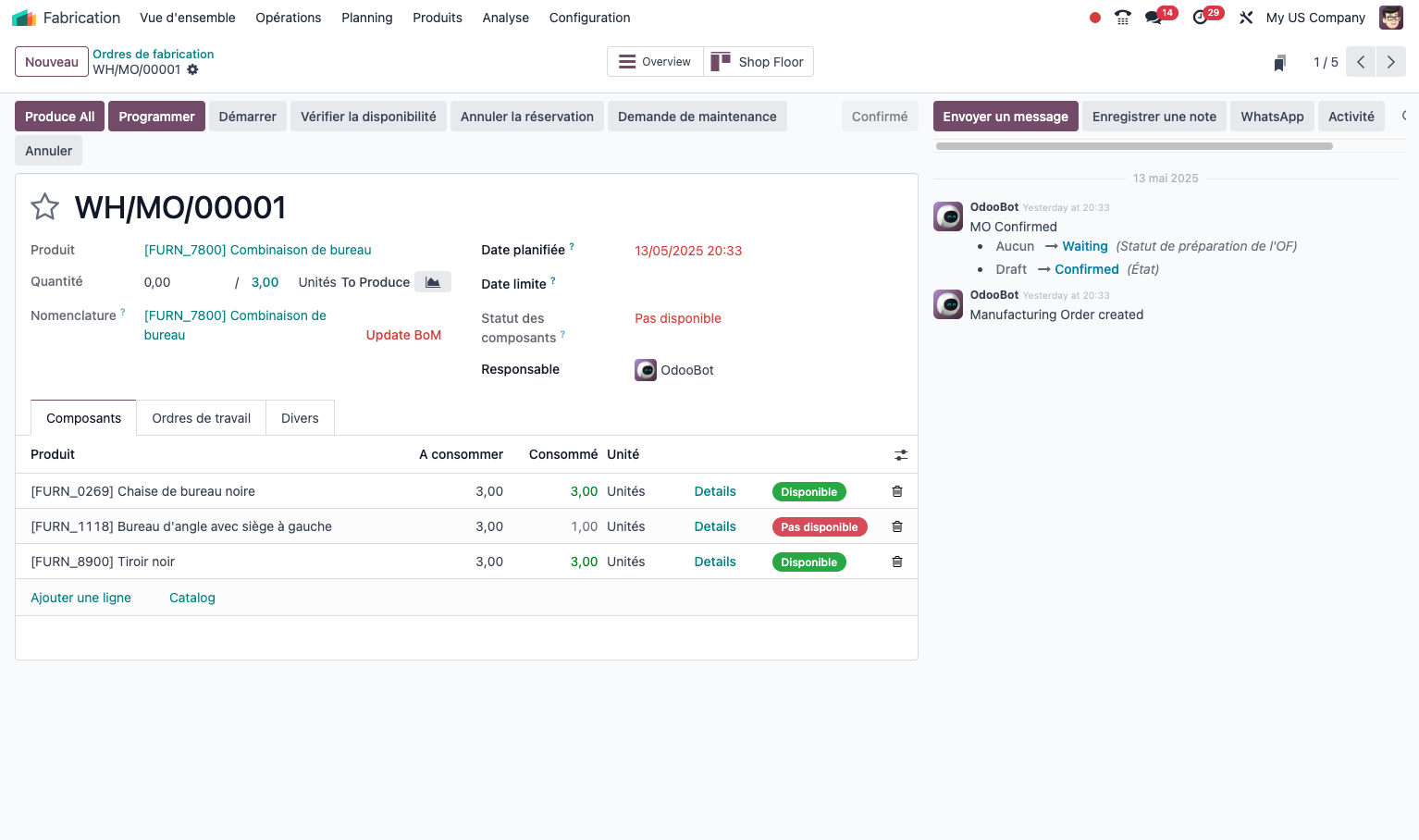
- Open Manufacturing › Operations › Manufacturing Orders.
- Click New.
- Select the product to make.
- State the quantity and the planned date.
- The bill of materials and the routing are offered automatically.
- Check the availability of the components.
- Confirm the order to start production.
Generating orders automatically
Manufacturing orders can be generated automatically:
- from sales orders, for made-to-order products;
- through the reordering rules, for made-to-stock products;
- by the MRP scheduler, from the forecasts.
Following and carrying out
To manage the progress of production:
- Open the manufacturing order.
- Click to check the availability of the components.
- Use Produce to record the production: - confirm or adjust the component consumption; - record the time spent on each operation; - note the quantities produced and any scrap.
- For a partial run, produce only part of the quantity.
- Close the order once production is complete.
Tip
Use the Mark as Done function where you have already made the items and simply want to update the stock.
Production planning
The MRP scheduler
The MRP (Material Requirements Planning) scheduler computes the production needs:
- Open the scheduling menu in Manufacturing.
- Run the computation for a given period.
- The system analyses: - the confirmed sales orders; - the current stock levels; - the reordering rules; - the sales forecasts.
- Review the suggestions generated.
- Confirm the manufacturing orders proposed.
Capacity planning
To manage the load on your resources:
- Open the work centre load report in Manufacturing.
- See the forecast load by centre or by department.
- Identify the bottlenecks.
- Adjust the schedules where needed.
Note
Effective capacity planning avoids overloads and makes the best use of your resources.
Handling production costs
The cost structure
Manufacturing costs in Odoo are made of:
- material costs, that is the components consumed;
- labour costs, based on the operation times;
- machine costs, that is the cost of using the equipment;
- overheads, allocated according to the method defined.
Computing the costs
To establish the standard cost of a manufactured product:
- Open the product record.
- Go to the cost information.
- Run the cost computation.
- The system computes the cost using: - the costs of the components; - the hourly rates of the work centres; - the operation times defined in the routing.
- Confirm the cost computed.
Tip
Update the standard costs regularly, so that they reflect changes in raw material prices or in hourly rates.
Quality in production
Quality checks
With the Quality module enabled, you can:
- define control points in the manufacturing process;
- create check forms suited to your products;
- state the acceptance and rejection criteria;
- record the results of the checks;
- follow the conformity rates.
Handling non-conformities
When a quality problem arises:
- record the non-conformity in the system;
- decide how to deal with it: rejection, rework, concession;
- start corrective actions where needed;
- follow the effect on production costs.
Equipment maintenance
Integration with maintenance
With the Maintenance module, you can:
- handle the preventive maintenance of the production equipment;
- plan the interventions around the production load;
- follow breakdowns and downtime;
- compute the performance indicators (MTBF, MTTR).
Note
Well-planned maintenance reduces unplanned stoppages and keeps equipment available.
Reporting and analysis
Dashboards
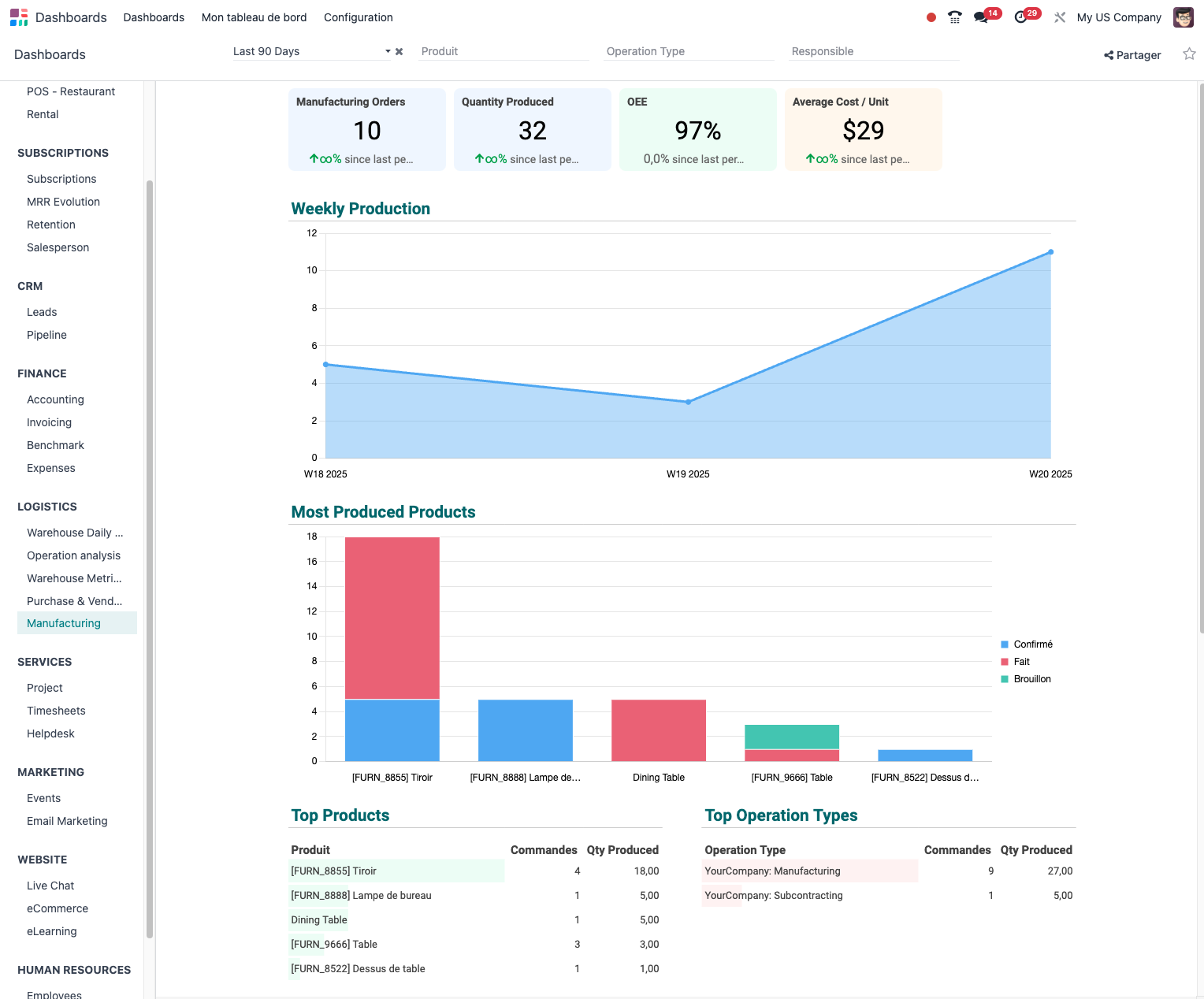
Odoo offers several dashboards for following production:
- the main production dashboard;
- the equipment utilisation rate;
- an analysis of production costs;
- performance tracking (overall equipment effectiveness).
Custom reports
You can build specific reports:
- Open Manufacturing › Reporting.
- Use the filters and groupings available.
- Save your custom views.
- Export the data for outside analysis.
Tip
Use the pivot view to analyse your production data along several dimensions: product, period, work centre and so on.
Advanced features
Subcontracting
To handle subcontracted production:
- create a specific "subcontracting" operation type;
- configure the products with a subcontracting bill of materials;
- the components are sent to the subcontractor on a delivery order;
- the finished product is received as a standard purchase.
Lot-based production
For industries working in batches:
- enable lot traceability in the inventory settings;
- use the lot numbers when consuming and producing;
- follow the complete genealogy of the finished products;
- handle lot expiry where needed.
Discrete and continuous production
Odoo adapts to different production modes:
- Discrete production: making countable items, with a start and an end to each order.
- Continuous production: handling continuous flows with periodic declaration of the quantities.
Integration with the other modules
The Manufacturing module integrates naturally with:
- Inventory: automatic updating of stock.
- Purchase: supply of the components.
- Sales: make to order.
- Quality: quality checks in production.
- Maintenance: equipment management.
- Accounting: valuing production.
- PLM: product lifecycle management (Enterprise).
Note
This native integration keeps the data consistent across the whole system and avoids re-entry.