Products and services
Relation with the exercise book
This chapter matches Step 3 of the exercise book: creating the items and the categories. It gives you the concepts you need to configure your products and services effectively, and to organise them into categories in Odoo.
Introduction to products in Odoo
Odoo uses the word "product" for both physical goods and services. Products sit at the heart of many business processes:
- they are sold to customers, on quotations and orders;
- they are bought from vendors;
- they are held in your inventory;
- they are manufactured in your workshop.
Note
A well-configured product makes the daily running of your business considerably easier. Take the time to structure your product catalogue properly.
Types of product
Odoo offers several types of product to suit your needs.
Main types:
- Goods: tangible physical products that you supply.
- Service: intangible work, such as consulting or maintenance.
- Combo: lets you build products offering several choices by category.
For physical goods, a further distinction:
- Track Inventory ticked: a storable product whose stock you track precisely.
- Track Inventory cleared: a consumable product whose stock you do not track.
Tip
In Odoo 18, the storable/consumable distinction is made through the Track Inventory checkbox in the Inventory tab, and not through the product type.
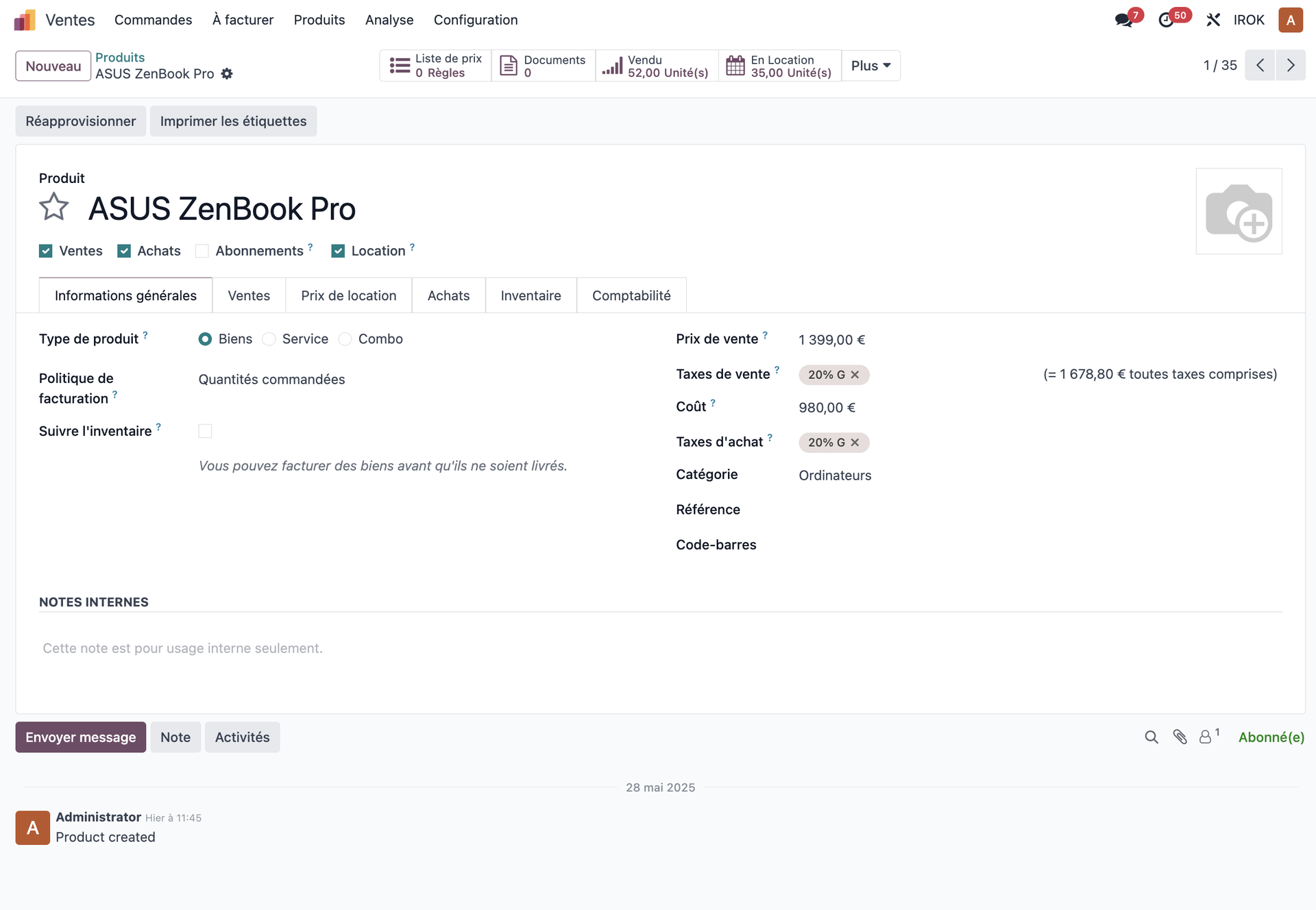
Creating a new product
Steps for creating a product
To add a new product to your catalogue:
- Open the Sales, Purchase or Inventory module.
- Click Products in the left-hand menu.
- Click the Create button.
- Fill in the basic information: - the product name; - the product type: Goods, Service or Combo; - the sales price; - the purchase cost; - the product category.
- Configure the additional tabs as needed.
- Click Save.
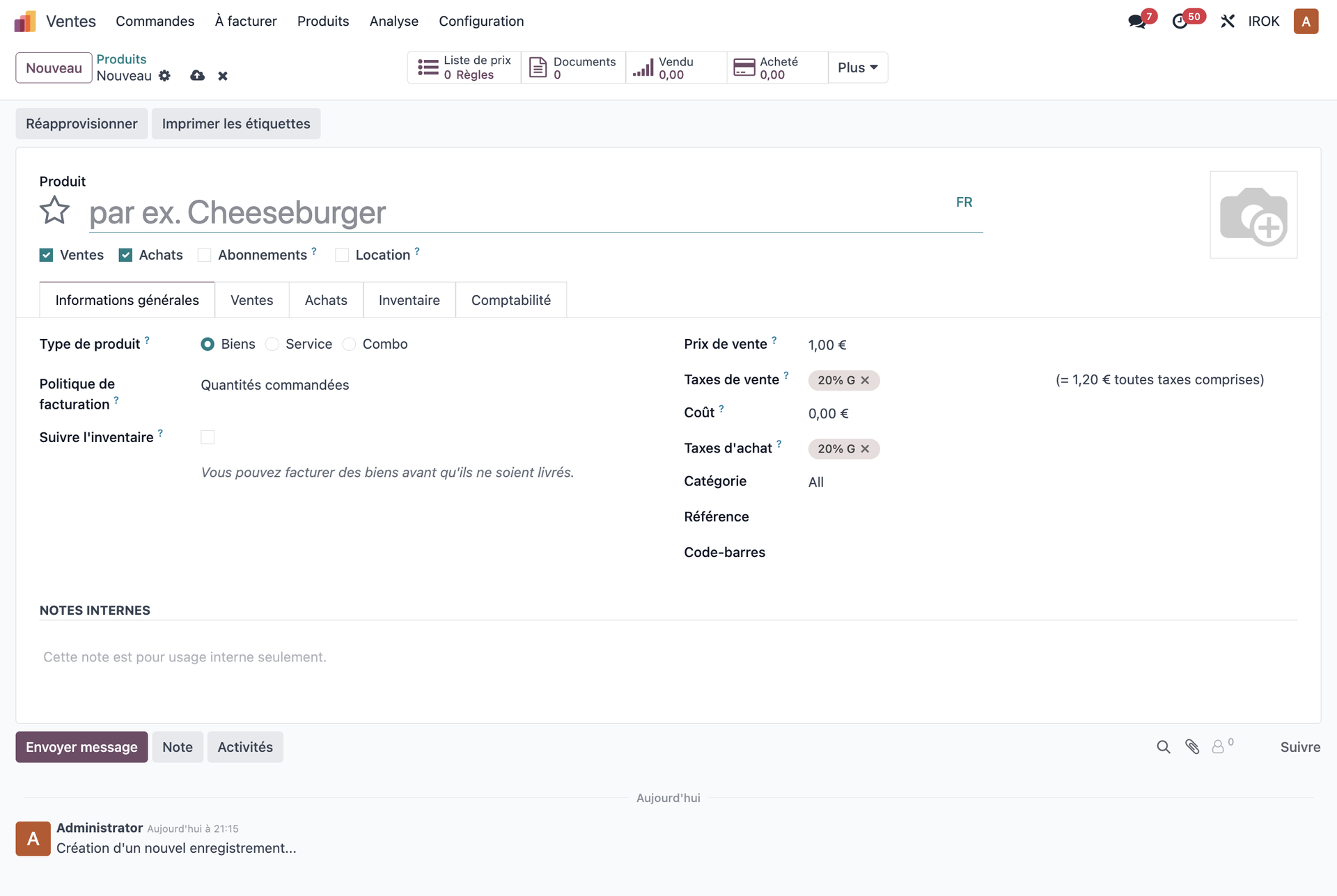
General information
The General tab holds the basic information of the product:
- Internal reference: the product's internal code.
- Barcode: an EAN13 or UPC-A code for scanning.
- Vendor Reference: the code used by your vendor.
- Category: a logical group for organising your products.
- Unit of Measure: the base unit (piece, kg, m and so on).
- Purchase unit of measure: if it differs from the base unit.
Tip
Well-organised product categories make navigation and analysis easier. Build a hierarchy that reflects your business.
Sales information
The Sales tab lets you configure:
- Sales Price: the list price of the product.
- Customer taxes: VAT or any other applicable tax.
- Sales description: the text that will appear on quotations.
- Available on Website: for online sales.
Sales price. You can define:
- a fixed standard price;
- pricing rules: quantity discounts, customer discounts and so on;
- specific pricelists, by region or by category of customer.
Purchase information
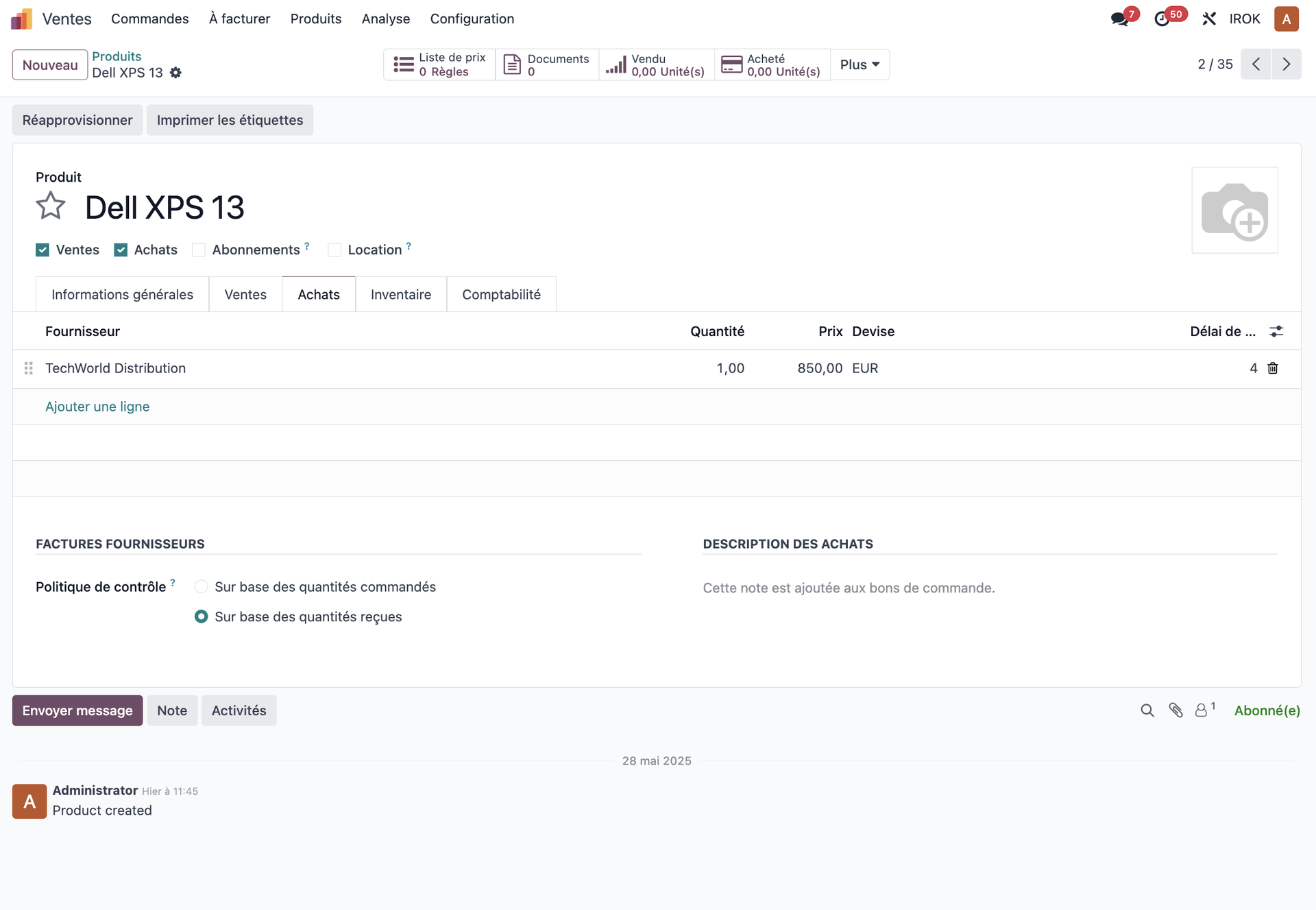
The Purchase tab lets you configure:
- Vendors: the list of vendors for this product.
- Purchase price: the supply cost.
- Vendor taxes: VAT or any other applicable tax.
- Purchase description: the text that will appear on purchase orders.
Inventory
For storable products, the Inventory tab lets you configure:
- Routes: the supply flows (purchase, manufacture and so on).
- Delivery Lead Time: the average delivery time.
- Minimum stock: the replenishment threshold.
- Reordering Rules: automation of purchasing.
- Stock Location: where the product sits in your warehouse.
Note
For storable products, make sure the minimum stock levels and the reordering rules are properly configured, to avoid shortages.
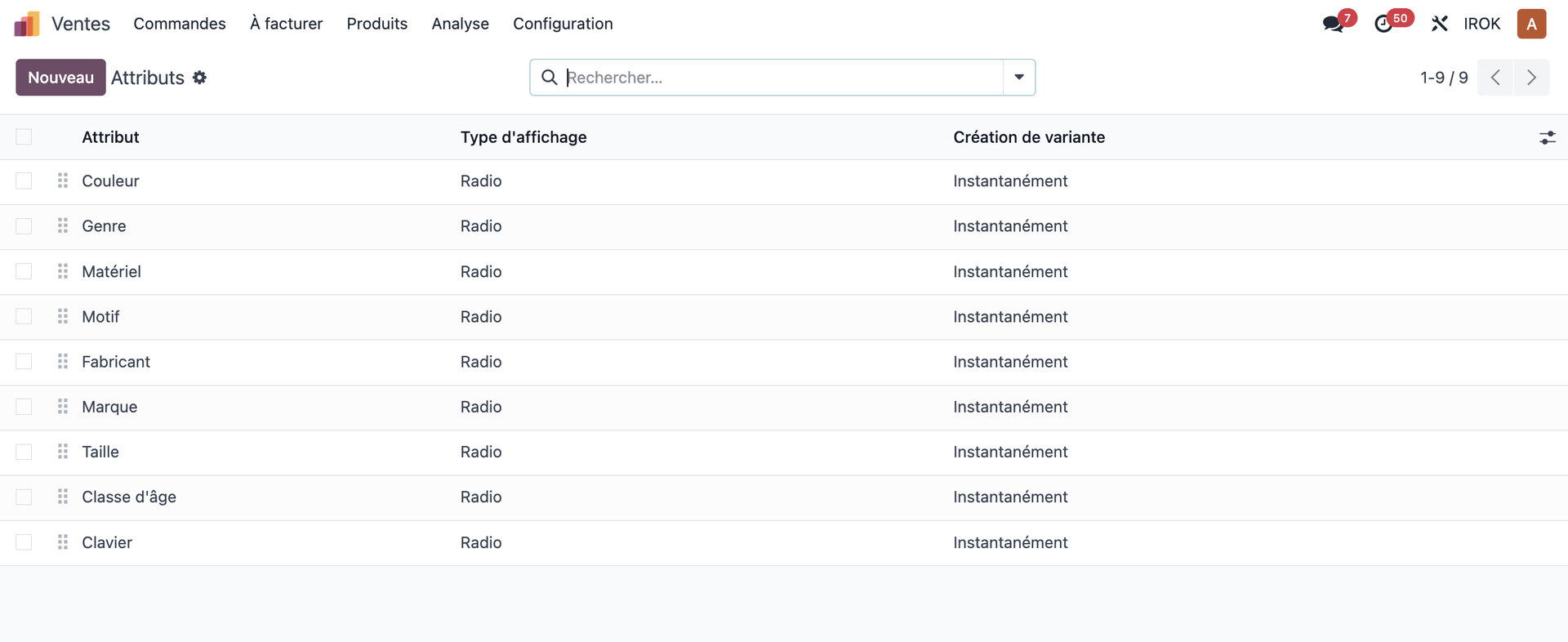
Handling product variants
The concept of variants
Odoo lets you handle several variants of the same base product (different sizes, colours and so on) without creating separate product records.
An example of variants. A t-shirt can have:
- several sizes: S, M, L, XL;
- several colours: white, black, red, blue.
That gives sixteen possible combinations, handled as variants of a single base product.
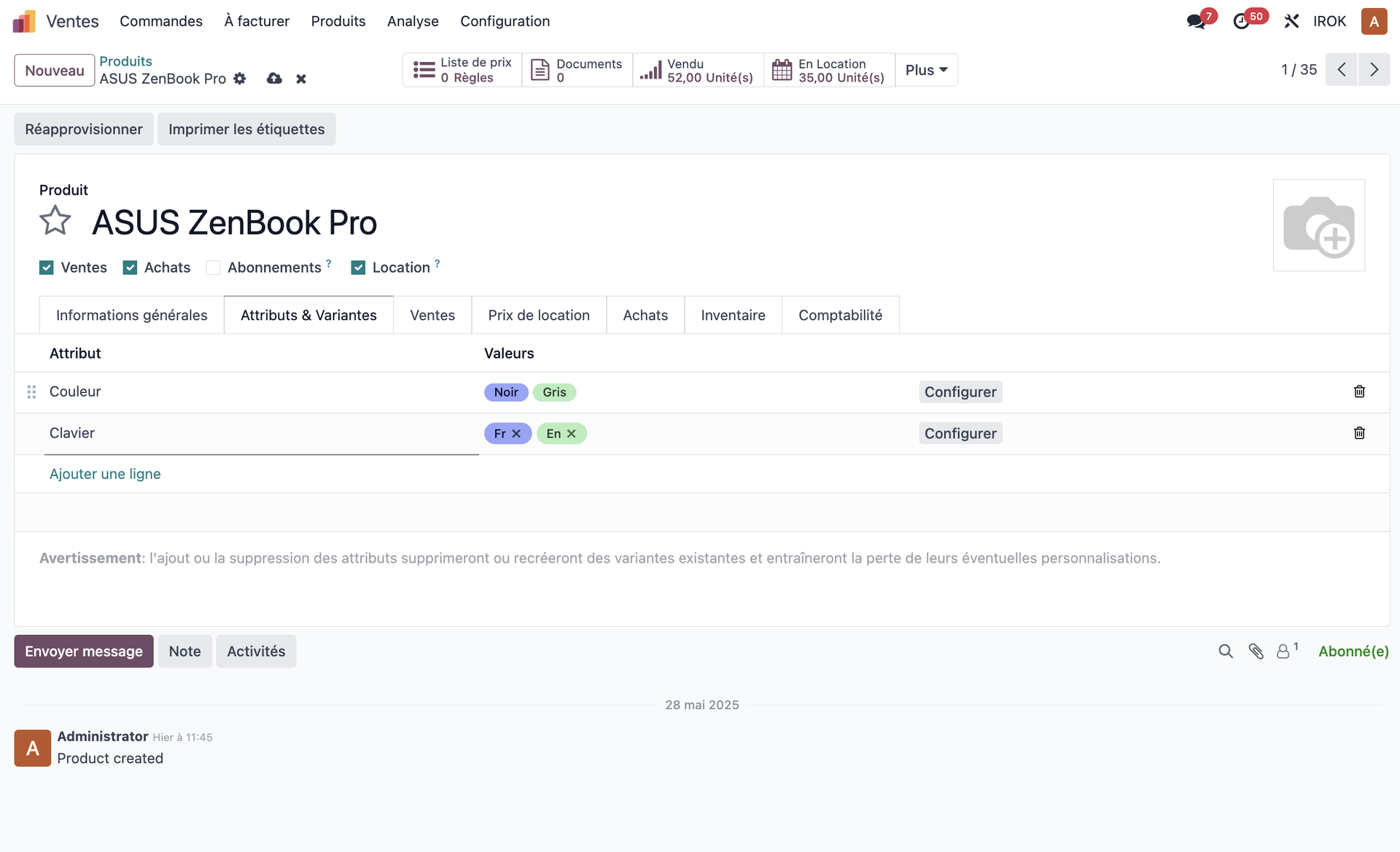
Configuring variants
To configure a product with variants:
- Create a new product.
- In the Attributes tab, click to add a line.
- Select or create an attribute, "Size" for instance.
- Add the possible values: "S", "M", "L", "XL".
- Repeat for each attribute: colour, material and so on.
- Odoo generates every possible combination automatically.
Tip
You can disable particular combinations if they are not available in your catalogue.
Organising the catalogue
Product categories
Categories let you organise your catalogue logically:
- Open Inventory › Configuration › Products › Product Categories.
- Build a hierarchy of categories and sub-categories.
- Assign each product to the appropriate category.
A recommended category structure:
- create main categories by type of product (Electronics, Furniture, Services and so on);
- add more specific sub-categories (Computers, Screens, Peripherals);
- use no more than three levels, to keep navigation fluid.
Using tags
Tags complement categories by allowing a cross-cutting classification:
- a product belongs to a single category but can carry several tags;
- tags can be used for temporary promotions, special characteristics and so on;
- they make filtering in searches easier.
Tip
Combine categories (a vertical classification) and tags (a horizontal one) for the best organisation of your catalogue.
Advanced pricing
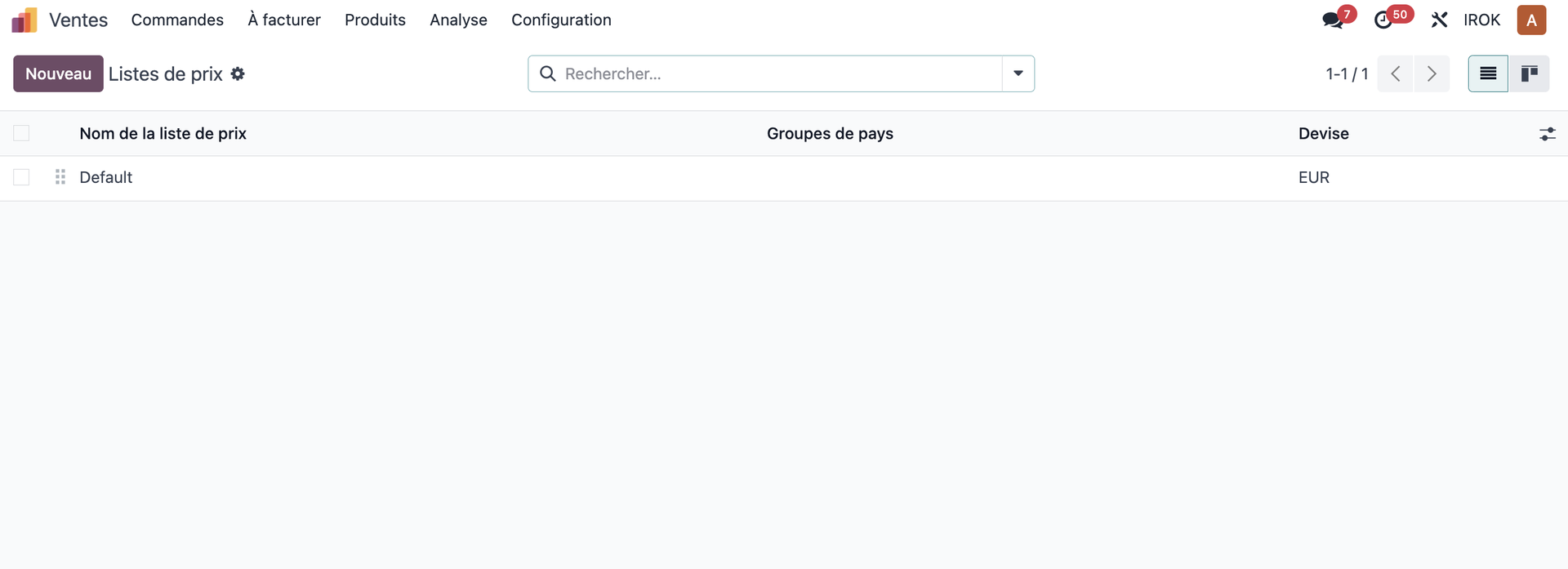
Pricelists
Odoo lets you handle several price structures:
- Open Sales › Products › Pricelists.
- Create the lists you need: retail, wholesale, export and so on.
- Define the calculation rules: a percentage discount, a fixed amount and so on.
- Assign those lists to the appropriate customers or categories of customer.
Examples of pricelists:
- list price: 100% of the standard price;
- reseller price: 80% of the standard price;
- wholesale price: 70% of the standard price plus a volume discount;
- promotional price: a temporary special price.
Quantity discounts
To configure discounts based on quantity:
- Open an existing pricelist.
- Add a pricing rule.
- Select the calculation method: percentage, fixed amount and so on.
- Set the minimum quantity that triggers the discount.
- You can create several discount breaks for the same product.
Tip
Quantity discounts encourage customers to increase their order volume. They work particularly well for consumables or for products bought repeatedly.
Handling costs
Costing methods
Odoo offers several methods for valuing stock:
- Standard cost: a fixed value set by hand.
- Average cost (AVCO): the weighted average of the purchase costs.
- FIFO: first in, first out.
- LIFO: last in, first out, not available in every country.
Note
The costing method must be consistent with your accounting practice and with the regulations of your country. Consult your accountant to choose the most suitable method.
Updating costs
To update the standard costs:
- Open the product concerned.
- In the Cost field, change the value.
- Save the changes.
- Odoo can generate an accounting entry to reflect that revaluation.
Specific products and services
Handling services
Services in Odoo can be handled in several ways:
- Basic services: defined with a fixed price.
- Time-based services: invoiced on the time spent.
- Subscription services: invoiced automatically on a recurring basis.
Configuring a time-based service:
- Create a product of type "Service".
- Enable time tracking in the Sales tab.
- Set the invoicing method: prepaid, on timesheets and so on.
- The hours spent can be tracked in the Project module.
Returnable items
For returnable packaging or containers:
- Create a separate product for the returnable item.
- Configure it as a storable product.
- Link it to the main product in the advanced settings.
- The system will handle the return flows automatically.
Note
Handling returnable items calls for specific configuration of the stock flows, so that returns and refunds are tracked correctly.
Importing products in bulk
To create many products quickly:
- Prepare a CSV or Excel file with your product data.
- Open the product list view.
- Click Import.
- Follow the import wizard to map the columns.
- Confirm and run the import.
Tip
Start by importing a small sample to check that the format is right, then run the full import once you are satisfied with the result.
Good practice and advice
Advice for handling products effectively:
- adopt a consistent naming convention for all your products;
- use internal references systematically, to make searching easier;
- structure your categories before you start creating many products;
- complete every description, to make your teams' work easier;
- attach good-quality images to your product records;
- review your costs regularly to keep your pricing relevant.
Note
The quality of your product catalogue has a direct effect on the efficiency of your sales, purchasing and logistics teams. An initial investment in a sound structure pays for itself many times over.