Project management
Introduction to project management in Odoo
Odoo's Project module offers a complete solution for planning, running and following your projects, whatever their size or complexity.
Overview
Project management in Odoo covers several key aspects:
- creating and organising projects;
- handling tasks and sub-tasks;
- allocating resources;
- tracking the time spent;
- invoicing projects;
- analysing performance.
Note
The Project module integrates with many other Odoo modules (Sales, CRM, Invoicing, Human Resources and others) for complete project management.
Configuring the Project module
Enabling and setting up
To start using the Project module:
- Install the module from Apps.
- Open Project › Configuration › Settings.
- Configure the options to suit your needs: - the default invoicing mode; - time tracking; - tags and stages; - integration with the other modules.
Types of project
Odoo can handle several types of project:
- internal projects: research and development, continuous improvement;
- billable customer projects;
- recurring projects: maintenance, support;
- agile projects: Scrum, Kanban.
Configuring a project
Creating a new project
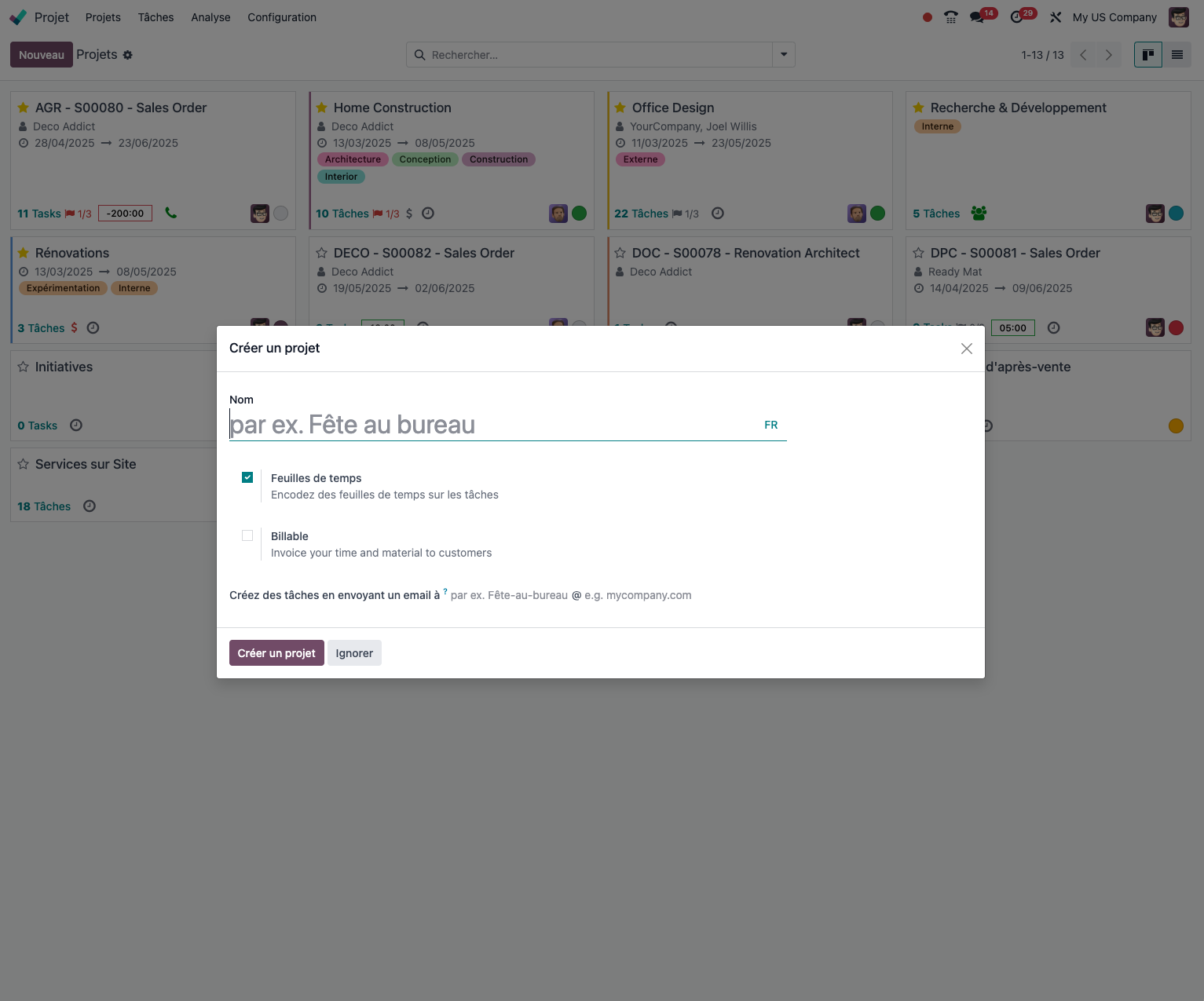
To create a project in Odoo:
- Open the Project application and click New.
- State the basic information: - the project name; - the customer, where applicable; - the planned start and end dates; - the project manager.
- Configure the specific settings: - the invoicing type, where applicable; - the project stages; - the visibility: internal, customer, public.
- Add the members of the project team.
- Save the project.
Project stages
Stages structure the life cycle of the tasks:
- Open Project › Configuration › Task Stages.
- Create the stages your method calls for: To Do, In Progress, Review, Done.
- Set the options for each stage: - the sequence, that is the order of the stages; - a colour, for easier reading; - the specific options: automatic closing, approval and so on.
- Assign the stages to the projects concerned.
Tip
Adapt the stages to your project management method. For an agile approach, use stages such as "Backlog", "Current sprint", "To test" and "Deployed".
Handling tasks
Creating tasks
To create and organise your tasks:
- Open the project concerned.
- Click New.
- Fill in the information: - the title and the description; - the assignee; - the due date; - the priority; - the tags.
- Add attachments where needed.
- Create sub-tasks to break the work down.
- Define the dependencies between tasks.
Organising the tasks
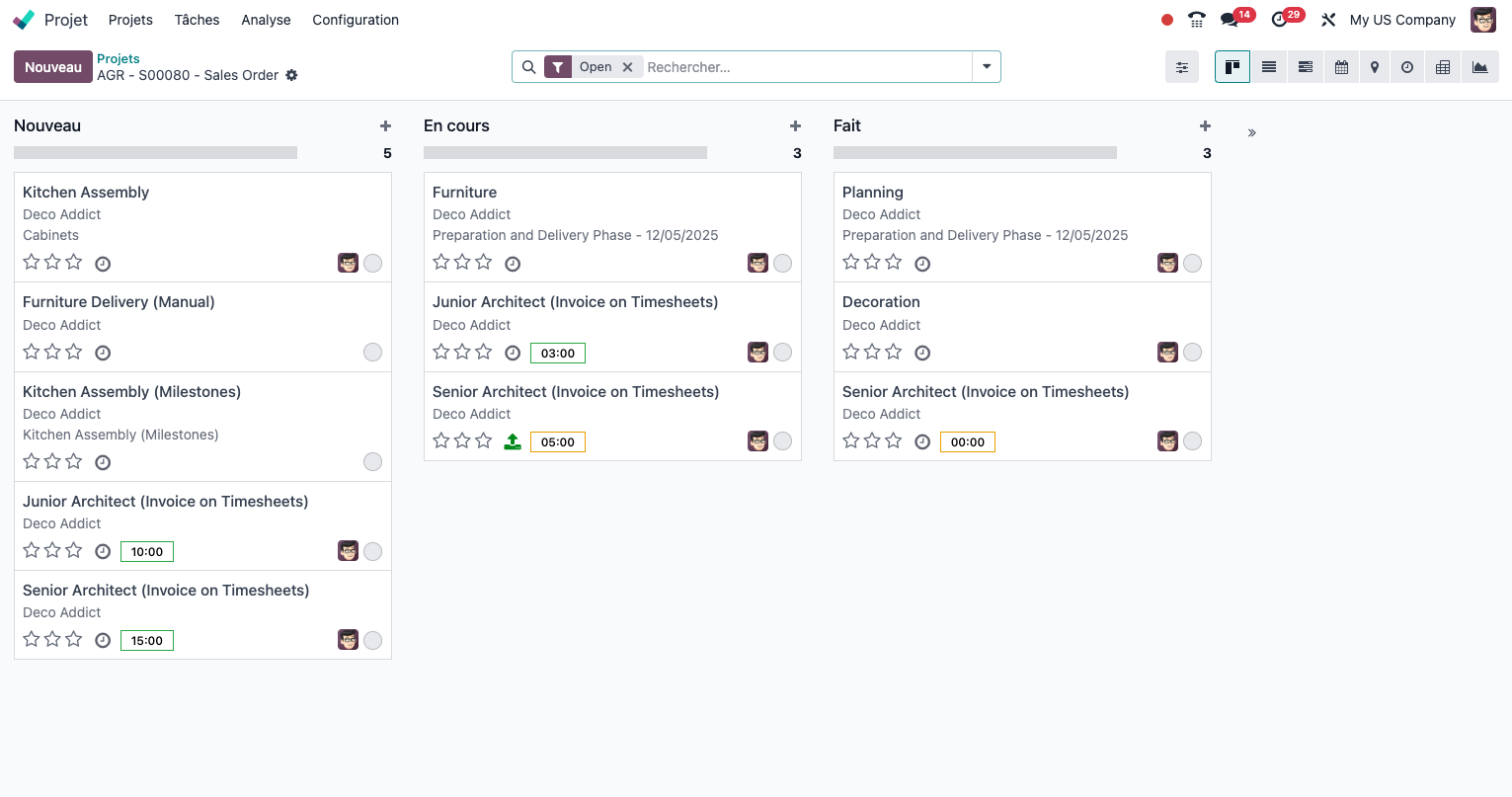
Several views are available for organising your tasks:
- Kanban view: tasks seen by stage.
- List view: the full list of tasks, with filtering.
- Calendar View: scheduling the tasks in time.
- Gantt view: dependencies and the critical path.
- Pivot view: multi-dimensional analysis of the tasks.
Note
The Gantt view is available in the Enterprise edition of Odoo and gives an effective picture of the dependencies between tasks and of the overall schedule.
Tracking time and invoicing
Timesheets
To track the time spent on tasks:
- Enable time tracking in the project settings.
- Team members can log their time in two ways: - directly from the task, with the start button; - through the Timesheets module, entering the hours afterwards.
- Managers can validate the timesheets.
- The data is then available for analysis and for invoicing.
Invoicing modes
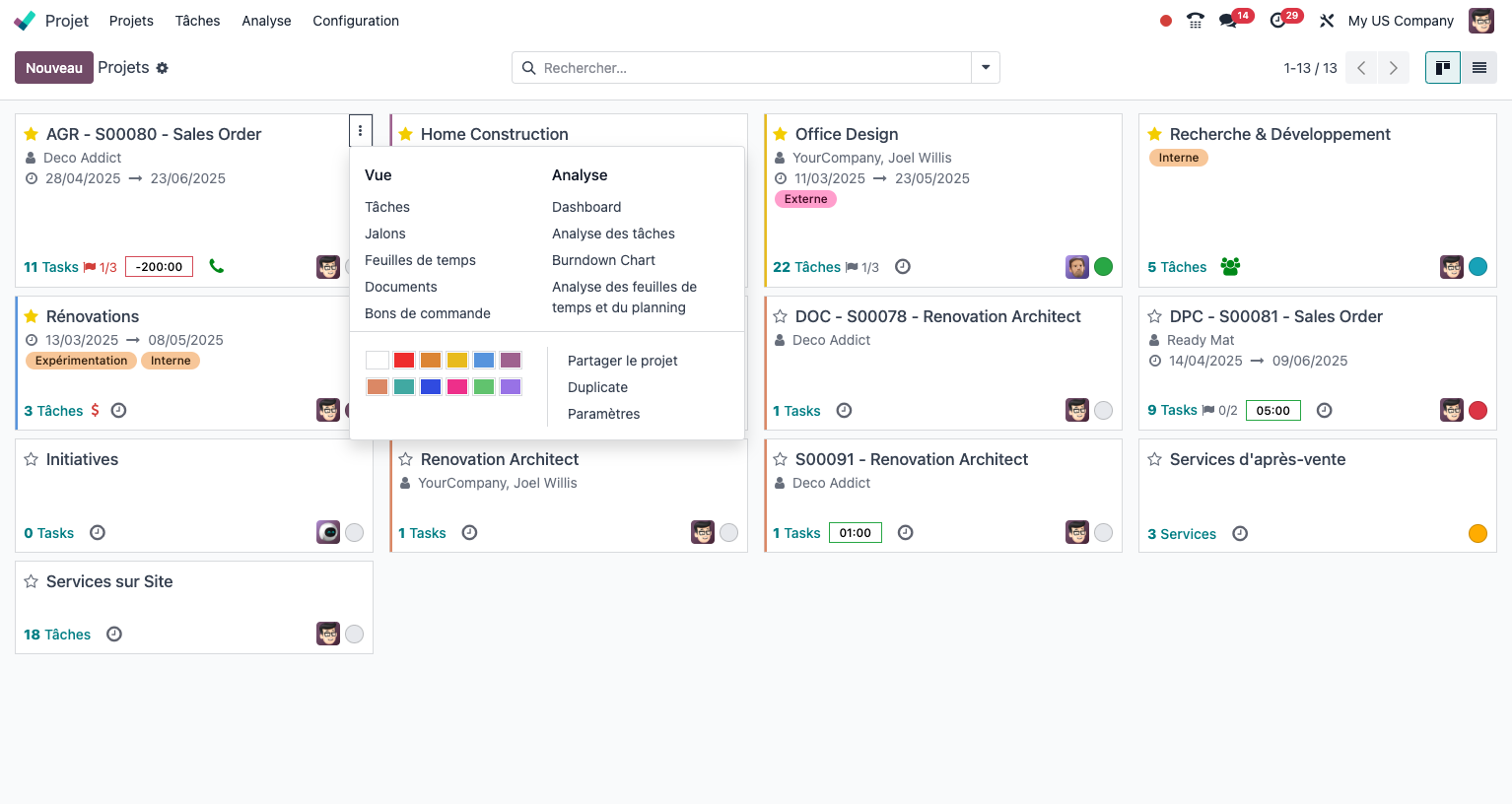
Odoo offers several invoicing modes for customer projects:
- Invoicing on time spent: billing based on the hours logged.
- Fixed-price invoicing: a fixed amount for the whole project.
- Invoicing from the quotation: billing based on the quotation lines.
- Subscription invoicing: recurring billing for continuing services.
Tip
For projects combining several invoicing modes, you can configure specific rules by task or by tag.
Collaboration and communication
Internal communication
Odoo makes communication within the project team straightforward:
- use internal comments on the tasks;
- schedule activities with reminders;
- share the documents tied to the project;
- use the built-in instant messaging.
Communication with customers
To involve your customers in following the projects:
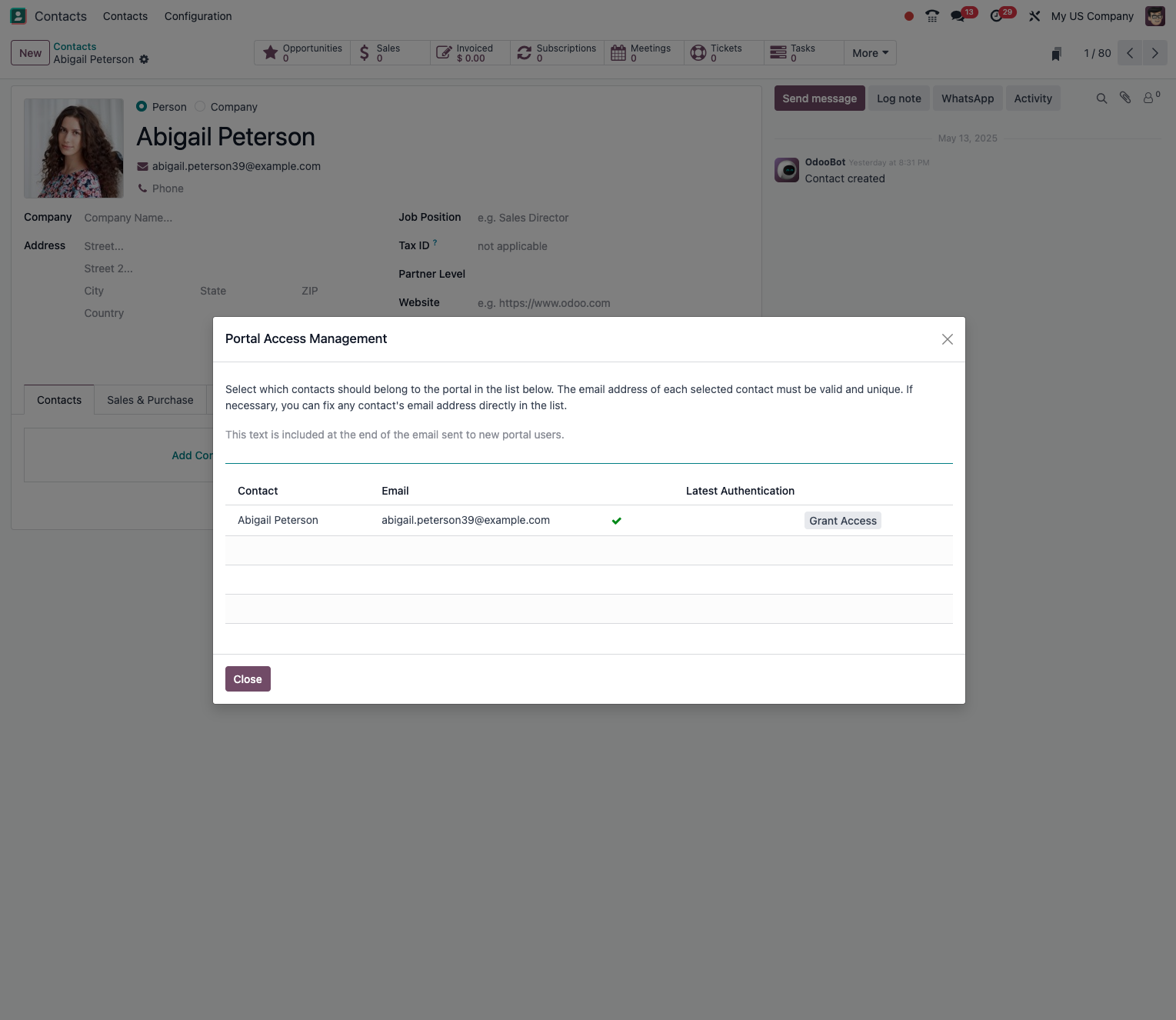
- Enable the customer portal.
- Give the customer access to their project.
- The customer can then: - follow the progress of the project; - comment on the tasks; - approve the deliverables; - reach the shared documents.
Reporting and analysis
Dashboards
Odoo offers several dashboards for steering your projects:
- an overview of the active projects;
- the workload by user;
- the progress of projects and tasks;
- project profitability.
Custom reports
You can build tailored reports:
- Open Project › Reporting.
- Use the filters and groupings available.
- Save your custom views.
- Export the data for outside analysis.
Tip
Use the pivot view to analyse your projects along several dimensions (customer, type of project, manager) and measures (planned against actual hours, profitability).
Project management methods
The traditional approach
For traditional project management:
- structure your project into distinct phases;
- set clear milestones between the phases;
- use the dependencies between tasks;
- follow the schedule through the Gantt chart.
The agile approach
For agile project management:
- configure the stages according to your framework: Backlog, Sprint, Done;
- use tags for the user stories and the epics;
- run sprints with the Scrum module (Enterprise);
- use the kanban view for the daily stand-ups.
Note
The Scrum module in Odoo Enterprise supports the method in full, with handling of the product backlog, the sprints and the burndown charts.
Advanced features
Project budgeting
To follow the budget of your projects:
- set a forecast budget;
- follow the actual costs: time, purchases, expenses;
- analyse the variances;
- raise alerts when the budget is exceeded.
Resource management
To make the best use of your resources:
- see the workload by resource;
- identify the overloads and the spare capacity;
- reallocate the tasks where needed;
- anticipate the resources you will need.
Risk management
With risk management:
- identify the potential risks;
- assess their impact and their likelihood;
- define action plans;
- follow how the risks develop.
Integration with the other modules
The Project module integrates naturally with:
- Sales: automatic creation of projects from quotations.
- CRM: converting opportunities into projects.
- Human Resources: handling leave and availability.
- Purchase: following the purchases tied to the projects.
- Expenses: charging expenses to the projects.
- Invoicing: generating the invoices automatically.
- Documents: centralised handling of the project documents.
Note
This native integration keeps the data consistent across the whole system and avoids re-entry.