Inventory
Relation with the exercise book
This chapter matches Step 5 of the exercise book: configuring the inventory, in particular three-step receipts (receive, quality control, put in stock) and two-step shipping (pick and ship).
Introduction to inventory
Odoo's Inventory module lets you:
- track stock levels accurately;
- handle goods receipts and deliveries;
- carry out physical stocktakes;
- organise your warehouse with locations;
- plan replenishment;
- analyse the valuation of your stock.
Note
Running stock well is crucial to avoid shortages, to limit overstocking and to make the best use of your cash.
Initial configuration
Inventory settings
To configure the module to suit your needs:
- Open Inventory › Configuration › Settings.
- Enable the features you need: - Multi-warehouse: if you run several storage sites. - Multi-Step Routes: for complex receipt and shipping processes. - Lots & Serial Numbers: for product traceability. - Storage Locations: for a fine-grained organisation of the warehouse. - Packaging: to handle packagings. - Quality: for checks before storage.
- Save the settings.
Note
The multi-step configuration requires the Multi-Step Routes option to be enabled in the Inventory settings. That feature matters particularly to businesses with strict quality requirements or complex logistics.
Warehouse structure
Configuring warehouses
To define your storage spaces:
- Open Inventory › Configuration › Warehouse Management › Warehouses.
- For each warehouse, configure: - the name and the short code; - the address; - the person responsible.
- Save the information.
Structure of the locations
Structure your storage space logically:
- Open Inventory › Configuration › Warehouse Management › Locations.
- Build a consistent hierarchy of locations: - a receiving location; - a quality control location; - main storage, with sub-locations: aisles, shelves and so on; - a shipping location; - special locations: returns, quarantine and so on.
Tip
A consistent naming scheme for your locations (ZONE-AISLE-SHELF-LEVEL for instance) makes navigation and picking considerably easier.
Configuring stock operations
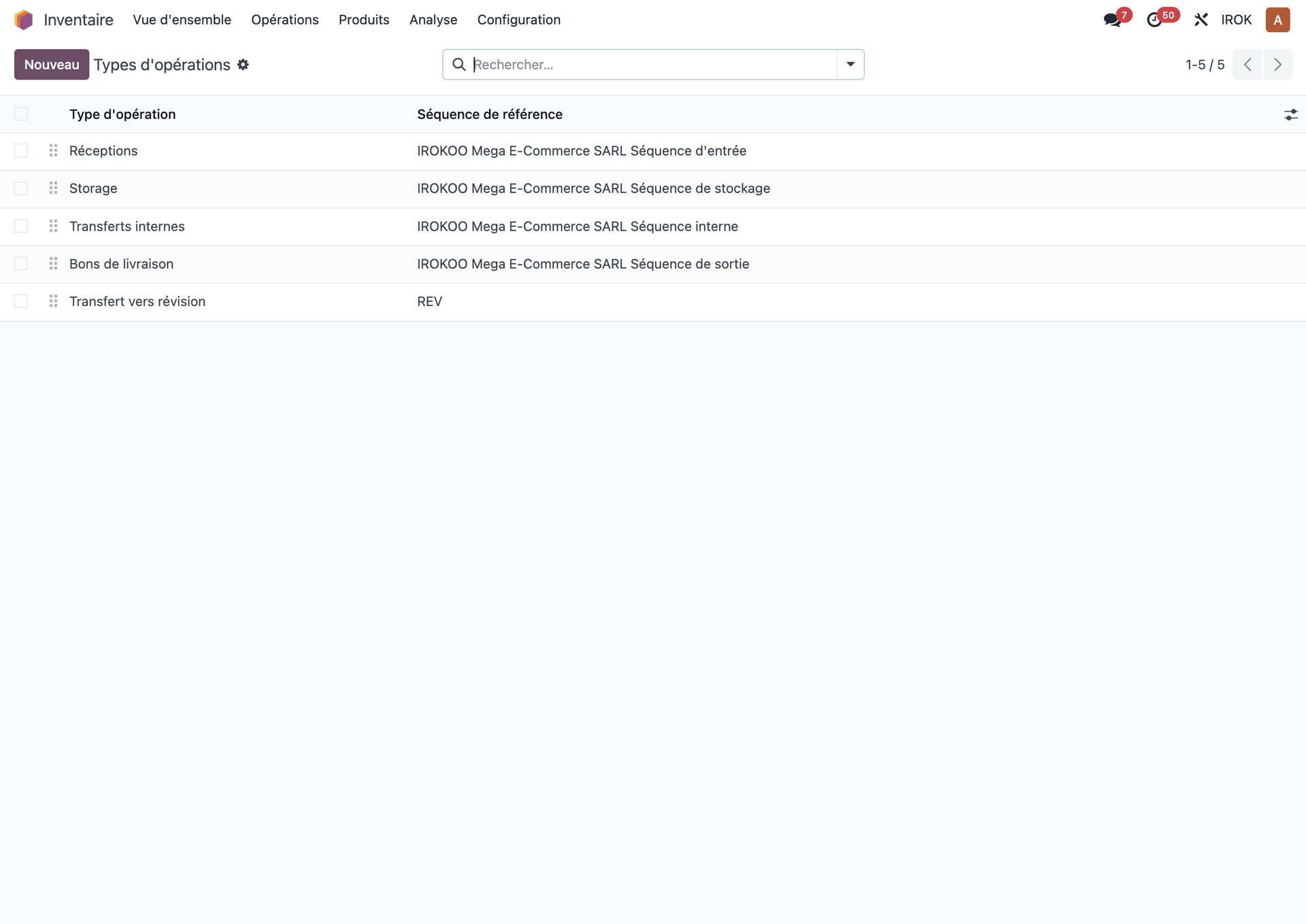
Operation types
Operation types define how products move through your warehouse:
- Open Inventory › Configuration › Warehouse Management › Operations Types.
- Configure the three-step receipt operations: - initial receipt, into the receiving location; - quality control; - transfer into final storage.
- Configure the two-step delivery operations: - picking; - shipping.
Configuring multi-step flows
To put a three-step receipt process in place:
- Open Inventory › Configuration › Warehouse Management › Warehouses.
- Select the warehouse to configure.
- In the Configuration tab, set: - incoming: Receive, Quality Control, then Store (3 steps); - outgoing: Pick then Deliver (2 steps).
- Save the changes.
- Odoo automatically creates the matching operation types and rules.
Receiving goods
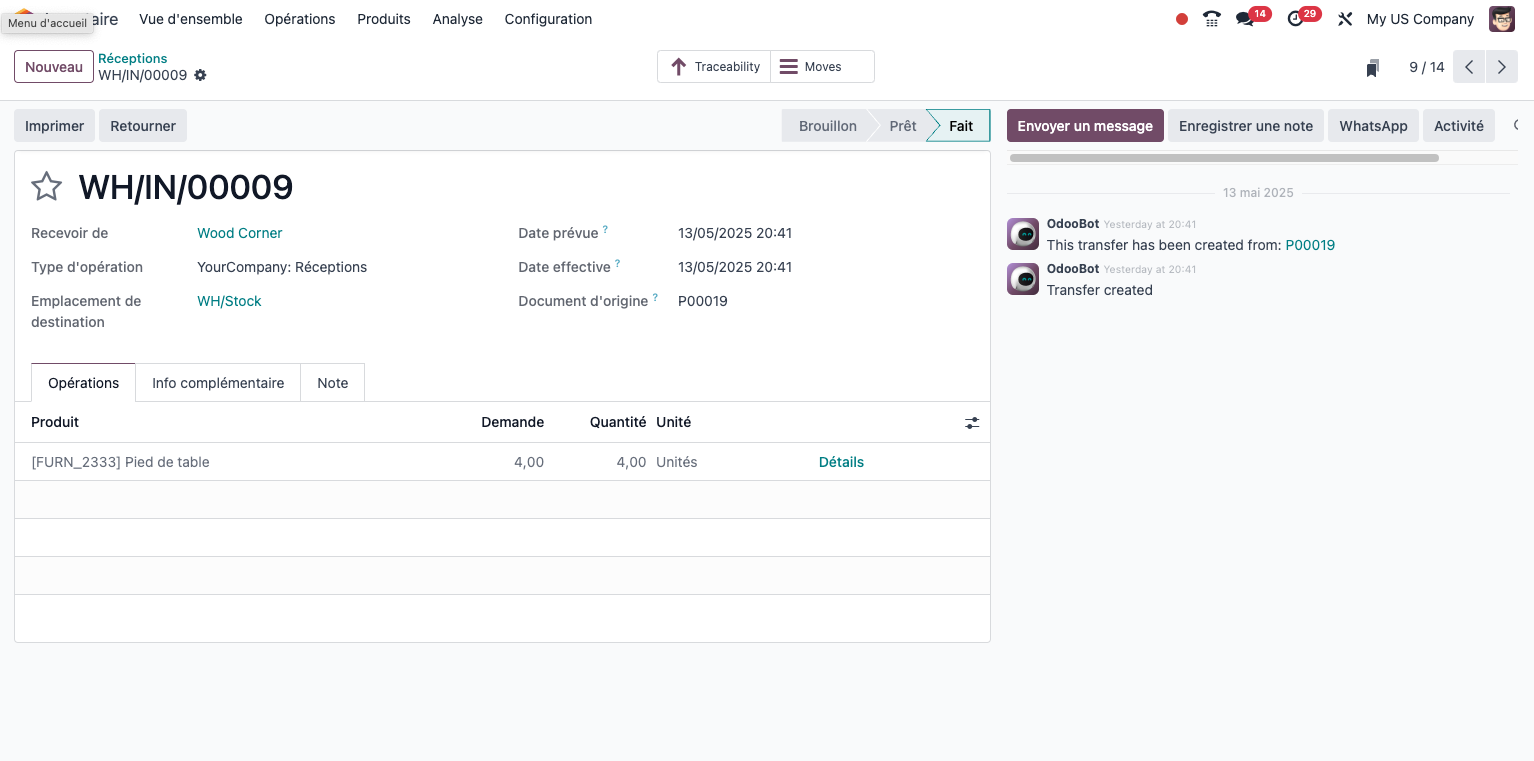
The three-step receipt process
Here is how the complete receipt process works:
- Step 1: initial receipt. - The goods arrive at the warehouse. - The receipt is recorded in Odoo, with the gross quantities. - The products are placed in the inbound location.
- Step 2: quality control. - Transfer to the quality control location. - Detailed checking of the products against the criteria set. - Where goods do not conform, a return or quarantine process.
- Step 3: storage. - The approved products are transferred to their final storage locations. - The quantities available for sale are updated. - The receipt process is closed.
Delivering products
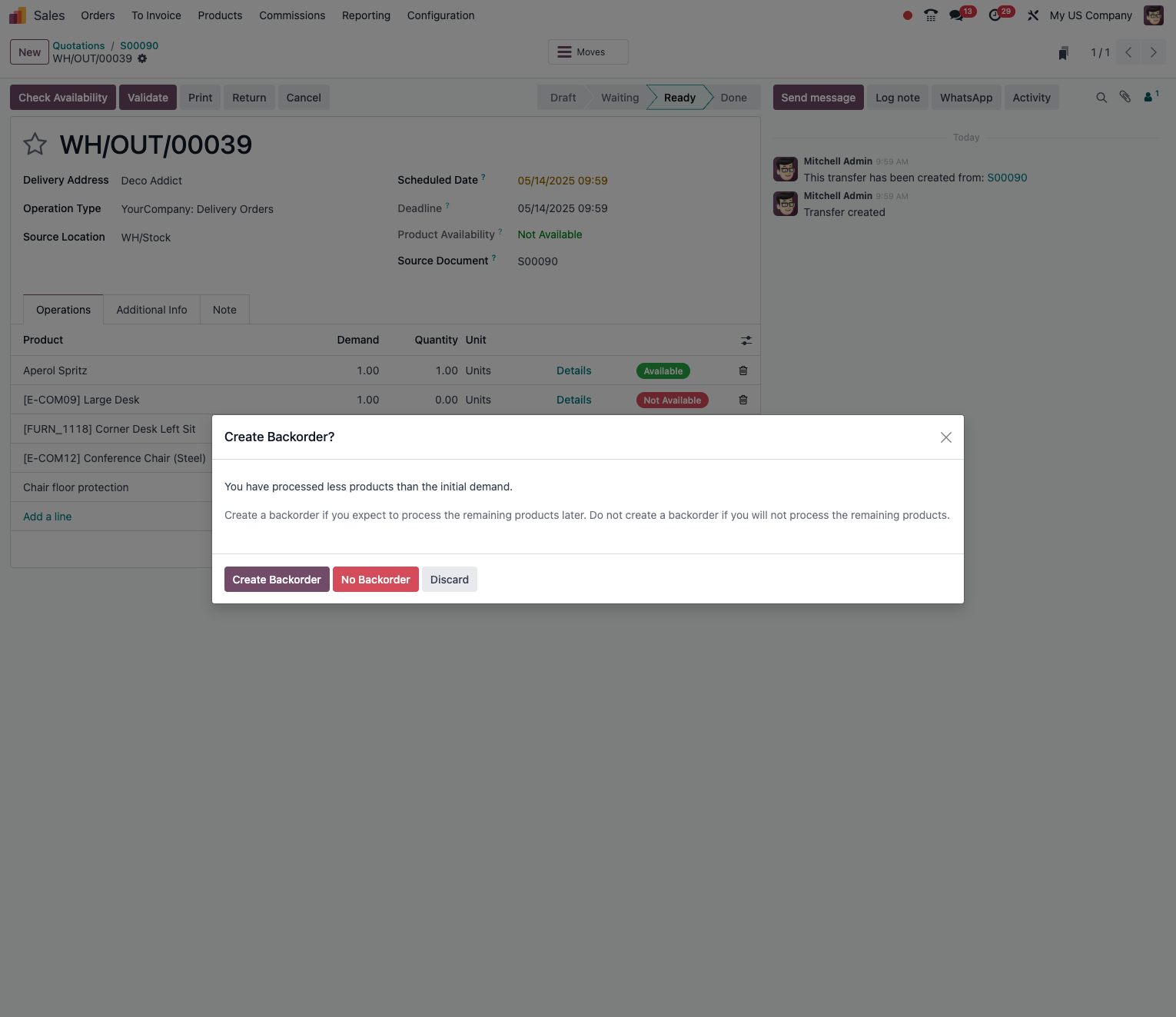
The two-step shipping process
The shipping process runs as follows:
- Step 1: picking. - A picking order is generated from the sales orders. - The products are collected from the storage locations. - They are gathered in the outbound location.
- Step 2: delivery. - The products are packed. - The shipping documents are prepared. - The goods are loaded and sent to the customer.
Tip
Use picking waves to shorten the walking in the warehouse, by grouping several orders into a single collection round.
Reordering rules
Configuring automatic rules
To keep stock at the right level:
- Open Inventory › Operations › Procurement › Replenishment.
- Create a new rule, setting: - the product concerned; - the minimum quantity, the trigger threshold; - the maximum quantity, the target level; - the order multiple, for instance ordering in boxes of ten; - the estimated lead time.
- Enable the automatic option to generate purchase proposals with no manual step.
Note
Well-set reordering rules avoid both stock-outs and excessive capital tied up in inventory.
Physical stocktakes
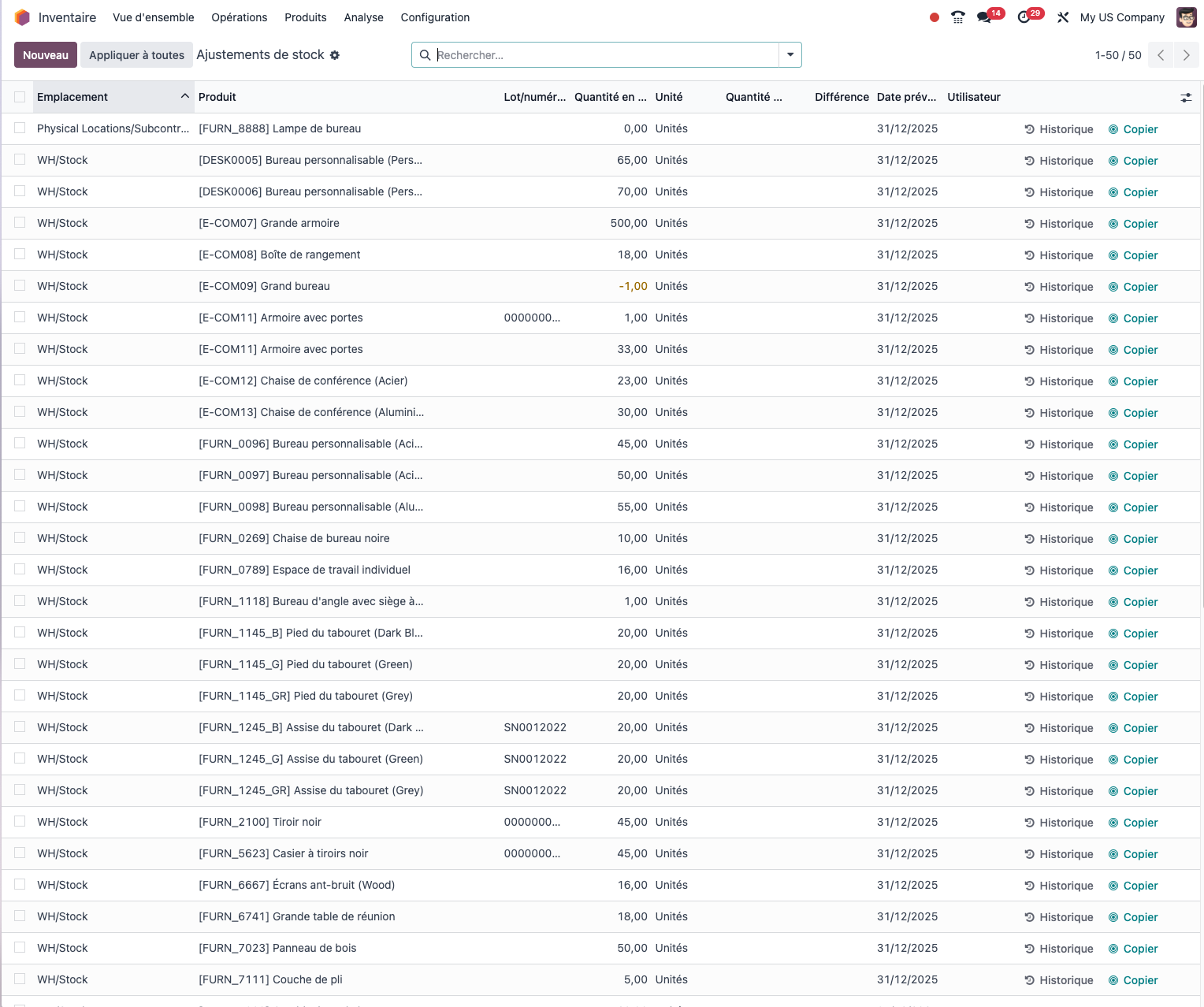
Carrying out a stocktake
To check and adjust your stock levels:
- Open Inventory › Operations › Adjustments › Physical Inventory.
- Create a new count, setting: - the name and the planned date; - the products concerned, all of them or a selection; - the locations to count.
- Start the count.
- Count the products physically.
- Enter the actual quantities counted.
- Validate the count to adjust the stock automatically.
Product traceability
Handling lots and serial numbers
To track your products precisely:
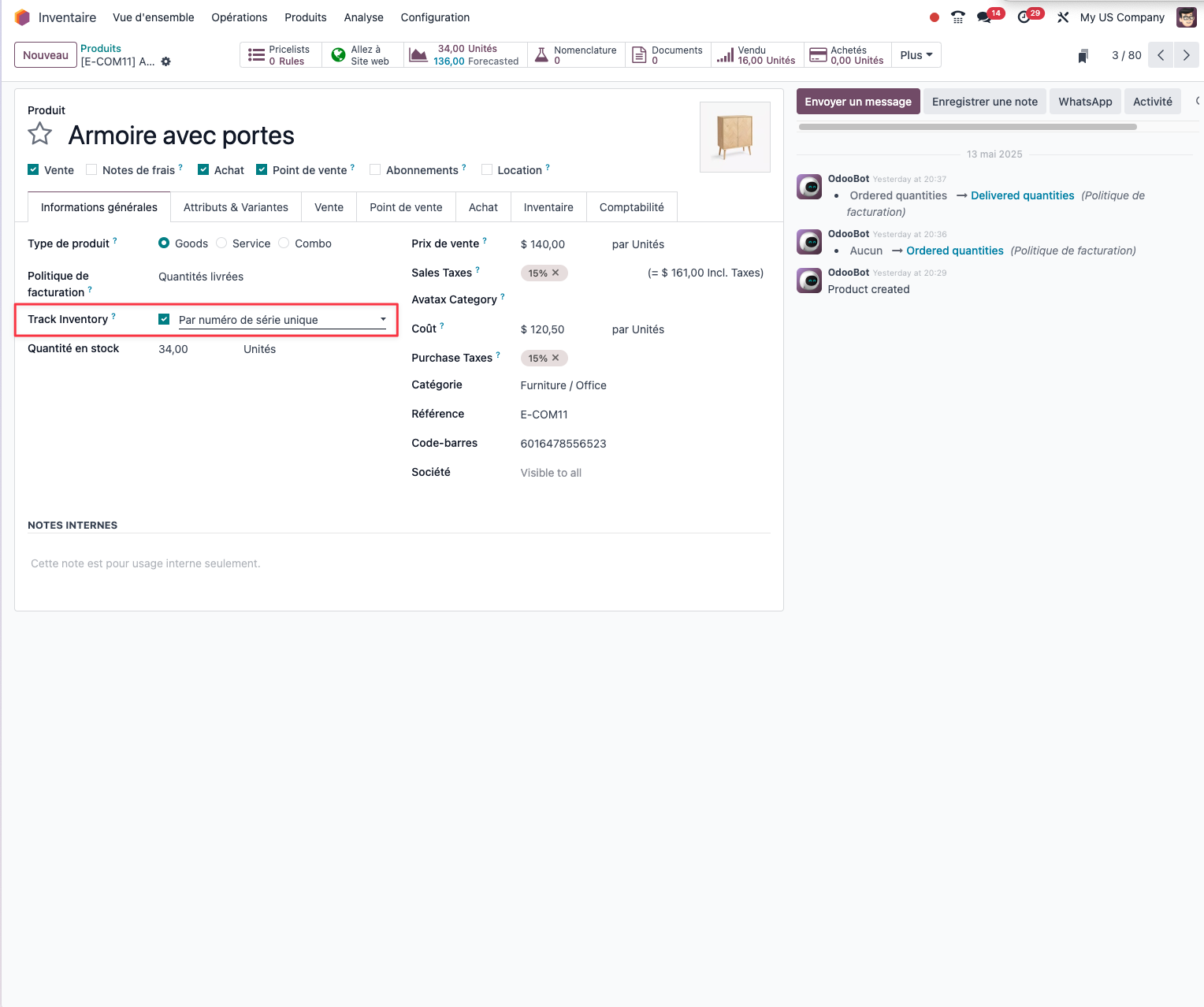
- Configure traceability on the product record: - By Lots: for products made or received in groups; - By serial numbers: for products tracked one by one.
- During stock operations: - assign or create lot or serial numbers on receipt; - state the lots or serials on moves and shipments; - follow the full history through Inventory › Reporting › Moves History.
Tip
Traceability by lot or serial number is essential in regulated industries (food, pharmaceutical, aerospace) and makes handling potential recalls easier.
Reports and analysis
To analyse how you run your stock:
- Stock valuation: the financial value of your inventory.
- Stock Moves: the detailed history of every transaction.
- Forecast: a forward view of future stock levels.
- Performance: an analysis of turnover and of logistics efficiency.
Note
Reviewing those reports regularly will show you where your supply chain can be improved.
Key points for running inventory well
- define a clear and consistent warehouse structure;
- configure the multi-step flows carefully to match your processes;
- put reordering rules in place suited to each category of product;
- carry out regular counts, ideally on a rolling basis;
- use traceability for critical or regulated products;
- review the performance of your stock management regularly.
Tip
The quality of your stock management depends as much on the operational processes as on their configuration in Odoo. Make sure your teams are properly trained in the procedures defined.