CRM: from lead to won quotation
Relation with the exercise book
This chapter matches Step 2 of the exercise book: setting up the CRM and handling opportunities. It gives you the theoretical concepts you need to understand how to run your sales pipeline, from first contact through to conversion into a quotation.
Introduction to the CRM
What is the CRM in Odoo?
Odoo's CRM (Customer Relationship Management) module lets you:
- organise your sales activity;
- follow leads and convert opportunities;
- run your sales pipeline;
- plan and follow your sales activities;
- analyse the performance of your teams;
- obtain accurate sales forecasts.
Note
Odoo's CRM is fully integrated with the other modules, notably contacts, sales and marketing, which gives a 360-degree view of your customers.
Configuring the CRM
General settings
To configure the CRM to suit your needs:
- Open CRM › Configuration › Settings.
- Enable the relevant features: - Leads, for handling unqualified prospects; - Multi Teams, if you have several sales teams; - Predictive Lead Scoring, to score your prospects automatically; - Lead Enrichment, to complete the information automatically.
- Save the settings.
The sales pipeline
The pipeline represents the stages of the sales process. Each stage matches a key moment of your sales cycle.
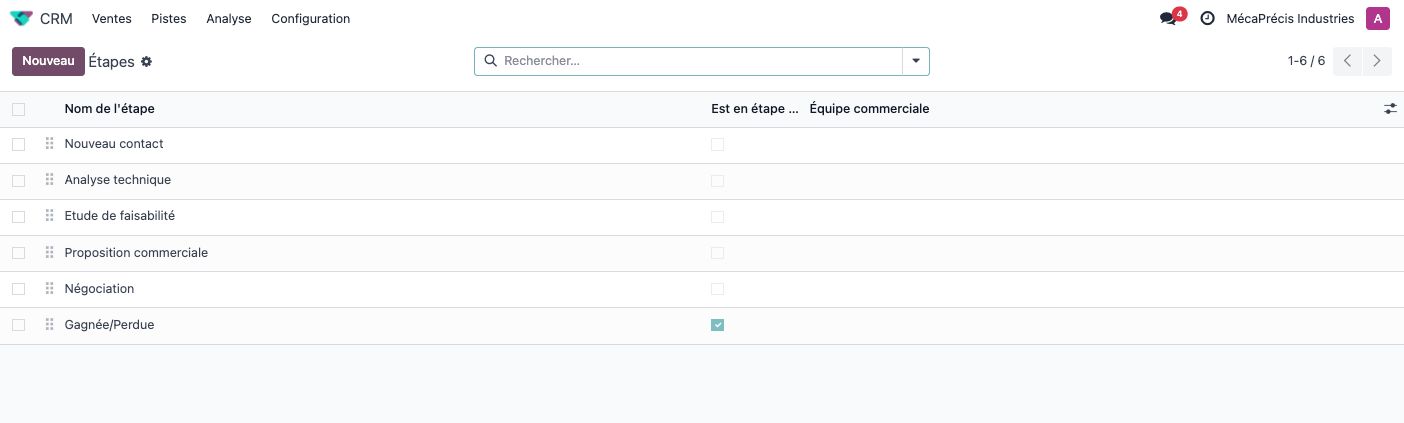
- Open CRM › Configuration › Pipeline › Stages.
- Define the stages that suit your sales cycle: - New: first contact with the prospect; - Qualified: qualified prospect with an identified need; - Proposition: quotation or proposal sent; - Negotiation: discussion of the terms; - Won: opportunity secured.
- For each stage, configure: - Stage Name: the label that will appear in the pipeline; - Sequence: the display order of the stages, a lower number coming earlier; - Is Won Stage?: tick this if the stage represents a successful sale; - Folded in Pipeline: to hide the stage in the kanban view when it is empty; - Sales Team: assignment to a specific team, optional; - Requirements: a description of the criteria for reaching this stage.
Tip
Stages marked as won let Odoo compute your conversion rates and realised revenue automatically in the reports.
Handling leads and opportunities
Creating a lead
To record a new prospect:
- Open CRM › Leads.
- Click New.
- Fill in the essential information: - the name of the lead, that is the subject of the opportunity; - the contact and the company concerned; - the source of the lead: website, trade show, referral and so on; - email and phone; - the sales team and the salesperson responsible; - tags, to classify it.
- Save the lead.
Qualification and conversion
To convert a lead into an opportunity:
- Open the lead concerned.
- Once it is qualified, click Qualify.
- Choose the appropriate action: - create an opportunity; - merge with an existing opportunity; - create a customer.
- Confirm the conversion.
Tip
Conversion turns a lead (a potential contact with limited information) into a more concrete opportunity with identified business potential.
Handling opportunities
To follow your opportunities and move them forward:
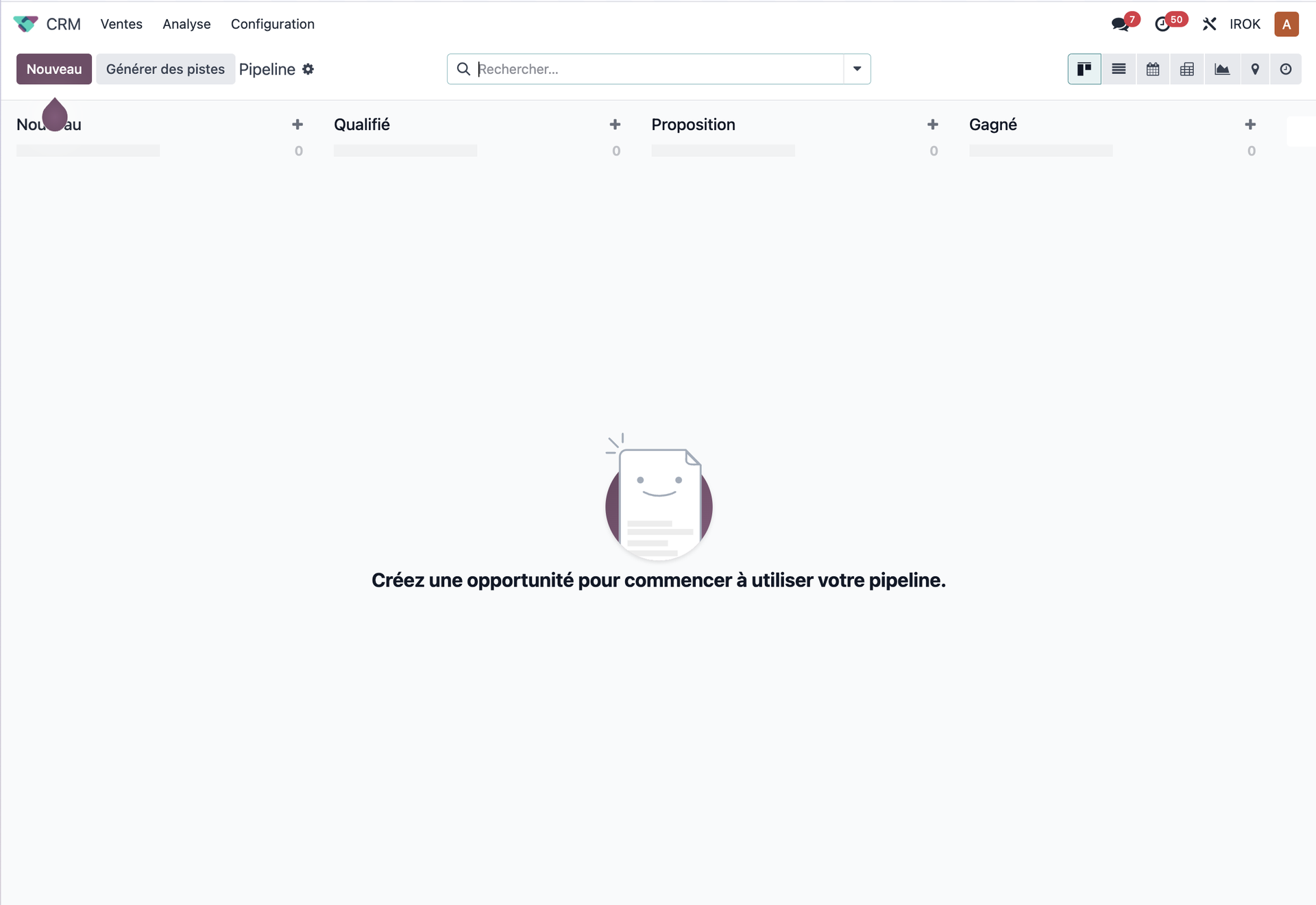
- Open the CRM module: you land directly on the kanban view.
- By default the My Pipeline filter is active and displays your opportunities.
- The opportunities are organised in columns matching the sales stages.
- To move an opportunity forward: - drag the card to the next stage; - or open the opportunity and change the Stage field.
- For each opportunity, keep up to date: - the expected revenue; - the expected closing date; - the planned activities; - the notes and the communications.
- Use the other filters available to see: - All opportunities: the overall view of the team; - My Activities: opportunities with activities to handle; - custom filters, to suit your needs.
Sales activities
Planning activities
To organise your sales actions you have several routes.
From a single opportunity:
- Open the opportunity concerned.
- In the chatter, the communication area, click Activities.
- Click Schedule Activity.
- Select the type of activity: - phone call; - meeting; - email; - to-do.
- Set a due date.
- Assign the activity to a user.
- Add a descriptive note.
- Schedule the activity.
From the overall Activities view:
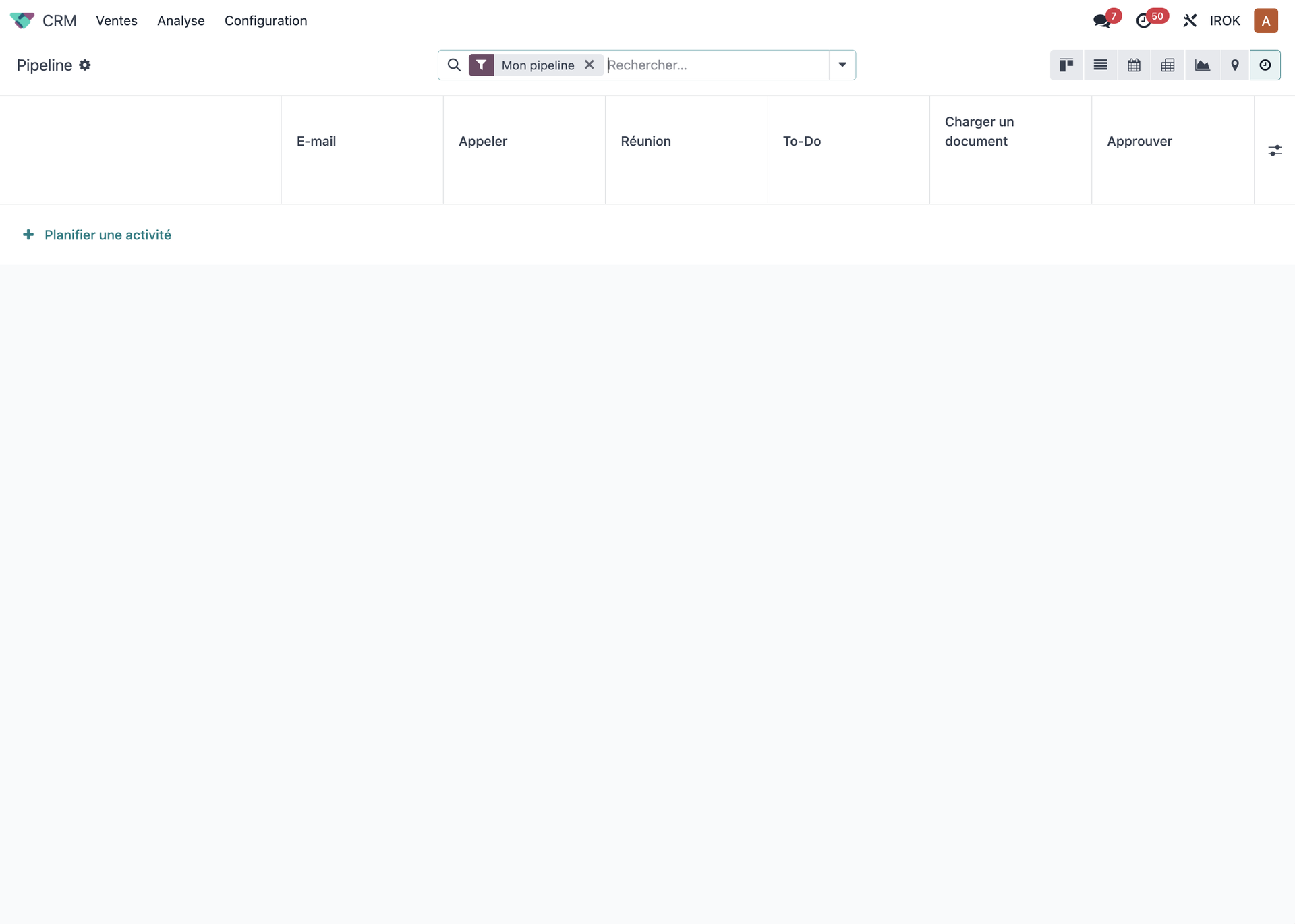
- In the CRM module, click the Activities icon in the view switcher.
- That view is one of Odoo's standard views, like List, Kanban or Calendar.
- It displays the opportunities organised by type of planned activity.
- The columns represent the different types of activity: email, call, meeting, to-do and so on.
- To plan a new activity: - click Schedule Activity under an opportunity; - or use the button at the foot of the column.
- To handle the existing activities: - drag an opportunity from one column to another to change the type of activity; - click an opportunity to see the detail and mark the activity as done; - use the filters to see your own activities or those of your team.
Following activities
The Activities view lets you see and handle all your sales activities in an organised way:
- In the CRM module, select the Activities view, the clock icon.
- The opportunities are organised in columns by type of activity.
- Each column represents a specific type of activity: email, call, meeting, to-do and so on.
- To handle an activity: - click the opportunity to open its detail; - mark the activity as done in the chatter; - plan the next activity if needed.
- Use drag and drop to move an opportunity to another type of activity.
- The "My Pipeline" filter lets you see your own activities only.
Analysing sales performance
The CRM dashboard
To analyse sales activity:
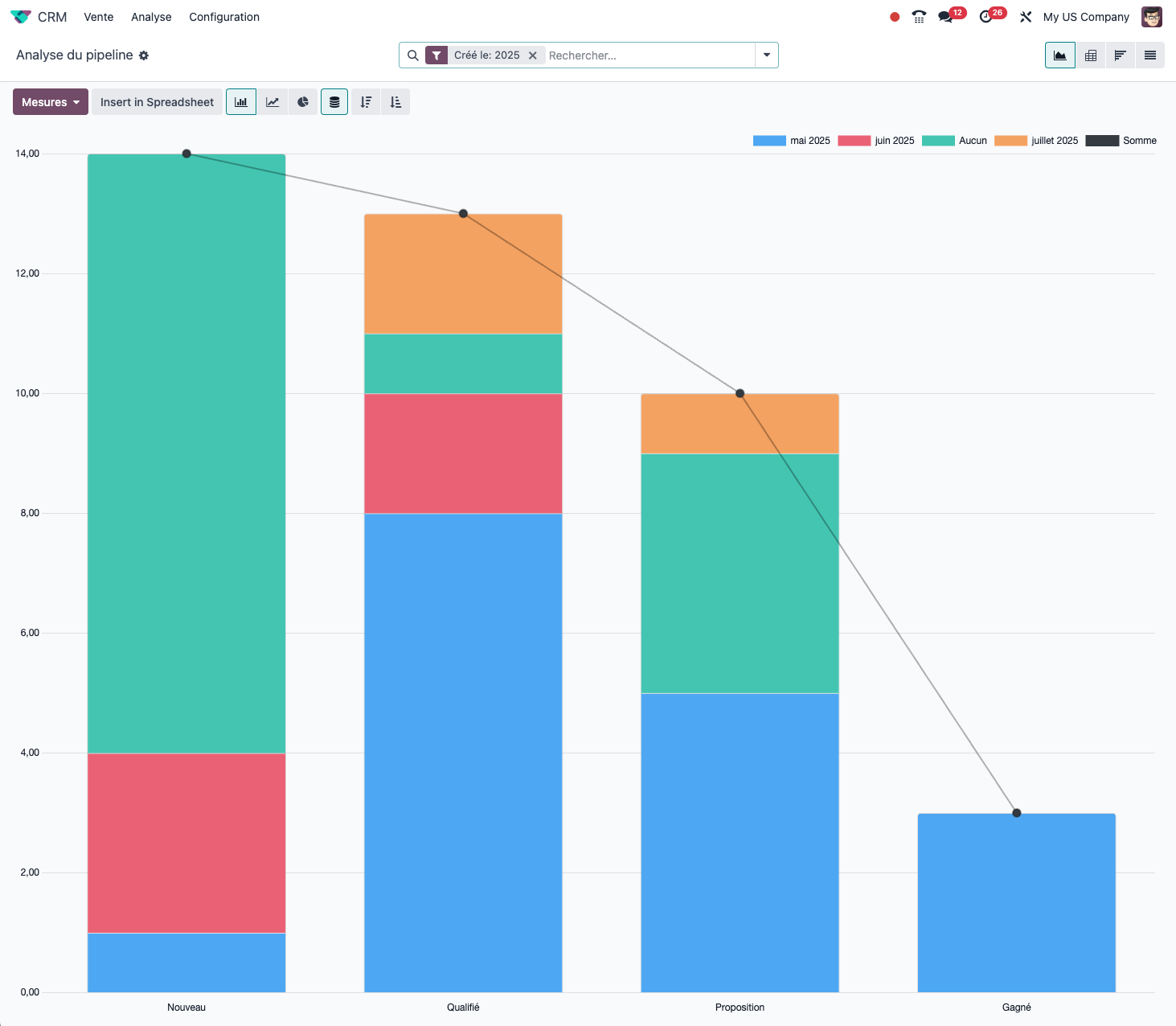
- Open CRM › Reporting › Pipeline.
- Consult the key indicators: - forecast revenue by period; - conversion rate by stage; - performance by salesperson or team; - current pipeline against targets.
- Use the filters to refine the analysis: period, team, salesperson and so on.
From the CRM to the sale
Creating a quotation from an opportunity
To turn an opportunity into an order:
- From a qualified opportunity, click New Quotation.
- The system generates a pre-filled quotation with: - the customer of the opportunity; - the salesperson responsible; - a reference to the source opportunity.
- Complete the quotation with the products and the terms.
- Send the quotation to the customer.
Winning an opportunity
When a customer accepts your proposal:
- Open the opportunity concerned.
- Click the Mark Won button.
- The opportunity is marked as won in your pipeline.
- If a quotation is linked to the opportunity, you will have to confirm it by hand to turn it into a sales order.
Tip
This integration between CRM and Sales gives full traceability of the customer journey, from first contact through to the sale being concluded.
Good practice for running the CRM effectively
Advice for getting the most out of it:
- Qualification: define clear criteria for qualifying your leads and opportunities.
- Planning: systematically schedule the next action after every interaction.
- Reporting: review your performance regularly to identify your strengths and where to improve.
- Regular follow-up: update your pipeline at least once a week.
- Documentation: record the history of the interactions in the notes of each opportunity.
- Forecasting: keep your closing dates and expected revenue up to date for reliable forecasts.