Accounting and finance
Introduction to accounting in Odoo
Odoo's Accounting module offers a complete solution for handling every financial aspect of your business, from invoicing through to producing the financial statements.
Overview
Odoo's accounting rests on several key features:
- customer and vendor invoicing;
- handling payments and chasing;
- bank reconciliation;
- analytic accounting;
- taxes and tax returns;
- financial statements and reporting.
Note
Odoo's accounting complies with international accounting standards and is adapted to the local specifics of many countries, France among them.
Configuring the chart of accounts
Choosing the chart of accounts
During the initial configuration of Odoo:
- the chart of accounts is configured automatically according to the country selected;
- for France, the French general chart of accounts is used by default;
- you can also import a custom chart of accounts.
Customising the accounts
To adapt the chart of accounts to your needs:
- Open Accounting › Configuration › Accounting › Chart of Accounts.
- Edit the existing accounts or create new ones.
- Respect the hierarchy of the accounts: class, account, sub-account.
- Attach the appropriate taxes to the accounts concerned.
- Set the automatic reconciliation parameters where needed.
Handling accounting entries
Types of entry
Odoo handles several types of accounting entry:
- sales entries, from customer invoices;
- purchase entries, from vendor bills;
- bank entries, from bank statements;
- cash entries;
- miscellaneous entries, made by hand.
Entering manual entries
To record a manual accounting entry:
- Open Accounting › Accounting › Journal Entries.
- Click Create.
- Select the appropriate journal.
- Enter the date and the reference.
- Add the entry lines, debit and credit.
- Check that the entry balances.
- Click Validate.
Tip
Use entry templates to speed up the recording of recurring operations, such as payroll entries or depreciation charges.
Validating and changing entries
Once validated, accounting entries are locked, which preserves the integrity of the data:
- validated entries can no longer be changed directly;
- to correct a mistake, create a reversing entry;
- or use the cancel option, which creates the counter-entry automatically.
Note
The principle that accounting entries cannot be altered is respected, in line with legal requirements such as the French anti-fraud VAT law.
Handling fiscal periods
Configuring the financial years
To define your accounting periods:
- Open Settings › Users & Companies › Companies.
- Select your company and edit it.
- In the accounting configuration, set the end dates of the financial year: - Fiscalyear Last Month: the last month of the year, December by default; - Fiscalyear Last Day: the last day of the year, 31 by default.
- Save the changes.
Note
In Odoo there is no separate menu for financial years. The configuration is made on each company, in its accounting settings.
Locking periods
To secure your accounting data:
- lock the accounting periods that are finished, to prevent changes;
- configure the access rights to control who can reopen a period;
- use date-based locking for a more flexible arrangement.
Financial reports
Standard financial statements
Odoo offers many ready-made financial reports:
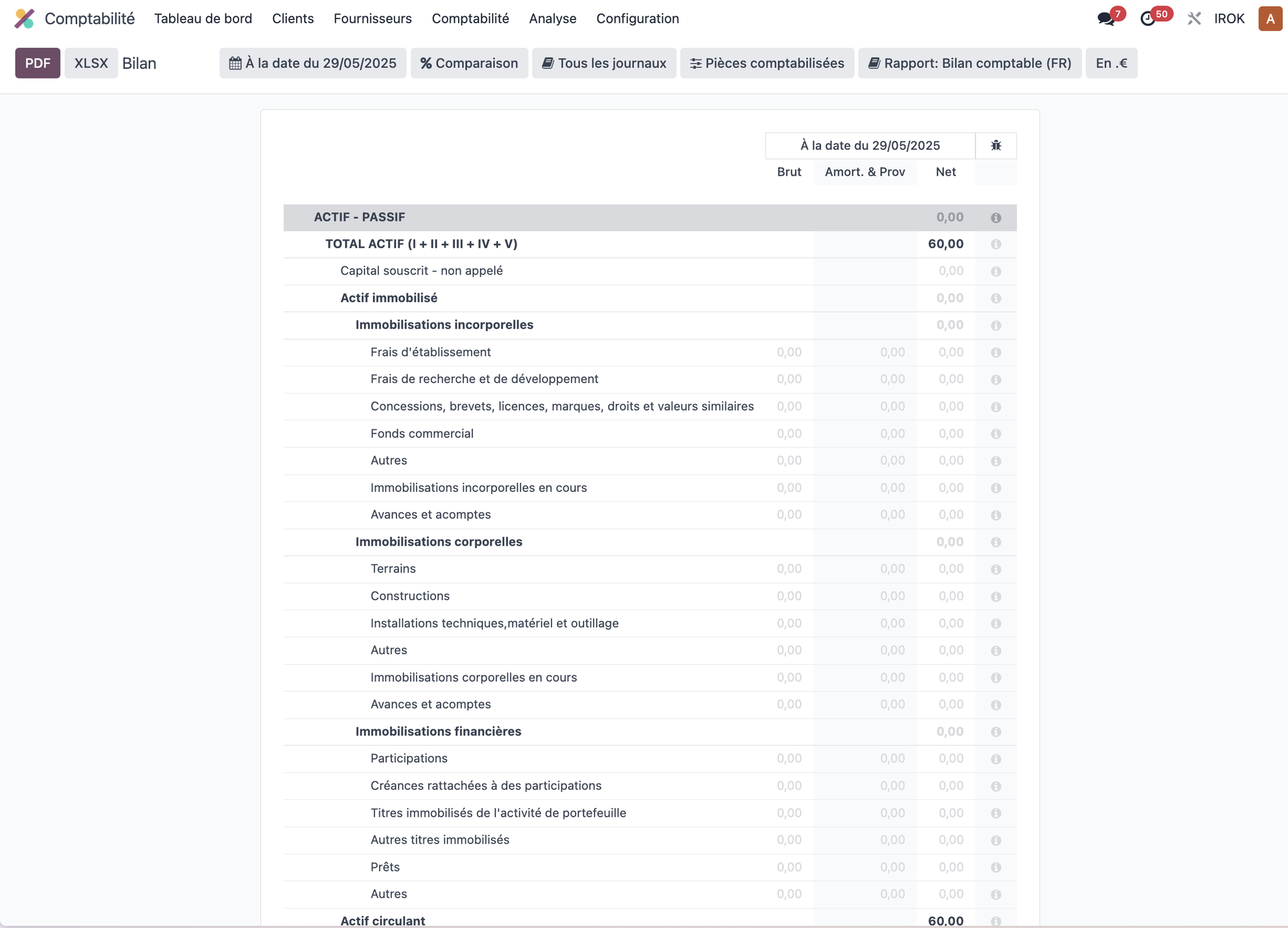
- Balance Sheet: the financial position at a given date.
- Profit and Loss: financial performance over a period.
- General ledger: the detail of the movements by account.
- Trial balance: the debit and credit balances of every account.
- Aged balance: an analysis of receivables and payables by age.
Tax reports
For tax filings:
- the VAT report for the periodic returns;
- export of the accounting data in the French FEC format;
- country-specific tax reports.
Note
The tax reports are updated regularly to stay in line with changes in the law.
Handling cash
Bank reconciliation
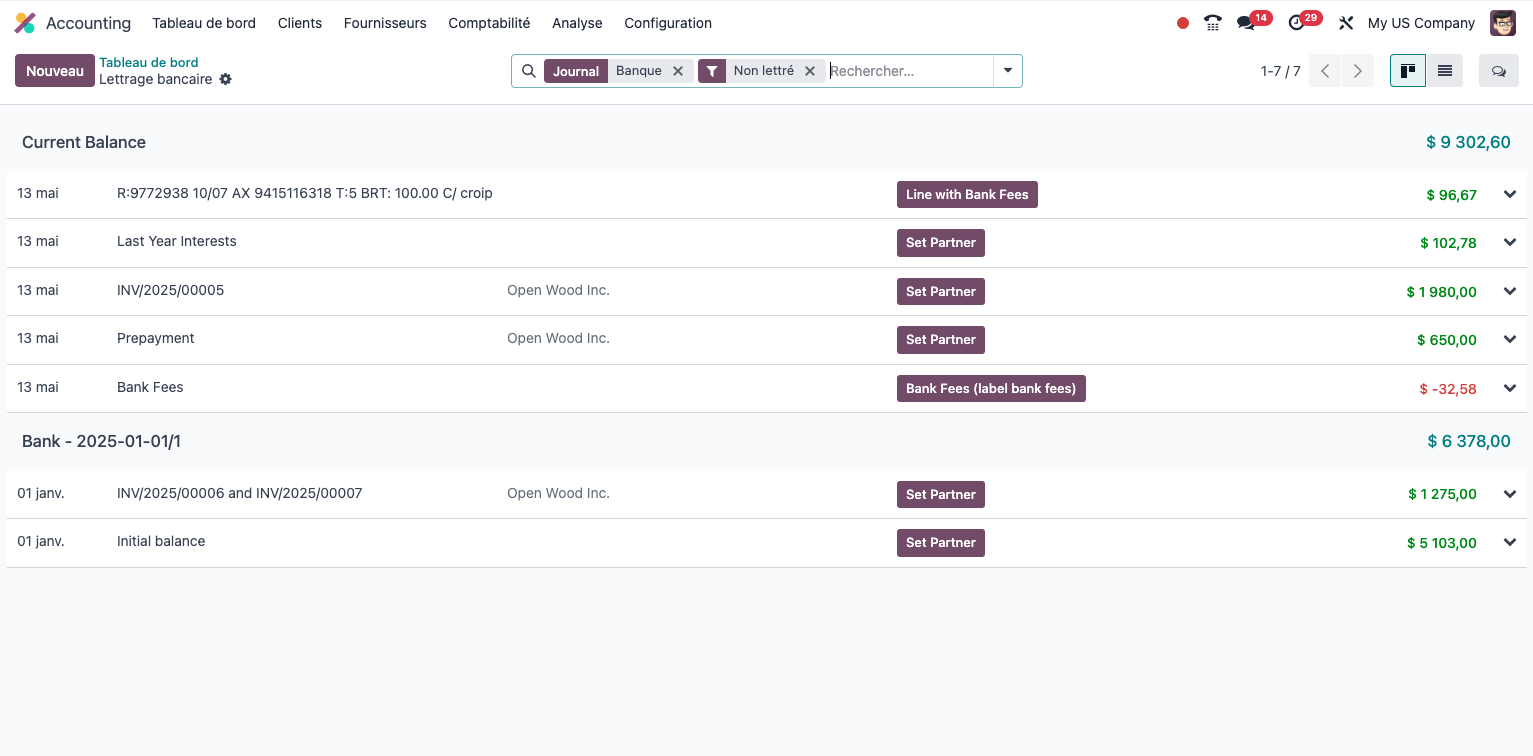
To reconcile your bank transactions:
- Import your bank statements (CSV, OFX, CODA and other formats).
- Or enter the transactions by hand.
- Use the automatic reconciliation feature.
- Confirm the matches proposed.
- Create the entries for the transactions not yet recorded.
Cash forecasting
To anticipate your financial flows:
- Consult the cash forecast report.
- Analyse the expected receipts and payments.
- Filter by bank account or by period.
- Identify the periods of pressure or of surplus cash.
Tip
The accuracy of the cash forecast depends on the due dates being recorded regularly on the customer and vendor invoices.
Analytic accounting
Configuring the analytic dimensions
To analyse your results by segment of activity:
- Open Accounting › Configuration › Analytic Accounting › Analytic Plans.
- Create the dimensions that matter: departments, projects and so on.
- Define the analytic accounts for each dimension.
- Configure the automatic distribution rules where needed.
Using analytic accounting
To attach analytic dimensions to your transactions:
- when entering invoices, link the lines to the analytic accounts;
- for manual entries, complete the analytic information;
- use entry templates to automate recurring distributions;
- consult the analytic reports to analyse profitability by segment.
Multi-company accounting
Multi-company configuration
To handle several legal entities:
- Create the companies in Settings › Users & Companies › Companies.
- Configure a chart of accounts for each company.
- Define the consolidation rules where needed.
- Set the users' access rights company by company.
Inter-company transactions
For transactions between your entities:
- configure the inter-company accounts;
- use the inter-company re-invoicing feature;
- generate the mirror entries automatically;
- follow the inter-company balances for consolidation.
Year-end closing
The closing procedure
To finalise an accounting year:
- Check that every transaction of the year is recorded.
- Make the inventory and adjustment entries.
- Produce the final financial statements.
- Run the year-end closing wizard.
- Validate the closing entries generated automatically.
- Lock the year for good.
Note
Year-end closing is a sensitive operation and must be carried out carefully, ideally with the support of your accountant.
Advanced features
Handling currencies
For businesses working internationally:
- Configure the currencies used in Accounting › Configuration › Accounting › Currencies.
- Set the exchange rates, or use automatic updating.
- Record the transactions in their original currency.
- Consult the reports in the company currency or in foreign currencies.
- Follow the exchange gains and losses.
Automated invoicing (auto-post)
To automate the generation and validation of recurring invoices:
Note
In Odoo there are no separate "recurring invoice templates". Recurring invoicing uses the auto-post mechanism on draft invoices.
- Create a draft invoice for the recurring service.
- Configure auto-posting in the settings of the invoice: - enable the auto-post option; - set the frequency of automatic generation; - configure the conditions for automatic validation.
- That invoice then serves as the model for the later generations.
Tip
Auto-posting generates and validates similar invoices automatically at the periodicity defined, with no need to create separate templates.
Integration with the other modules
Odoo's accounting integrates naturally with the other modules, for financial management across the whole business:
- Sales: automatic invoicing of sales orders.
- Purchase: recording vendor bills tied to orders.
- Inventory: valuing stock and the accounting effect of the movements.
- Project: following costs and re-invoicing the time spent.
- Payroll: generating the accounting entries for salaries.
Note
This native integration avoids double entry and keeps the financial data consistent across the whole business.