Advanced CRM
Advanced CRM features
Odoo's CRM module offers advanced features that let you improve your sales process and follow your opportunities more closely.
Customising the sales pipeline
The sales pipeline is fully customisable to match your sales process:
- Open CRM › Configuration › Pipeline › Stages.
- Create or edit the stages to match your sales process.
- Set the order of the stages and the probabilities attached to them.
- Assign colours for easier reading.
- Enable or disable the features specific to each stage.
Tip
Build a pipeline that faithfully reflects your real sales process: your sales team will adopt it more readily and your sales forecasts will be more accurate.
Handling sales teams
Odoo lets you structure your salespeople into teams for better organisation:
- Open CRM › Configuration › Sales Teams.
- Create the teams you need: by region, product, customer segment and so on.
- Assign members to each team.
- Set targets by team.
- Configure the specific access rights.
Note
Sales teams drive the automatic assignment of opportunities and allow segmented reporting, for better sales steering.
Automating the sales processes
Automation improves your sales processes, secures regular follow-up and frees time for your teams.
Automatic assignment rules
Route leads to the right salesperson automatically:
- Open the lead assignment rules in the CRM configuration.
- Create rules based on various criteria: country, source, product of interest and so on.
- Define the actions to trigger: assignment to a user or to a team.
- Enable or disable the rules as you need them.
Examples of automatic assignment rules:
- leads from the IT sector to the digital solutions team;
- leads from a given region to the matching regional team;
- leads coming from the website form to the web marketing team;
- leads with an expected amount above 10,000 € to the sales manager.
Automated actions and scheduling
Odoo lets you configure automatic actions to keep the sales activity going:
- Open Settings › Technical › Automation › Scheduled Actions.
- Create automatic actions based on conditions.
- Define the trigger: time elapsed, change of stage and so on.
- Configure the action to run: email, activity, notification.
Examples:
- automatic creation of a follow-up task three days after a quotation is sent;
- an automatic welcome email to newly qualified leads;
- an alert to the manager when a high-potential opportunity has been inactive for seven days;
- a follow-up reminder fifteen days after the last activity on an open opportunity.
Tip
Automation should make your salespeople's work easier, not replace it. Use it for the repetitive tasks and the reminders, but keep human interaction at the heart of your sales process.
CRM analysis and reporting
Powerful analysis tools for steering your sales activity and making informed decisions.
CRM dashboards
Reach the predefined dashboards for an overview of your sales activity:
- Open CRM › Reporting › Pipeline.
- See the key sales performance indicators.
- Use the filters to refine the analysis by period, team, salesperson and so on.
- Switch between views (graph, pivot) according to what you want to analyse.
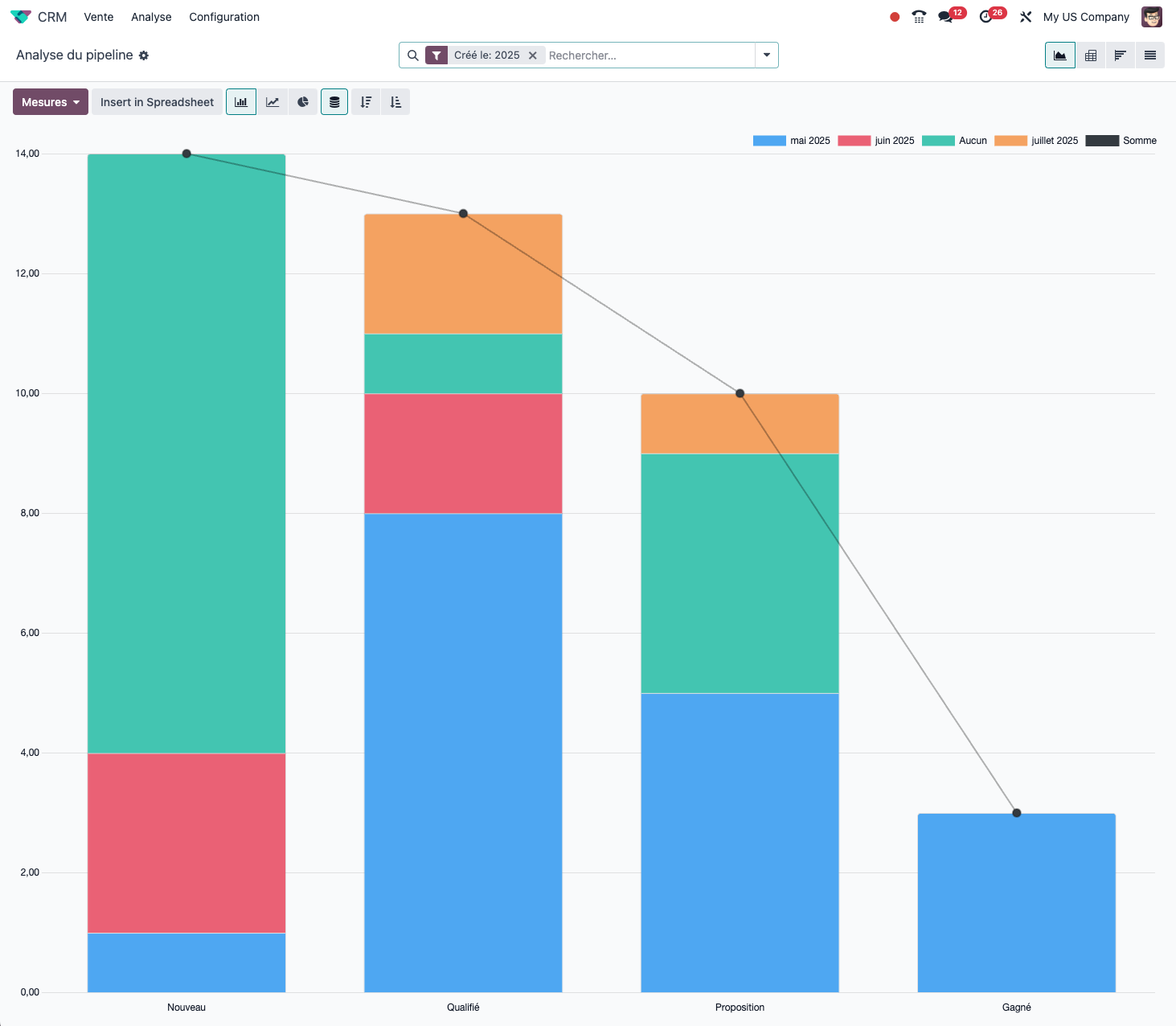
Custom reports
Build tailored reports to answer your own needs:
- Open CRM › Reporting › Pipeline.
- Use the filters and groupings to structure your data.
- Save your custom report through Favorites then Save current search.
- Set the access rights to the report: personal or shared.
Note
Reports can be exported to CSV or XLS for outside use or for further analysis.
Sales targets and follow-up
Set and follow targets to motivate your team and measure performance:
- Open the targets in the CRM configuration.
- Create targets by period, team or salesperson.
- Set target amounts or numbers of opportunities to win.
- Follow progress on the CRM dashboard.
Targets can be set on various measures:
- turnover to achieve;
- number of opportunities to win;
- target conversion rate;
- number of new customers to acquire.
Following the targets regularly makes it easy to spot gaps early and to put corrective actions in place.
Integrating marketing with the CRM
Create a synergy between your marketing actions and your sales process, to make customer acquisition as effective as possible.
Handling campaigns
Follow the effectiveness of your marketing actions through the sales process:
- Create marketing campaigns in the Marketing application.
- Attach leads and opportunities to the campaign they came from.
- Analyse the return on investment of each campaign.
- Identify the acquisition channels that perform best.
Marketing automation
With the Marketing Automation module (Enterprise edition), automate your marketing actions:
- Build marketing scenarios based on conditions and triggers.
- Configure automated email sequences, known as drip campaigns.
- Schedule actions according to the behaviour of the prospects.
- Nurture your leads until they are ready to buy.
Tip
Marketing automation works particularly well for long sales cycles, which need several points of contact before conversion.
Advanced CRM configuration
Custom fields
Adapt your CRM to your own needs by adding custom fields:
- Open Settings › Technical › Database Structure › Fields.
- Select the model to customise:
crm.leadfor opportunities. - Create a new field, defining its type and its properties.
- Add it to the form view through the view editing option.
Examples:
- a lead qualification score, from one to five stars;
- a detailed source: trade show, webinar, referral;
- the prospect's industry;
- the products of interest, as a multiple selection;
- the available budget, as a range of values.
Built-in email templates
Create reusable email templates to standardise your communication:
- Open Settings › Technical › Email › Email Templates.
- Create a new template for opportunities.
- Use the dynamic variables to personalise the content.
- Attach documents where needed.
Note
Email templates can include variables such as the contact's name, the product of interest or the amount of the quotation, for automatic personalisation.
Integration with the other modules
Odoo's CRM integrates naturally with the other modules for a complete experience:
- Sales: converting opportunities into quotations and orders.
- Project: creating projects from won opportunities.
- Calendar: scheduling appointments with two-way synchronisation.
- Email: following email exchanges directly on the opportunity.
- Documents: centralised handling of the sales documents.
Tip
The native integration between Odoo modules is one of its main strengths: it avoids silos of information and gives a 360-degree view of your customers.
Good CRM practice
Organising the CRM effectively
To get the most out of your Odoo CRM:
- define your sales process clearly before configuring the pipeline;
- keep the number of stages to the essentials, five to seven at most;
- standardise the information to be collected at each stage;
- train your teams regularly in good practice;
- clean obsolete opportunities out of your database periodically.
Measuring performance
Follow the key indicators to improve your sales performance continuously:
- conversion rate by pipeline stage;
- average length of the sales cycle;
- average value of the opportunities;
- sales activity by salesperson;
- win/loss ratio and reasons for losing.
Note
Following those indicators regularly shows where your sales process can be improved and helps you refine your approach.