Initial setup
Relation with the exercise book
This chapter matches Step 1 of the exercise book: creating and configuring the company.
Company settings
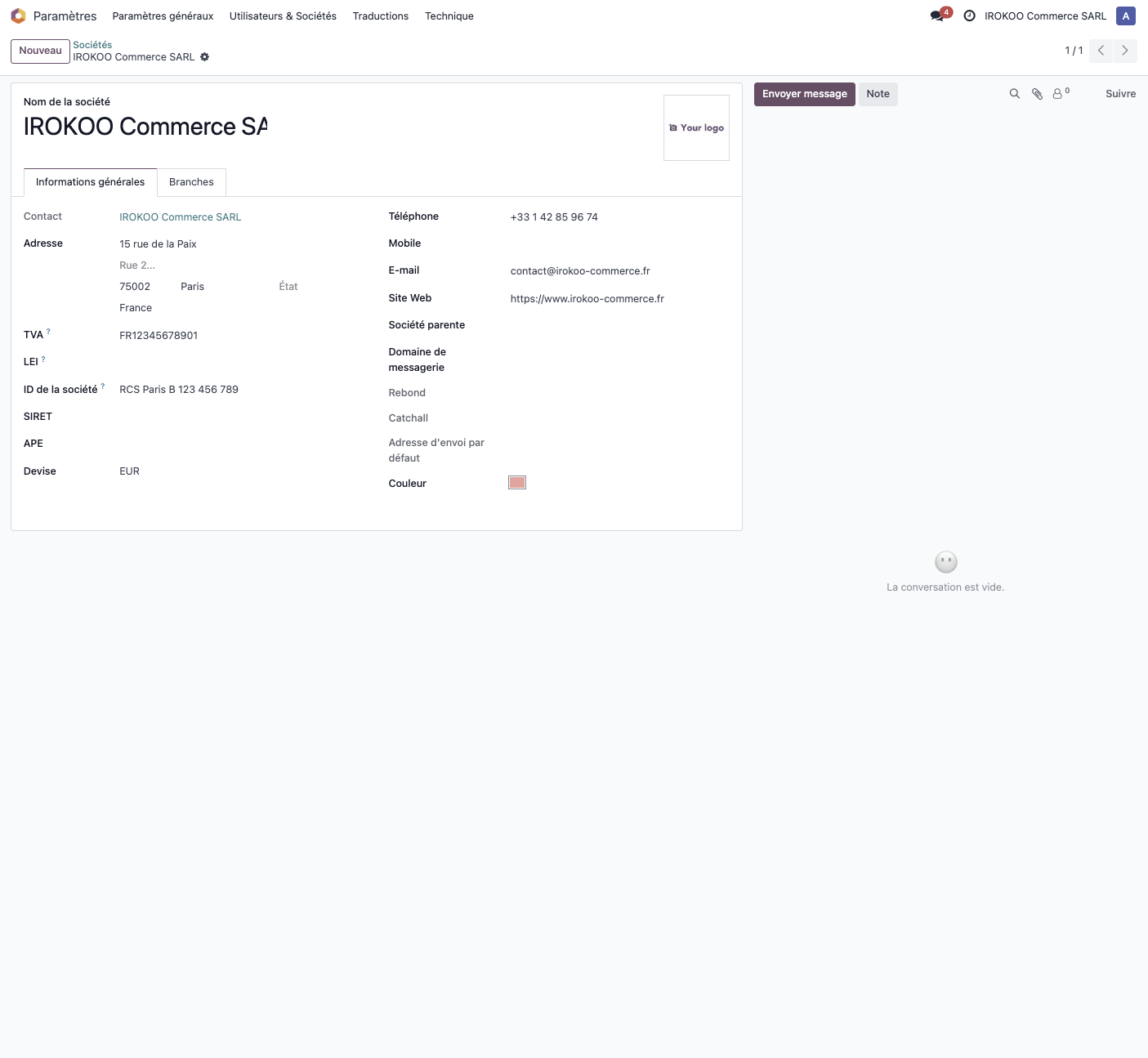
To configure the basic information of your business:
- Open Settings › Users & Companies › Companies.
- Select your company.
- Complete the information: name, logo, address, contact details.
- Fill in the tax data (VAT number and the like).
- Save the changes.
Tip
Configuring your company information correctly is essential, because that data appears on all your official documents (quotations, invoices and so on).
Managing users
Creating users
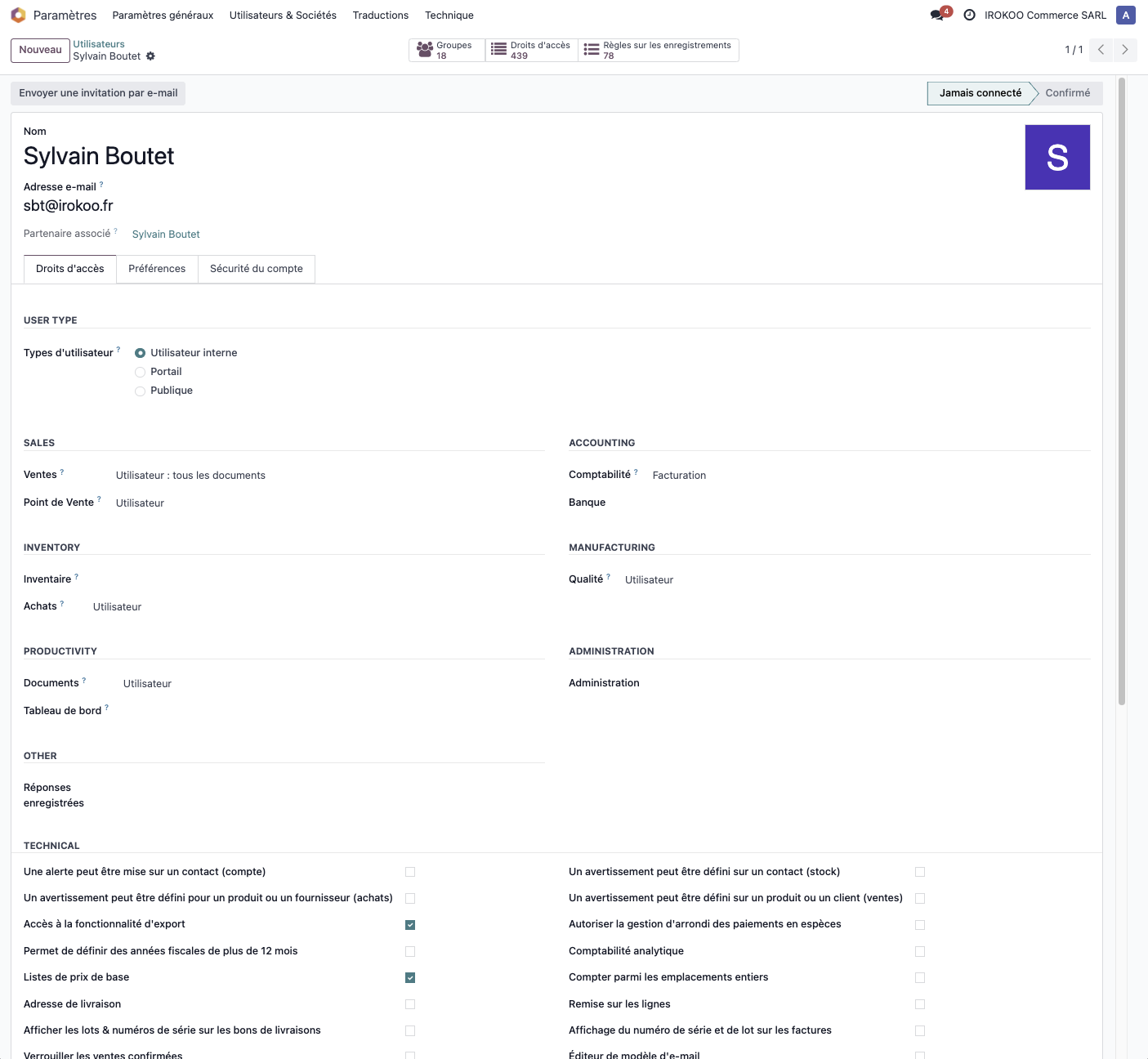
To add new users to your system:
- Open Settings › Users & Companies › Users.
- Click New for a new user.
- Fill in the essential information: - first name and surname; - business email address, which will serve as the login; - company, in a multi-company environment; - language and timezone.
- Set the appropriate access rights.
- Send an invitation by email.
Security groups
Odoo handles access rights through a system of security groups:
- each group gives access to specific features;
- a user can belong to several groups;
- groups are organised by application;
- some groups are hierarchical: an administrator group includes the rights of the groups below it.
Note
Always grant each user the minimum rights they need, following the principle of least privilege. You can easily extend those rights later if the need arises.
Installing applications
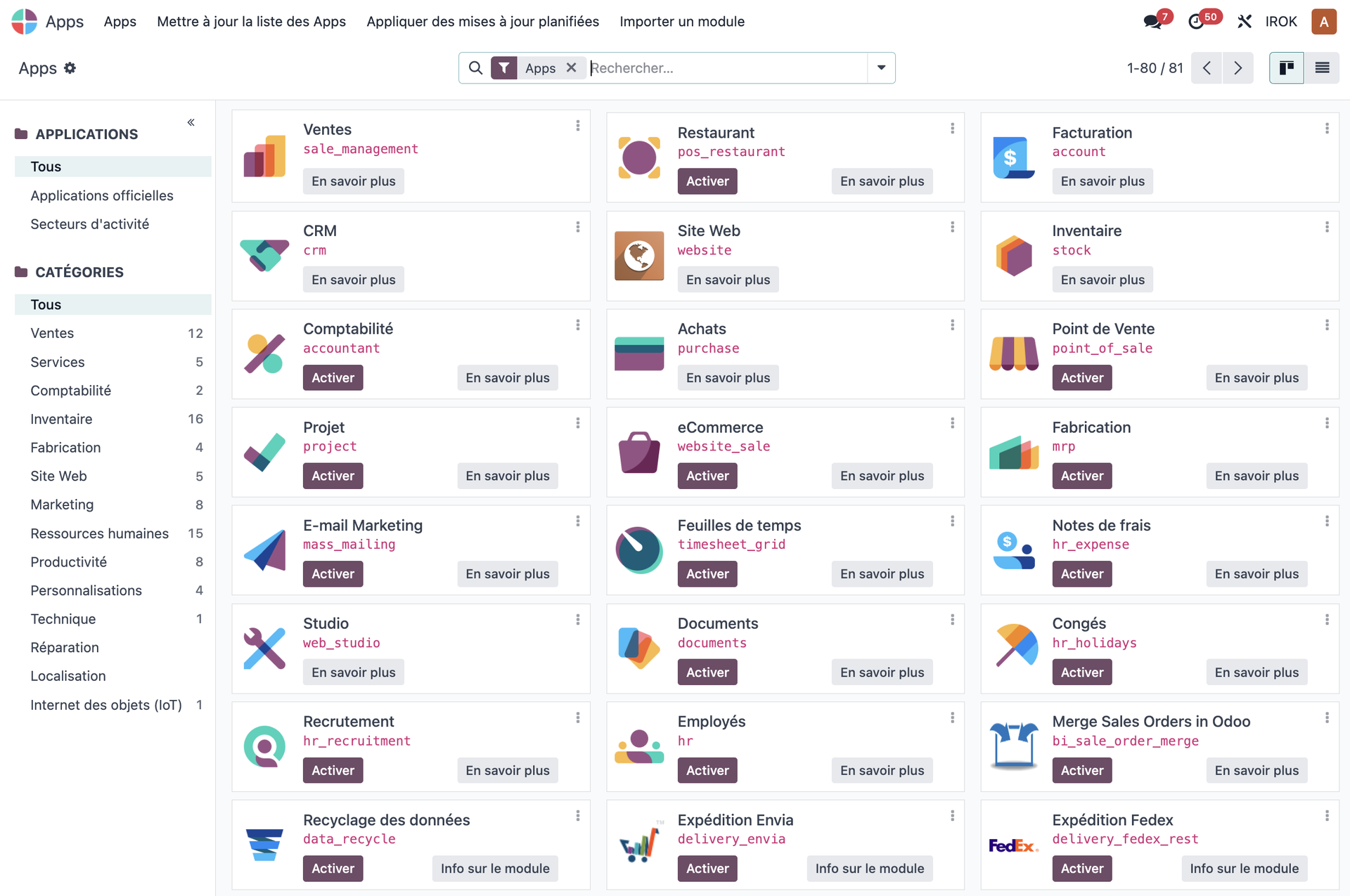
To install the applications you need:
- Open Apps from the main menu.
- Use the search bar to find the applications you want.
- Click the Install button for each application required.
- Wait for the installation to finish: dependencies are installed automatically.
- Reach the new applications from the main menu.
General company settings
Configuring the general preferences
To set the global parameters of the system:
- Open Settings › General Settings.
- Configure the options to suit your needs.
- Click Save to apply the changes.
Multi-company settings
If you handle several legal entities:
- First create the various companies as described above.
- Open Settings › Users & Companies › Users.
- For each user, configure: - the company or companies the user has access to; - the default company at start-up.
Tip
In a multi-company environment, the user can switch between companies through the selector in the user menu, at the top right of the screen.
Key points to check before starting
Before going on to configure the individual modules, make sure that:
- the company information is complete and correct;
- the key users are created with the appropriate access rights;
- every application needed is installed;
- the general settings match your needs;
- where applicable, the multi-company structure is correctly defined.
Note
Careful initial configuration avoids later problems and makes the system easier for your teams to adopt.