Purchase management
Relation with the exercise book
This chapter matches Step 4 of the exercise book: purchasing. It gives you the concepts you need to run your supply processes effectively, from the request for quotation through to paying the vendor.
Introduction to purchasing in Odoo
Odoo's Purchase module lets you handle the whole supply cycle:
- creating and following requests for quotation;
- handling purchase orders;
- checking goods receipts;
- checking and validating vendor bills;
- analysing purchasing performance.
Note
Running purchasing well is essential to control costs and to keep the products your business needs available.
Initial configuration
Purchase settings
To configure the module to suit your needs:
- Open Purchase › Configuration › Settings.
- Set the main options: - Purchase order approval: enable it if you want an approval workflow. - Lock confirmed orders: to prevent changes after confirmation. - Receipt reminders: to send automatic reminders to vendors. - Purchase Agreements: an advanced feature for framework agreements, an optional module.
- Click Save to apply the settings.
Configuring vendors
To work effectively with vendors:
- Open Contacts › Contacts.
- Create or edit the vendor contacts.
- In the Sales & Purchase tab, configure: - the default payment terms; - the currencies accepted; - the average lead times.
Linking vendors to products
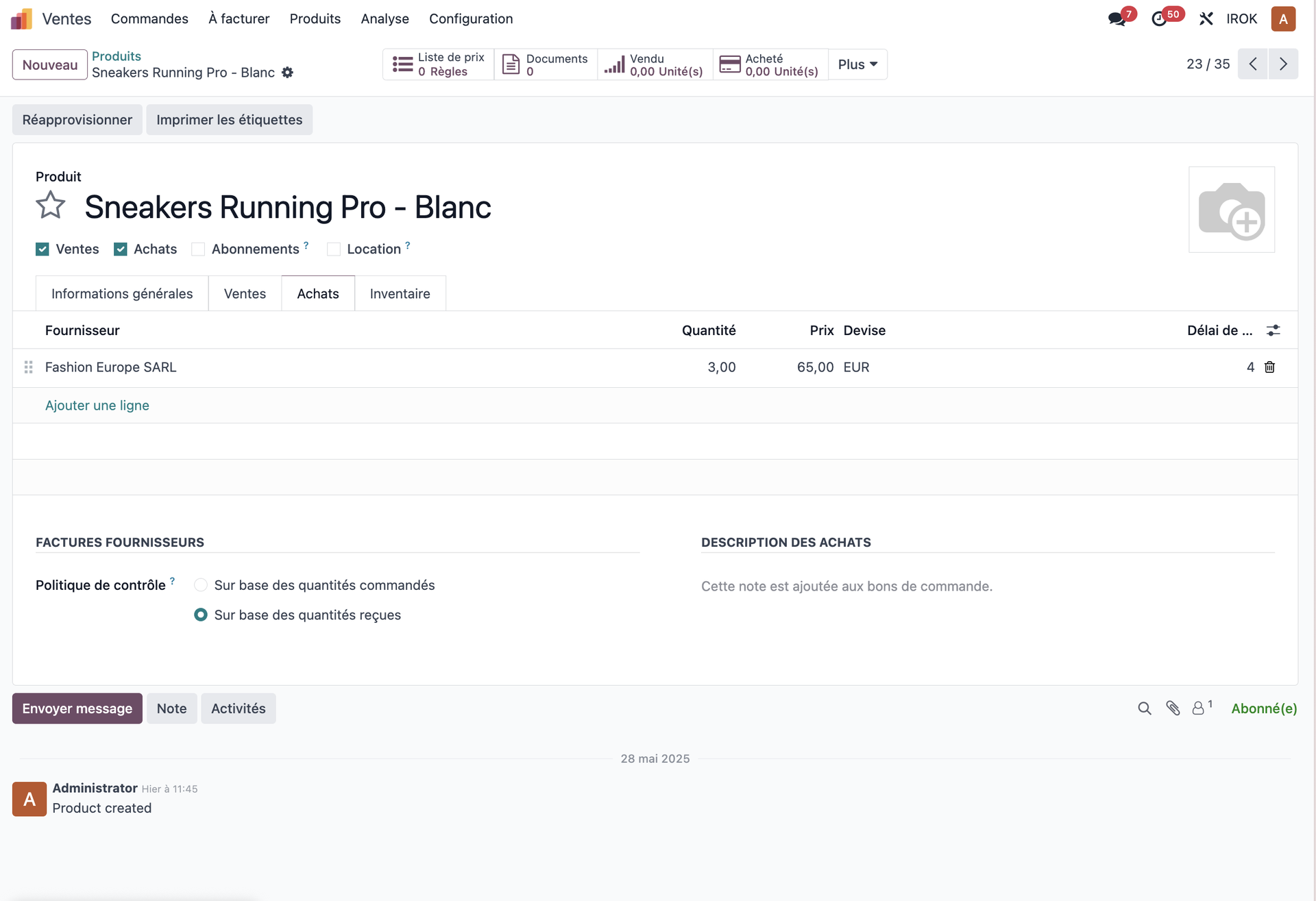
For each product you can define its potential vendors:
- Open the product record.
- In the Purchase tab, click Add a line.
- For each vendor, set: - the vendor's name; - the purchase price; - the minimum quantity; - the lead time; - the vendor's reference.
- You can add several alternative vendors.
Tip
When you create a request for quotation, Odoo automatically offers the preferred vendor for each product, along with the matching terms.
The purchasing process
Creating a request for quotation
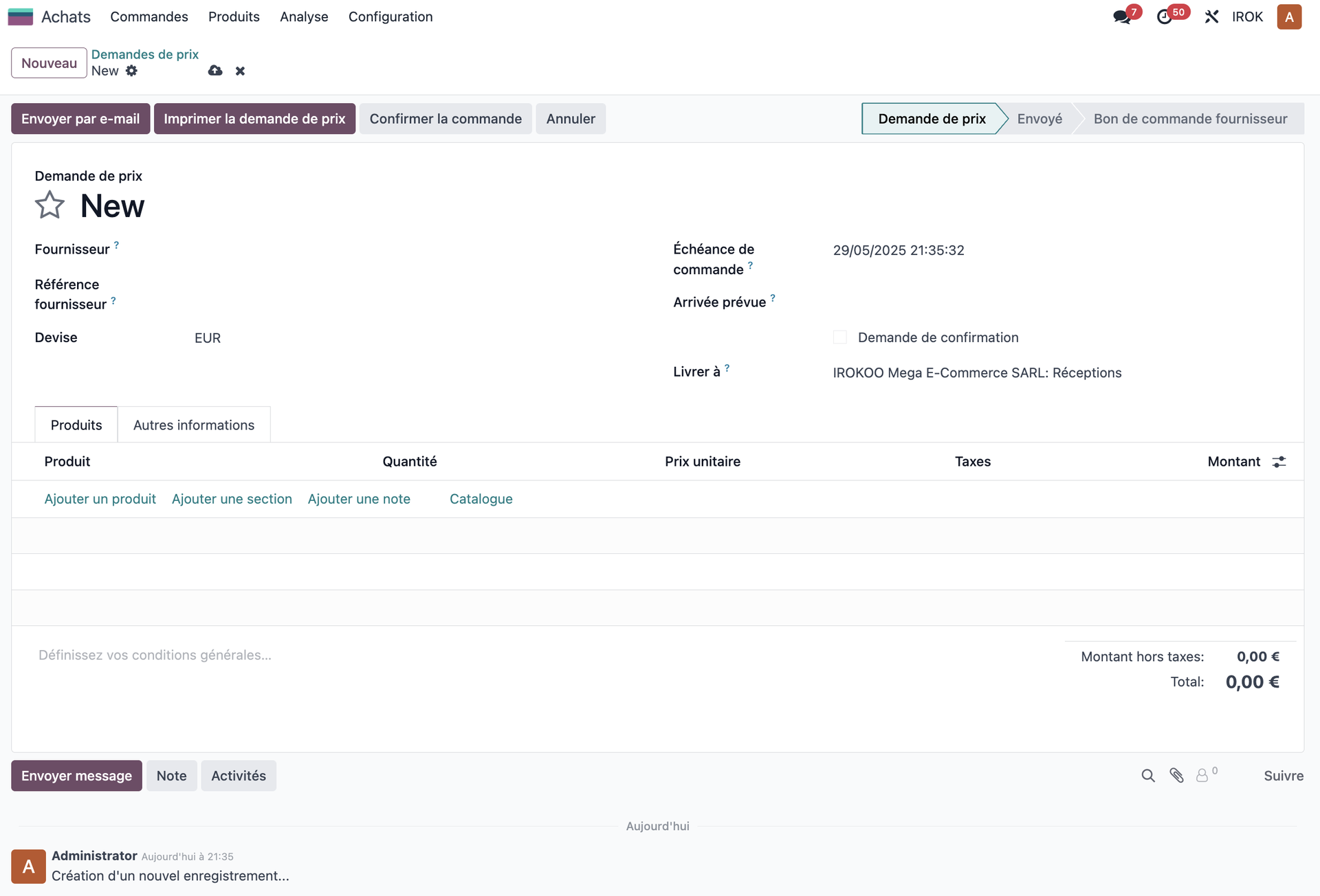
To ask your vendors for a quotation:
- Open Purchase › Orders › Requests for Quotation.
- Click Create.
- Select the vendor.
- Add the products required with the quantities wanted.
- For each line, check: - the unit price, offered automatically when it is set on the product record; - the expected delivery date; - the applicable taxes.
- Save the request.
- Use the send button to email it to the vendor.
The request for quotation is the starting point of the purchasing process and lets you ask vendors for their prices.
Converting into a purchase order
Once the vendor's confirmation has arrived:
- Open the request for quotation concerned.
- Adjust the prices if the vendor's answer calls for it.
- Click Confirm Order.
- The request becomes a purchase order with a new status.
- A receipt is created automatically in the Inventory module.
Tip
You can configure several levels of approval for purchase orders according to their amount. That gives tighter control over significant spending.
Receiving products
Validating receipts
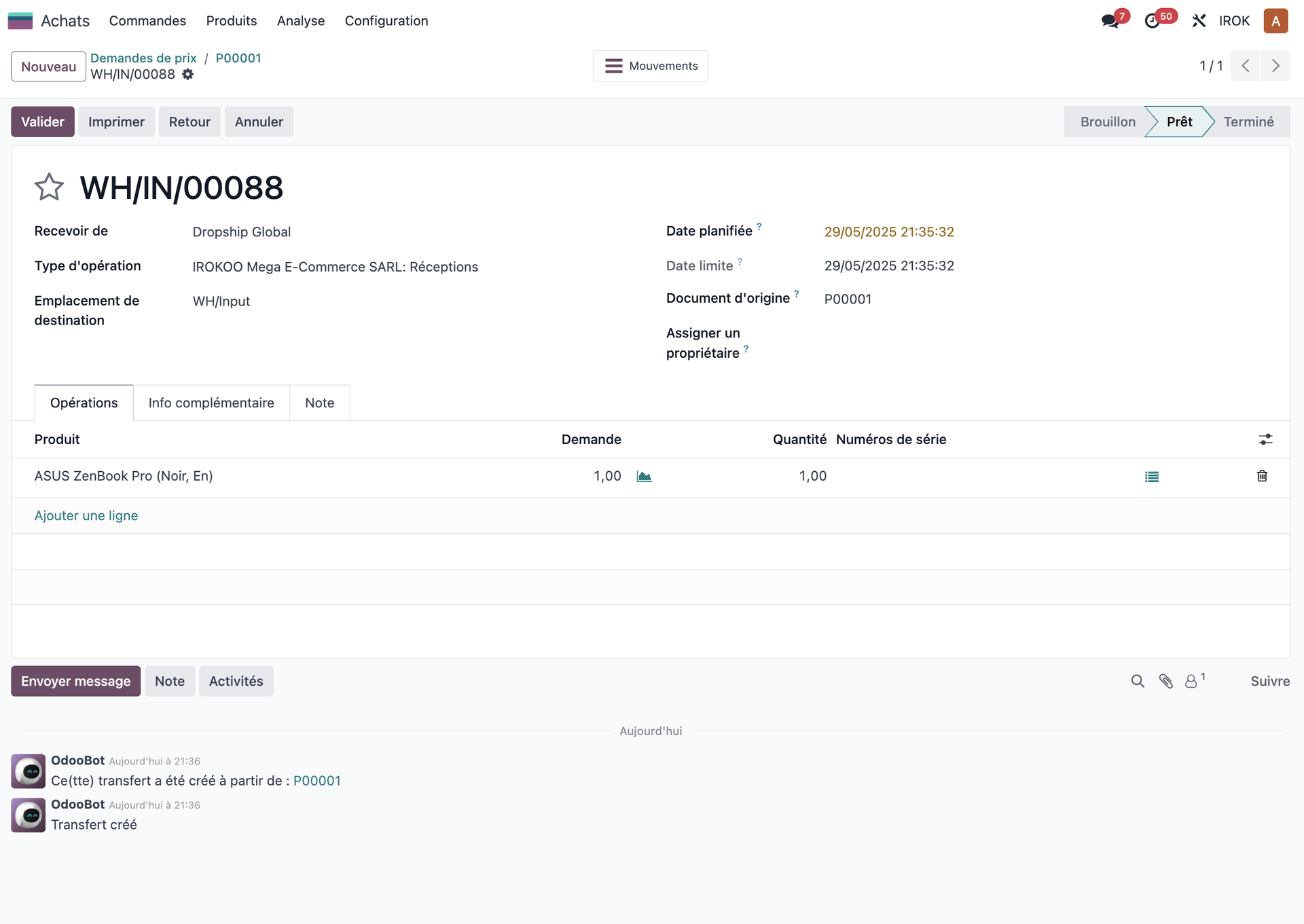
To record the receipt of the products ordered:
- From the purchase order, click the Receipt button.
- Check the products and the quantities to receive.
- If the delivery is complete, simply click Validate.
- For a partial delivery, adjust the quantities received and then validate.
- The system automatically creates a new receipt for the quantities outstanding.
Validating receipts automatically updates the stock levels and the status of the orders.
Handling partial deliveries
If your vendor delivers only part of the order:
- On the receipt, change the Done column to state the quantities actually received.
- Validate that partial receipt.
- Odoo automatically creates a new receipt for the quantities missing.
- That new receipt stays pending until the next delivery.
Note
Following partial deliveries is essential to keep your stock accurate and to track the items still awaited.
Handling vendor bills
Creating and validating bills
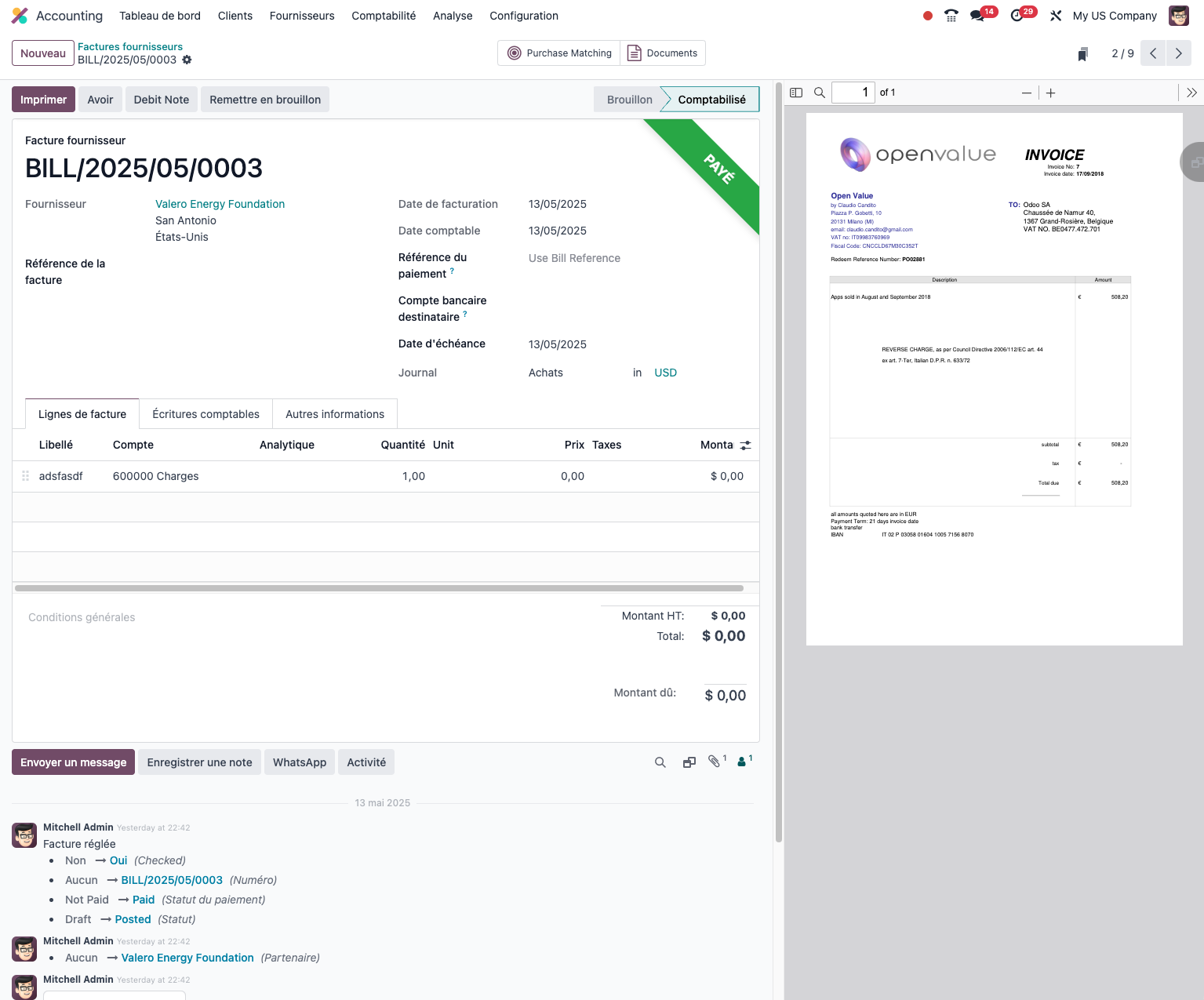
To handle your vendors' bills:
- From the purchase order, click Create Invoice.
- Choose the invoicing method according to the product configuration: - On ordered quantities: a bill based on the quantities ordered; - On received quantities: a bill based on the quantities actually received.
- Check the amounts and the taxes.
- Click to create the draft bill.
- Check the bill, then click Validate.
Recording payments
To handle payments to vendors:
- Open the bill concerned.
- Click Register a payment.
- Fill in: - the amount of the payment; - the date; - the payment method (cheque, transfer and so on); - the bank account used.
- Confirm the payment.
- The bill moves to the "Paid" status.
Tip
To pay several bills from the same vendor in one operation, use the Vendor Payments entry in the Accounting menu.
Automatic replenishment
Reordering rules
To automate your purchase orders:
- Open Inventory › Operations › Procurement › Replenishment.
- Create rules for each critical product: - the product concerned; - the minimum stock level; - the quantity to order; - the order multiple, for instance ordering in boxes of twelve; - the lead time.
- Enable automatic supply in the settings.
Running the scheduler
To generate purchase proposals automatically:
- Run the scheduler from the Inventory operations.
- Odoo analyses the stock levels, the sales orders and the reordering rules.
- Purchase proposals are generated.
- Check those proposals in Purchase › Orders › Requests for Quotation.
- Confirm the relevant proposals to create the requests for quotation.
Note
The scheduler can be configured to run automatically every night, which simplifies the daily running of stock.
Purchase analysis and reports
Analysing purchases
Odoo offers several tools for analysing your purchases:
- Purchase Analysis: an overview of the orders by vendor, product and period.
- Order report: to follow the status of your orders in progress.
- Receipt report: to monitor the deliveries expected.
- Vendor performance: to assess your vendors on quality, lead time and price.
Key performance indicators
To steer your purchasing activity, follow these indicators:
- average lead time by vendor;
- adherence to the promised dates;
- the gap between the negotiated price and the invoiced price;
- purchase volume by vendor, that is how concentrated your purchasing is;
- the quality of the goods delivered, measured by the rejection rate.
Tip
Build custom dashboards in Odoo to follow those key indicators and make decisions easier.
Advanced features
Note
The features described in this section require optional modules that are not part of the base Odoo installation. Contact your system administrator to have them enabled.
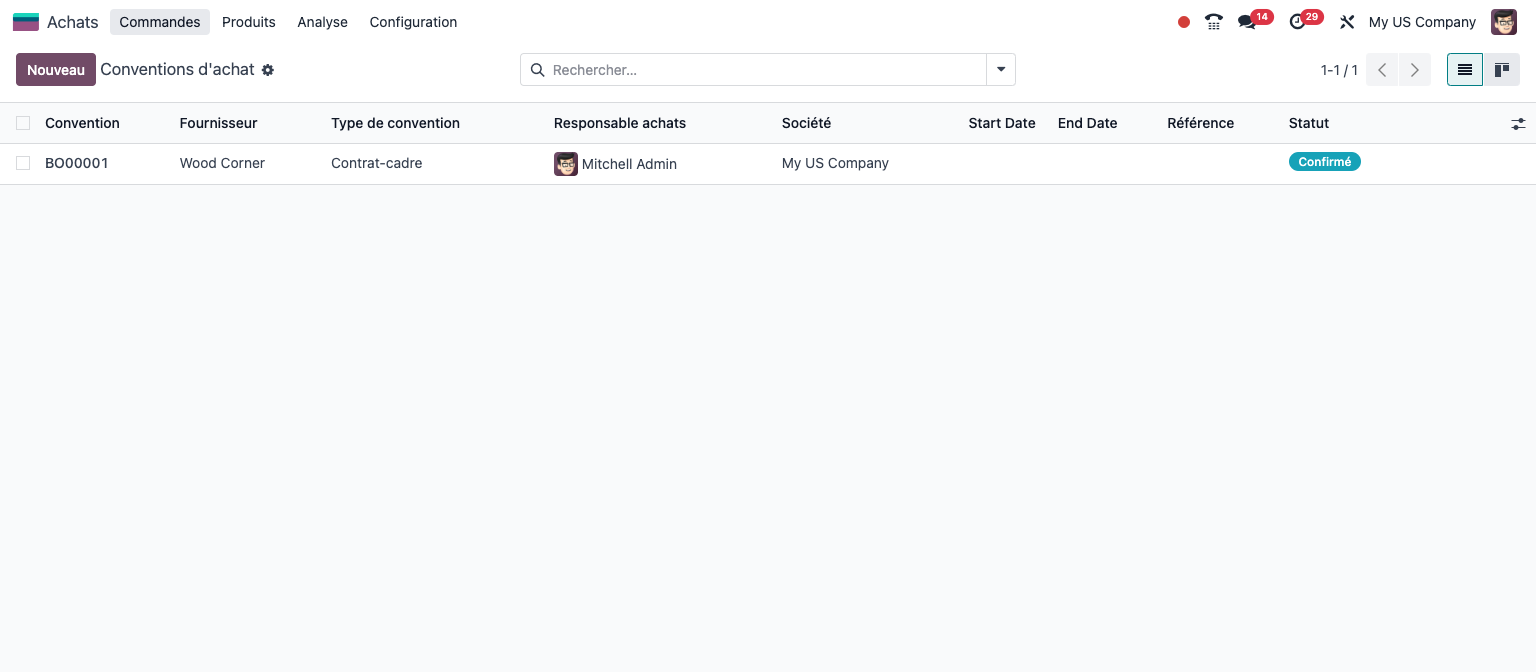
Purchase agreements
Purchase agreements let you negotiate long-term contracts with your vendors:
- Open Purchase › Orders › Purchase Agreements.
- Create a new agreement, setting: - the vendor; - the period of validity; - the products concerned with their negotiated prices; - the minimum or maximum quantities.
- Once the agreement is confirmed, you can create orders based on it.
Purchase agreements let you formalise your understandings with vendors and simplify recurring orders.
Purchase requests
To let teams ask for supplies:
- Enable the feature in the purchase settings.
- Users can create purchase requests from the Purchase menu.
- Those requests follow an approval process before being turned into orders.
Tip
Purchase requests are particularly useful in large organisations, where purchasing decisions have to follow an approval hierarchy.
Handling subcontracting
Configuring subcontracting
To run your subcontracted operations effectively:
- Create a service product for each subcontracted operation.
- Configure your subcontractors as vendors.
- Include those operations in the manufacturing bills of materials.
- State that they are subcontracted steps.
Note
Subcontracting in Odoo combines the Purchase, Inventory, Manufacturing and MRP Subcontracting modules to give full tracking of the process. That advanced feature calls for specific configuration of the bills of materials and of the production flows.
The subcontracting flow
A typical subcontracting process comprises:
- sending the raw materials to the subcontractor;
- tracking the materials in transit;
- receiving the processed products;
- invoicing the subcontracting service.
Good practice and advice
Advice for improving your purchasing:
- Consolidation: group your orders by vendor to obtain better terms and reduce delivery costs.
- History: analyse the price history to spot trends and negotiate effectively.
- Assessment: put in place a regular assessment of your vendors.
- Anticipation: use reordering rules to avoid shortages.
- Checking: systematically check that deliveries and bills are as agreed.
- Alternatives: always identify at least two vendors for your strategic products.
Note
Rigorous purchasing can improve your profitability considerably. Depending on the sector, purchases often represent 50 to 70% of the cost of goods sold.