French electronic invoicing
By the end of this chapter
- place your company on the timetable of the reform;
- activate electronic invoicing and register the company on the approved platform;
- check that a customer is reachable before sending them an invoice;
- issue and receive invoices through the platform;
- follow the statuses, deal with refusals and file the e-reporting.
Watch out
This chapter covers the French electronic invoicing reform. It applies to companies established in France and has no equivalent in other jurisdictions.
The French electronic invoicing reform requires invoices between businesses to travel through an approved platform, and transaction data to be filed with the tax administration. Odoo operates its own approved platform: the company registers on it from its own database, with no further intermediary.
What the reform requires
The timetable
| Deadline | Obligation |
|---|---|
| 1 September 2026 | Every VAT-registered business must be able to receive an electronic invoice, whatever its size. Large and mid-sized companies must in addition issue all their invoices in electronic format. |
| 1 September 2027 | Small and medium-sized enterprises and micro-enterprises must in turn issue in electronic format. |
Note
The distinction matters: receiving concerns everybody from the first deadline. A company that does not yet issue electronically must nevertheless be reachable, on pain of no longer receiving its vendors' invoices.
Two separate obligations
| Scheme | Purpose |
|---|---|
| Electronic invoicing | The exchange of invoices between VAT-registered businesses, platform to platform, in a structured format. |
| E-reporting | The filing with the administration of transaction data that falls outside the previous channel: sales to private individuals, transactions with other countries. |
Watch out
Emailing an invoice as a PDF does not satisfy the obligation, even if the document is perfectly compliant in substance. It is the channel of transmission that is regulated.
Approved platform and compatible solution
Two qualifications coexist, and they are frequently confused.
| Qualification | What it covers |
|---|---|
| Approved platform | An operator registered by the administration, authorised to issue, transmit and receive electronic invoices. The registration is granted for three years, renewable. |
| Compatible solution | A tool that is not registered, but that offers the expected functions and connects to at least one approved platform. |
Odoo appears on the list of registered operators published by the administration, its registration number having been granted on 15 April 2026.
Note
Registration is temporary and the list changes. Before a project, check the current status on the official list published by the tax administration, the only authoritative source. It is issued as downloadable files, in two tables: the operators meeting all the conditions, and those still awaiting the interoperability tests.
Installing the module
French electronic invoicing rests on a dedicated module, which is not installed by default.
- Open Apps.
- Click Update Apps List, then confirm: without this step, a recently published module does not appear in the list.
- Remove the Apps filter and search for
pdp. - On the France - E-Invoicing (Approved Platform) tile, click Activate.
Note
The module builds on the European network: it declares it among its dependencies and installs it along with itself. There is therefore nothing to uninstall beforehand. What is exclusive is the connection: a company is connected either to the approved platform, or to the European network alone, never to both.
Activating electronic invoicing
- Check that the French fiscal localisation is installed (see section 5.5).
- Check that the company record carries its SIREN and its full address: this information determines whether registration will go through. The number is entered under the VAT of the company record, through the identifier add button which offers SIRET and SIREN; entering the SIRET is enough, Odoo deduces the SIREN from it.
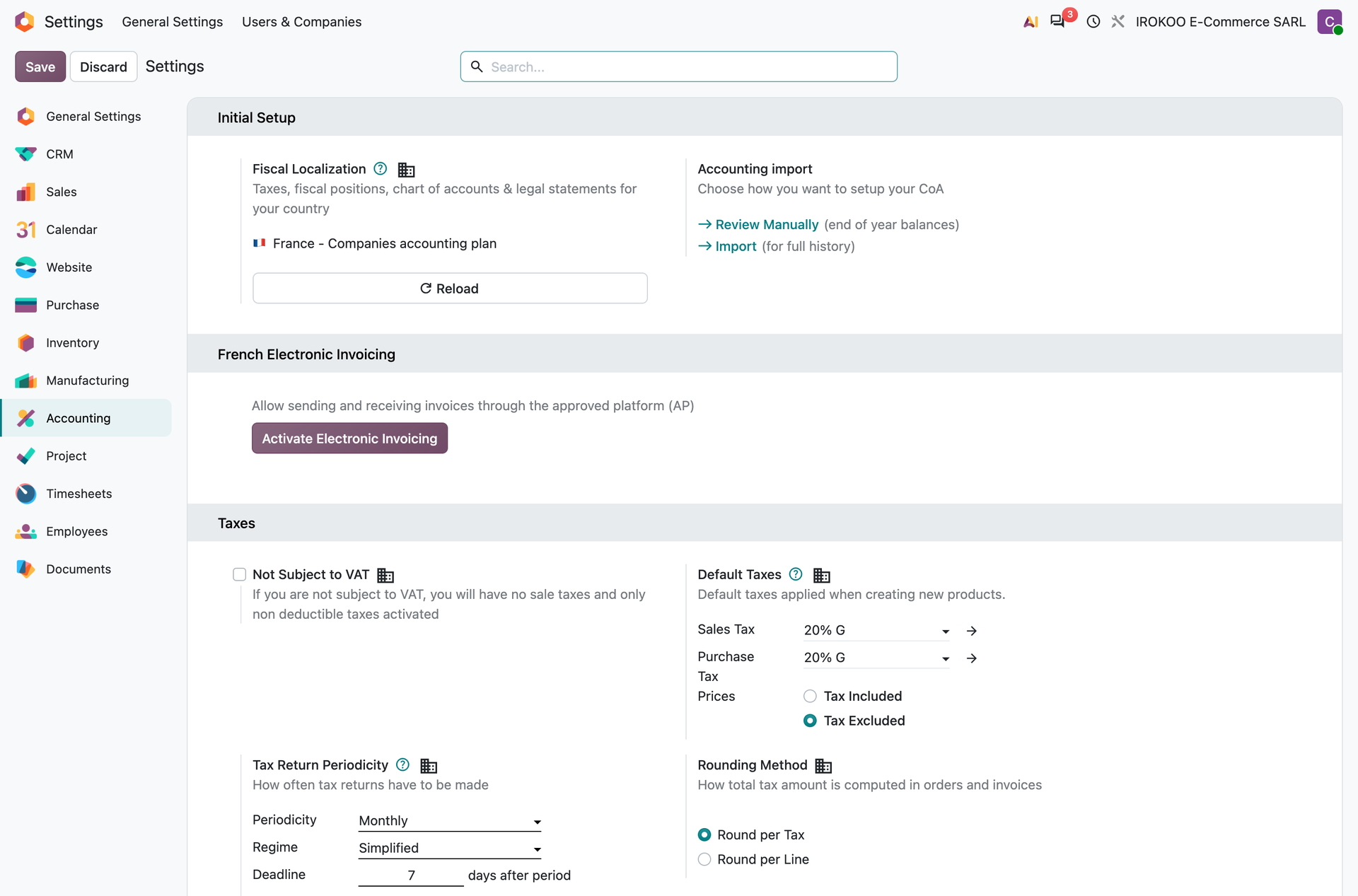
- Open Accounting › Configuration › Settings.
- In the French Electronic Invoicing section, click Activate Electronic Invoicing.
Registering on the approved platform
Registration attaches the company to the platform and enters it in the directory, where its business partners will find it.
- From the settings section, launch the registration.
- Fill in the company's Identifier and the Email, which will receive the platform's notifications.
- Click Authenticate: Odoo opens the identity verification portal in a new tab, operated by a qualified signature provider. The Open link button takes you back to it.
- On that portal, name the person who will sign, receive the verification code at the address given, then upload the signatory's identity document and sign the certificate.
- Once the identity has been verified, registration is validated automatically. If the identifier is already attached to another platform in the directory, Odoo asks for explicit confirmation before migrating it.
- The Refresh button lets you follow progress for as long as the platform has not confirmed.
The identifier always begins with the SIREN, nine digits. What follows is optional, and serves to designate a reception point finer than a legal entity. Take care not to confuse that address, specific to electronic invoicing, with the SIREN and SIRET identifiers of the record, which are two distinct identifiers and are entered separately.
| Form | What it designates |
|---|---|
SIREN |
The legal entity. Nine digits. This is the common form, and the one Odoo suggests. |
SIREN_SIRET |
A specific establishment. The SIRET is fourteen digits. |
SIREN_SIRET_RoutingCode |
A department inside an establishment. |
SIREN_AddressingSuffix |
A department inside the entity, without going through the establishment. |
Note
The last two forms serve organisations that want to route their bills to distinct departments: purchasing on one side, maintenance on the other, for instance. They are only worth using if your vendors actually address their bills at that level of detail. In the common case, the SIREN alone is enough.
The wait between signature and connection
Once the procedure is launched, the window displays Authentication in progress and will not move on its own. Odoo is waiting for the signature provider to confirm that the identity is verified and the certificate signed. Until that confirmation arrives, the screen stays as it is and the final validation button does not appear.
| Button | What it does |
|---|---|
| Refresh | Asks the provider for the status again. This is the button to use to see whether the confirmation has arrived. |
| Open link | Reopens the verification portal, to resume an interrupted procedure. |
| Cancel | Abandons the procedure and sets the status back to failed. |
Watch out
Cancel is not a way out of the screen: it cancels the procedure under way, and everything has to be started again from scratch, signature included. To leave the window without breaking anything, use the close cross.
Note
Confirmation is not always immediate. It may only arrive the following day, with nothing on screen to announce it. A connection that looks stuck is therefore not necessarily failed: come back the next day and click Refresh before concluding that something is wrong.
This wait is distinct from the directory one described below: the first concerns identity verification, the second the listing of the company.
Watch out
If the window displays The SIREN of the company could not be determined., registration cannot go through: the Identifier field will stay empty and authentication will fail. The Go to company link offered in the message opens the company record directly, where the SIREN or SIRET identifier is added under the VAT.
Note
Migrating from another approved platform takes longer: the screen then announces a delay of up to two weeks, the time for the platform being left to answer.
Note
Entry in the directory is not instantaneous: it takes effect the day after configuration. The date from which the company is listed there is kept in the configuration; it is from that date onwards that its vendors can send it invoices through the platform.
Note
Authentication is not a matter of keying in a code: it goes through the electronic signature of a certificate designating the approved platform, with identity verification against a proof of identity. Plan to have an identity document of the legal representative to hand, and reckon that the operation cannot be delegated.
Note
Registration on the approved platform counts as registration on the European network: no separate formality is needed on that side.
Tip
Have the identity document ready before you start: the portal asks for it partway through, and the session does not wait. Plan also for the signatory to be available throughout, since the verification code goes to their address and the signature is theirs by name.
Once the company is connected, one box appears in the section, visible only at that stage: Enable e-reporting. It governs the regulatory data transmitted with the invoices, the mandatory statuses and the production of the e-reporting flows. It is ticked by default: it is therefore a box to untick if you do not want to issue yet, not a box to tick.
Watch out
Issuing before your customers are themselves connected produces transmission failures in series, for want of a recipient reachable in the directory. As long as most of your customers are not connected, untick Enable e-reporting: reception works from registration onwards and is enough for the 1 September 2026 obligation.
Watch out
Only one company can be registered per identifier. In a group, each legal entity registers separately, with its own identification number. Branches are the exception: they can issue through the connection of their parent company, without registering in their own right.
Putting the chain through its paces before the deadline
Nothing obliges you to wait for the deadline to circulate a real invoice: as soon as the company is connected and a partner is too, the circuit works.
Tip
Test at least one complete cycle (issue, receipt, refusal, correction) on a willing customer and a willing vendor. Transmission failures almost always come from incomplete identification data, which takes a few minutes to correct once identified, and blocks a whole invoicing run if you discover it on the day of the deadline.
Checking that a customer is reachable
Before issuing, you need to know whether the recipient is listed in the directory and whether they accept the format used. Three pieces of information determine the answer, and they are all set in the same place: the customer record, Accounting tab, Customer Invoices block. The tab is called Invoicing when only that application is installed.
The electronic address scheme
This is the most important setting in the whole configuration, and the least obvious.
An electronic invoicing address is made up of two parts: a scheme, which names the register to search in, and a value, which identifies the company within that register. Odoo offers about a hundred schemes, one or more per country.
For a French partner connected to an approved platform, the scheme must be France FRCTC Electronic Address, and the value their identification number.
This field is not normally filled in by hand. It is derived from the identifiers entered elsewhere:
- Check that the contact's Country is indeed
France. - In the body of the record, under the VAT, click the identifier add button and choose SIRET or SIREN, then enter the number. The SIRET is enough: Odoo deduces the SIREN from it.
- Odoo then carries that number over as the value of the France FRCTC Electronic Address in the Invoicing tab.
Note
That button only offers the identifiers of the contact's country. For a French contact, the list offers SIRET, SIREN and France FRCTC Electronic Address. Each identifier added takes its own line, with its label and an example of the format.
A contact with no SIREN will therefore have no electronic address, and the check will fail without the reason being shown on that field.
The value follows the same four forms as your own identifier, described in section 13.4: the SIREN alone, or completed with the SIRET, a routing code or an addressing suffix. The check is the same on both sides, and so is the error message.
Watch out
Odoo only offers the SIREN, never an extended form, even when the record holds a SIRET. A customer who has given you an address with a routing code must therefore be filled in explicitly: add the France FRCTC Electronic Address identifier in that same block and enter the full address there. Where it exists, that identifier wins over the SIREN. Without it, the invoice goes to the legal entity instead of the intended department, which shows up as a rejection or a document lost at the recipient's end.
Querying the directory. The magnifying glass placed to the right of the value goes and looks up in the directory every address declared under that SIREN. The window that opens lists them with the platform hosting them and their nature; selecting the right one, then clicking Save, carries the full address over onto the record. That is the route to prefer as soon as a customer declares several reception points.
Note
The magnifying glass only accepts a value of nine or fourteen digits, and only searches on the first nine. It refuses any other value and says so, and likewise flags a SIREN that is not in the directory.
Watch out
This scheme is not a descriptive label: it, and it alone, decides which directory is queried. With France FRCTC Electronic Address, Odoo queries the French directory, the one that lists the companies connected to an approved platform. With any other scheme: VAT number, establishment identifier, another country's identifier, Odoo goes off to search the European directory, where a French company connected to an approved platform does not appear. The check will then fail whatever else you do.
Odoo often proposes a default scheme, derived from the country and the identifiers entered. Check it: this is where most verification failures are lodged.
The invoice format
Fill in France E-Invoicing (UBL 2.1). Without it, Odoo does not even start the directory search and reports an invalid format straight away.
Note
On a database connected to an approved platform, this format is the only one accepted for a French partner identified by the French scheme. Choosing another is refused on save, with a message stating that only French electronic invoicing is supported for regulated French invoices.
The check
- Open the customer record.
- Click Verify: Odoo queries the directory and fills in the E-Invoicing State field, which takes one of the following values:
| State | What it means |
|---|---|
| Not verified yet | The check has not yet been carried out for this partner. |
| Partner is in the annuaire | The customer is reachable: the invoice can be sent to them through the platform. |
| Partner is not in the annuaire | The customer is not registered yet. The invoice cannot be sent to them through this channel. |
| Partner cannot receive format | The customer is registered but does not accept the format chosen: the exchange format has to be adjusted. |
- Finally, check that the sending method chosen is by Approved Platform.
Note
A customer absent from the directory is not necessarily at fault: as long as their own issuing deadline has not arrived, they may have registered for receipt only. The check bears on their ability to receive, not on their compliance. Before 1 September 2026, most companies are not listed yet, and Partner is not in the annuaire is then the right answer, not an anomaly.
A check that fails: the four causes
In order of frequency:
- The address scheme is not the French scheme. Odoo then queries the wrong directory and will never find anything, however many times you try.
- The invoice format is not filled in, or is not the French format: no search is launched.
- Your own company is in test mode. The test directory only contains test participants; a real company is not in it.
- The contact is not registered yet. This is the most frequent case before the deadline.
Your own connection does not change the directory queried: as soon as the partner carries the French scheme, it is the French directory that is consulted, whether your company is connected or not. It does change the wording of the status displayed, which stays phrased in terms of the European network for as long as your company is not connected to the approved platform.
Issuing an invoice
The issuing procedure does not change: it is the channel that changes.
- Draw up and confirm the invoice as usual (see chapter 12). It then takes the Ready to send status, on three conditions: your company is connected, the customer is reachable in the directory, and the invoice is posted.
- Check that every line carries at least a product or a label, and exactly one tax.
- Click Send.
- In the sending window, check that the French Electronic Invoicing option is ticked. That is what the sending screen calls the channel for a French customer connected to an approved platform, where the contact record calls it by Approved Platform.
- Finally, check that the customer record carries their SIREN or their SIRET: without it, Odoo cannot identify the recipient. The VAT plays a separate role, described in section 13.9.1.
- Validate the send.
Note
When the option is greyed out, Odoo writes the reason in brackets right after its label: the lack of a SIREN, the verification state of the customer, or a note that the invoice has already been sent. That is the only place where that diagnosis appears.
The invoice is converted to the structured format, deposited on the platform and routed to the customer's own. It moves to the Pending Reception status, then Done once delivered to the recipient's platform. The structured file is attached in its message thread.
Watch out
The constraint on the lines is not cosmetic: a line with no tax, or carrying two taxes, prevents the file from being built. It is a frequent cause of failure on invoices taken up from old templates or coming from an import.
Note
For as long as the customer record does not fix their sending method, Odoo ticks both channels and makes both sends. As soon as it carries by Approved Platform, only that channel is ticked by default. The email is then no more than a courtesy copy, useful to warn your contact, with no evidential value. To a VAT-registered customer reachable in the directory, the invoice that counts is the one deposited on the platform.
Watch out
The status is not shown on the invoice form in ordinary use. It does appear in the Other Info tab, but that block is reserved for developer mode and only appears after the send; the status there is a link, which opens the detailed list of the answers received from the platform. In practice, the status is read in the invoice list: see section 13.8.
Tip
Two routes lead to the invoices ready to go: the status column in the list, and the E-Invoicing Ready filter in the search bar.
Receiving vendor bills
This is the side that concerns every VAT-registered business from 1 September 2026, including those whose obligation to issue only arrives later.
Two inbound channels during the transition
Between the two deadlines, your vendors are not all under the same rules. Large companies and mid-sized companies issue electronically from 1 September 2026; small and medium-sized companies and micro-businesses are only bound a year later. Until then, the latter legitimately keep sending you a PDF by email.
That PDF does not arrive through the platform, and the Incoming Invoices Journal will never see it: that journal only receives what the platform hands over. The path stays the one that existed before the reform, described in chapter 12: the purchase journal's email alias receives the message and creates a draft bill with the PDF attached, then Document Digitization extracts the data from it by optical reading.
| Through the platform | By email | |
|---|---|---|
| What arrives | A structured file, plus the PDF | A PDF alone |
| What Odoo fills in | Vendor, lines and VAT taken from the file | Data extracted by optical reading, to be checked |
| Life cycle | Statuses tracked, and posting counts as acceptance | None: it is an ordinary bill |
| Prerequisite | Incoming Invoices Journal filled in | Email alias on the purchase journal |
Note
Both channels must stay operational throughout the transition year, and the same vendor may move from one to the other along the way, the day they connect. Do not dismantle the purchase journal's email alias on the grounds that the platform is live.
The bill arrives on its own
You have nothing to do. The bill appears in your purchase journal, in draft, vendor recognised, lines and VAT taken up, with the structured file attached.
Odoo queries the platform several times a day. One prerequisite only: the Incoming Invoices Journal must be filled in in the configuration. Without it, nothing is imported and your vendors' invoices stay stuck on the platform side.
Tip
Rather than wait for the next automatic pass, the invoice list of the designated purchase journal carries a Fetch e-Invoices command in its cog menu, which goes and gets the documents waiting immediately. The sales journal carries the equivalent, Refresh e-Invoices Status, to refresh the status of the invoices issued.
Check, then accept
This is the point that surprises people most, and it has no equivalent in current habits.
Watch out
Posting the bill means accepting it. Odoo automatically sends the Approved status to the platform at the moment of posting. Cancelling the bill means refusing it, and a reason is then required.
There is no separate acceptance button. Posting is the act of approval, and it is binding on your vendor. So check the bill before posting it, as you would an approval for payment: which assumes you have written down your approval workflow.
Refusing a bill
- Click Cancel. Odoo opens the Send Response Message window, with the Refused status preselected.
- Choose a reason from the list. The reasons are imposed by the standard, they cannot be written freely.
- Enter the explanatory note: mandatory for a refusal. The field has no label, only a placeholder.
- Send.
Twelve refusal reasons are offered:
| Incorrect VAT rate | Incorrect Total Amount |
| Billing calculation error | Legal information missing |
| Wrong recipient | Unknown transaction |
| Unknown sender | Contract completed |
| Duplicate Invoice | Order number is incorrect or missing |
| Incorrect electronic billing address | Contract reference required to process the missing invoice |
Watch out
The dropdown list is not restricted to the status chosen: it carries seventeen reasons, the twelve above and five others belonging to the suspension described below. Nothing therefore prevents an invoice from being refused with a reason that was not meant for it.
Suspending rather than refusing. The same window offers a third status, Suspended, which
halts the handling of a vendor bill without refusing it: the vendor knows you have received it and
that something is missing. It too requires a reason and a note. Its five own reasons have no
published French translation yet:
Missing or Insufficient Supporting Documentation,
Bank Account Information Error, Incorrect or missing SIRET number,
Missing or incorrect CODE_ROUTAGE and Incorrect reference.
Note
If the Cancel button does not appear, it is because the document can still be reset to draft: reset it to draft, then cancel it to open the reasoned response.
Watch out
On a domestic invoice between VAT-registered businesses that has already been transmitted, Reset to Draft is no longer offered. This is consistent with the evidential value of the document: a document that has gone out over the network is not withdrawn, it is corrected. Odoo replaces the button with Cancel, which triggers the reasoned response described above.
Tip
The most frequent reason in practice is Order number is incorrect or missing. It is the direct consequence of a matching that has failed: better to deal with the cause upstream, with the vendor, than to multiply refusals.
Watch out
A bill received through the platform has evidential value. It is not deleted: a document received in error is refused with its reason, or dealt with by a credit note.
Matching with the purchase order
When the bill received quotes your order number, Odoo finds the order and attaches the lines with no intervention. This is the most immediate gain of the reform on the purchasing side: keying in vendor bills disappears, and checking them comes down to a comparison.
Watch out
When the matching fails, it fails silently. The bill simply arrives with no link to the order, with no alert and no message. Plan a periodic review of vendor bills not attached to an order: this is a control point to write into the procedure, not an anomaly that will announce itself.
The case of expense claims
The reform changes the treatment of expenses paid for by an employee, and the trap is easy to miss. Everything depends on the name the invoice is made out to.
Invoice in the company's name, paid for by an employee. This is an invoice between VAT-registered businesses: it reaches you through the platform, with its full life cycle. That the employee put up the money does not change the nature of the document. The treatment has three stages: the vendor bill carries the expense and the deductible VAT and creates a debt to the vendor; a transfer entry clears the vendor account and creates the debt to the employee; the employee is reimbursed.
Invoice in the employee's name. The vendor has invoiced a private individual: the transaction is out of scope, nothing will reach you through the platform. The receipt stays attached to the expense claim, as it does today.
Watch out
The trap: entering an expense claim with an expense product on top of an invoice that has already reached you through the platform. The expense would be carried twice. The risk rises sharply with the reform, since the bill now arrives on its own, without anyone having keyed it in.
Note
Whether VAT is deductible on an invoice made out in the employee's name is a tax question, not a setting: have it settled by your accountant.
Public-sector customers
The State, local authorities and public bodies receive their invoices through Chorus Pro. Those recipients are in the directory, and it is the customer verification that recognises them there: nothing has to be declared on their record. Two consequences.
- The Chorus Pro integration must be installed. Without it, building the file fails and Odoo states the module to add. That is the only place where the need shows.
- The file is not quite the same. Odoo carries the recipient's SIRET there, fourteen digits, where the ordinary circuit carries the SIREN; it adds the buyer reference and the order reference carried by the invoice, which the receiving department uses to match the expense.
Note
That circuit adds three states to the tracking described further on: Sent, Paused and Done. The second exists only there: the department does not refuse the invoice, it pauses its handling pending a document or a correction.
Following the life cycle of an invoice
The real change brought by the reform is not the format of the file: it is that every stage of an invoice's journey is now timestamped and binding. You still have to know where to read it.
Watch out
Odoo carries two separate status fields, which must not be confused. The E-Invoicing Status follows the journey of the invoice itself, from its deposit to the customer's response. The E-Reporting Status, covered in section 13.9, follows something else entirely: the periodic filing of data with the administration.
Showing the column, once and for all
The status does not appear on the invoice form. It is read in the list, provided the column is shown.
- Open the customer invoice list.
- Click the column selection icon, at the far right of the header row.
- Tick E-Invoicing Status. The setting is remembered.
A single screen is then enough to follow a whole portfolio. The Group By menu also offers this status: handy for isolating refused or pending invoices in one go.
Reading the statuses
| Status | Who issues it | What it means |
|---|---|---|
| Ready to send | Odoo | Posted, recipient reachable, not yet deposited. |
| Submitted | Your platform | Deposited. This is your proof of issue. |
| Received | The customer's platform | The document has crossed the network. |
| Made Available | The customer's platform | The invoice is made available to the customer, and the step is timestamped. |
| Approved | Your customer | Approved for payment. |
| Refused | Your customer | Reasoned refusal, correction expected. |
| Refused | The customer's platform | Technical anomaly: the file could not be processed. To be corrected and redeposited. |
| With Payments | You | Payment reported. Bears on when VAT becomes chargeable on services. |
| Cancelled | You | Invoice withdrawn by the issuer. |
| Done | Odoo | Routing complete, with no further business response expected. |
Note
Technical or business? Two neighbouring statuses carry almost the same label. The one issued by the customer's platform is technical: the file could not be processed. The one issued by your customer is a business decision, and it has to be reasoned. The two call for corrections of a different nature: in case of doubt, open the chatter of the invoice, which carries the code and the reason received.
Tip
The column shows the furthest stage reached, not the last message received: it never goes backwards. For the full history, open the invoice's message thread, which keeps every response timestamped with its code, its reason where there is one, and the report attached. That is your supporting document in the event of a dispute.
Note
A refusal does not cancel the invoice: it opens a correction cycle. Practice is to issue a credit note, then a compliant corrected invoice. Since the reasons are standardised, you know exactly what to correct.
Is there a deadline for accepting or refusing?
Odoo imposes no deadline and triggers no automatic acceptance: a bill received stays in draft for as long as nobody deals with it.
The legal consequences of the timestamping of the statuses (the starting point of payment terms, the effect of a tacit acceptance offered by some platforms) are a matter of commercial law, not of configuration. Have them settled by your legal adviser.
E-reporting
What decides whether a sale enters e-reporting
A sale between a French taxable person and another French taxable person falls under electronic invoicing. E-reporting is reserved for sales to a non-taxable person and for international transactions. Odoo sorts every invoice into one category or the other on its own, without saying so on screen.
Two identifiers of the customer record come into play, and they do not serve the same purpose.
| Identifier | Role |
|---|---|
| SIREN or SIRET | Identifies the recipient for sending, and governs the channel offered by default. |
| Tax ID | Decides the classification on its own. On a sale, if it is empty or reduced to a single character, the invoice is classified B2C and enters e-reporting. |
The classification therefore looks at neither the SIREN nor the SIRET. A business customer whose record carries their establishment number but not their VAT number is treated as an individual.
Watch out
The case arises mostly with businesses under the French small-business VAT exemption, which often have no VAT number, and with sole traders. Those customers do fall under electronic invoicing. Their sales are wrongly declared in e-reporting, and since the SIREN is enough for sending, the invoice also goes out through the platform: the same transaction is then declared twice. Nothing flags it on screen.
Two conditions are checked when the file is built, and they bear on both parties, yours as well as the customer's:
- the electronic address scheme and its value are filled in;
- the SIREN or the SIRET is filled in and well formed.
Any one of them missing blocks the send, and its reason is shown in the window. The VAT number, for its part, is no longer required to build the file: it no longer stands in the way of sending an invoice classified B2C.
Two further checks are added depending on the case: a credit note must be attached to an identified original invoice, and a public-sector customer requires the Chorus Pro integration (see section 13.7.7).
Watch out
Nothing excludes from e-reporting an invoice that was also transmitted through the approved platform: the classification does not look at whether the send took place. Double declaration therefore remains possible as soon as an invoice goes out through the platform and carries a reportable transaction type, a sale to a foreign customer whose VAT number is filled in, for instance.
The four combinations, and what each produces
The two identifiers combine into four situations. Only one is sound, and none of the other three raises anything on screen.
| VAT | SIREN | What happens |
|---|---|---|
| filled | filled | No e-reporting, and sending through the platform is possible and offered by default. This is the correct state for a business customer, provided the send is actually carried out. |
| filled | empty | No e-reporting, and sending is impossible for want of a recipient identifier: the sending mode falls back to email. The sale is declared nowhere. |
| empty | filled | The sale enters e-reporting, and sending through the platform stays possible and offered. The same transaction may therefore be declared twice. |
| empty | empty | E-reporting only, no sending possible. Correct if the customer really is a private individual. |
Watch out
Sending through the platform is not triggered on its own. No scheduled action despatches a customer invoice: those that run go and fetch the incoming documents, refresh the statuses and build the e-reporting flows.
The consequence falls on the first row of the table, the sound one. A properly filled customer is out of e-reporting, so the declaration of that sale rests entirely on the send. If nobody puts the invoice through the send wizard, the corresponding turnover is declared neither on one side nor the other, and no screen says so.
It is the record of the customer's commercial entity that is read, never the invoicing address or the contact carried by the invoice. An attached address inherits the identifiers of its company, unless it is itself ticked Company: it then becomes its own commercial entity, inherits nothing, and falls to B2C whatever the parent record carries.
Note
Correcting the record afterwards does not reclassify invoices already posted. The classification is stored and is not recomputed when the customer's VAT number is edited. On an invoice that has not yet gone out, resetting it to draft and posting it again is enough to reclassify it; on an invoice already transmitted through the platform, the reset-to-draft button is not offered. The data must therefore be entered before posting.
Following the statuses
The E-Reporting Status is a field separate from the previous one. It does not describe the journey of the invoice but its inclusion in the periodic filings intended for the administration.
| Status | Meaning |
|---|---|
| Out of scope | The invoice does not fall within the scope of e-reporting. |
| Pending | It is waiting to be included in the next filing. |
| Ready | It has been built and is ready to go. |
| Sent | It has been transmitted to the platform. |
| Completed | The flow that carried it has been accepted and closed. |
| Error | Transmission failed: the reason is shown on the invoice. |
The status is tracked in each invoice's message thread: every change leaves a dated trace there.
Note
The reasons for an Error almost always bear on formal data, checked before the flow is built: the SIREN of your company missing or invalid, an invoice number that does not obey the accepted format (twenty characters at most, no double space and no exotic character), or a tax rate that is not among the recognised French rates. On international transactions are added the customer's VAT number, limited to eighteen characters, their country code, which must be two letters, and the delivery address, whose street, city, postcode and country are required, the postcode not exceeding ten characters.
Note
The invoice list offers no e-reporting filter. To steer the whole set, go through the list of flows, whose Pending, Ready, Sent and Error filters bear on the state of the flow.
Tip
A weekly look at the Error filter of the flow list is enough to keep the chain running. An invoice in error is not transmitted: without that check, the anomaly comes to light when the customer chases you, several weeks later.
Filing the flows
Transaction data falling outside the scope of business-to-business invoicing is the subject of periodic filings.
- Open Accounting › Configuration › Settings and set the E-Reporting Periodicity according to your VAT regime: standard regime monthly or quarterly, simplified regime monthly, exempt regime two-monthly.
- Open Accounting › Reporting › France › E-reporting to consult the filings built.
- Check the content, then click Send.
Note
Four conditions must be met for Odoo to build those flows: the company is connected to the approved platform, the Enable e-reporting box is ticked, its country of taxation is France, and its currency is the euro. A French company kept in another currency produces no flow at all.
Note
If a check reports a non-blocking anomaly, the Send anyway button lets you go ahead in full knowledge of the facts. The View invoices button opens the detail of the documents concerned.
Watch out
The periodicity must match the company's actual VAT regime. A mismatch between the two produces incomplete or late filings, with nothing in Odoo to signal it.
Takings collected at the point of sale fall under the same scheme, through a dedicated extension: they are aggregated and filed at the same periodicity.
Points to watch
What blocks you on the day of the deadline
- Incomplete identification: identification number, address, legal form: these are the first causes of rejection, at registration as at issue.
- Unverified customers: go through the customer file before the deadline rather than invoice by invoice.
- Customers with no VAT number: their sales go out through the platform and enter e-reporting, so they are declared twice (see section 13.9.1).
- Receiving journal not configured: incoming bills then have nowhere to land.
- E-reporting periodicity out of line with the VAT regime.
- Statuses in error left untreated: they do not clear themselves.
- Wrong electronic address scheme on the customer records: the check will always fail, however hard you insist (see section 13.5).
- Vendor bill approval workflow not written down: posting counts as binding acceptance, and nothing on screen reminds you of it.
- Unmatched vendor bills not monitored: matching fails silently.
- Double entry of expense claims on bills already received through the platform.
Note
Regulatory compliance goes beyond configuring the tool: it engages the form of the invoices, the mandatory statements and the organisation of the accounts. Have your arrangements validated by your accountant before the deadline that concerns you.