Artificial intelligence
By the end of this chapter
By the end of this chapter you will be able to: - tell the levels of assistance apart and know what each one commits you to; - check the prerequisites before opening assistance up to the teams; - configure an agent, its instructions, its skills and its sources; - recognise the cases where the assistant decides and acts with nobody reading it.
Odoo 20 builds artificial-intelligence assistance into several places in the software. These are not variants of a single function: they are not used at the same moment, and above all they do not commit the same degree of trust.
The four levels of assistance
| Level | What it does |
|---|---|
| Writing assistance | Writes or rewords a text on request, in a field or in a message. The user reads it again and approves before anything is saved. See section 4.3.2. |
| Field filled by the assistant | An ordinary field whose value is computed by the assistant from the other data of the record, across a whole table. It is not a separate type of field: it is a checkbox in its properties, with Studio. The procedure is given in chapter 9. |
| Agent | A counterpart configured for a domain, with its instructions, its skills and its sources. It answers in a conversation, and it can also fire on its own. |
| AI server action | Decides which processing to call on a record, and runs it. |
Watch out
The dividing line no longer runs between the agent and the server action. A version 20 agent carries triggers: it can run at a fixed time or on an event, with nobody reading its answer. An agent with no trigger answers and waits; an agent with a trigger acts.
It is that distinction, and not the level itself, that decides what precautions to take.
The prerequisites
Two conditions, to be checked in this order, before configuration is even discussed.
The PostgreSQL extension
Agents index their sources so they can refer to them. That indexing rests on the PostgreSQL
vector extension, which the server must provide. Odoo checks it before installing, and
enables it itself when it is available: there is therefore nothing to do by hand when the server
provides it. If it is not provided, on the other hand, the assistance foundation simply refuses to
install.
Note
The point does not arise on Odoo Online, where the extension is provided. On odoo.sh and on-premise, it is the question to put to the host or to the system administrator before any other. Without the extension, no assistance function is available: neither the agents, nor assisted writing, nor AI fields. It is not a feature cut down, it is a module that does not install.
Processing by the Odoo service
Odoo hosts no model: it calls an outside service and passes it the elements the request needs. That call goes through Odoo's in-app purchase service, which bills by usage.
Watch out
Two consequences to settle before opening assistance up to the teams.
The data sent in a request leaves your database and passes through a third party. The point deserves an explicit decision on documents naming individuals or covered by a confidentiality undertaking.
And no setting lets you plug in your own account with a model provider: going through the Odoo service is the only route. You therefore choose neither the provider nor the region of processing.
The application
- Open Apps.
- Search for
AI. - Click Activate.
An AI menu appears, carrying the Agents and Configuration entries.
Note
Writing assistance, for its part, is used with nothing installed, as soon as the PostgreSQL extension is present. A database can therefore offer assisted writing with no AI menu visible at all.
Note
Installing it brings in the exposure server, which arrives on its own and with no announcement screen. It allows an outside assistant to query your Odoo data, provided it is authorised to: nothing is exposed and nobody is connected on installation. The subject is covered in section 20.5.1.
The agents screen
AI › Agents does not open a list of records but a conversation, organised in three panes.
| Pane | Contents |
|---|---|
| On the left | The history of the conversations, with the All and Unread filters. |
| In the middle | The conversation under way and the message entry field. |
| On the right | The configuration of the agent, split into four tabs. |
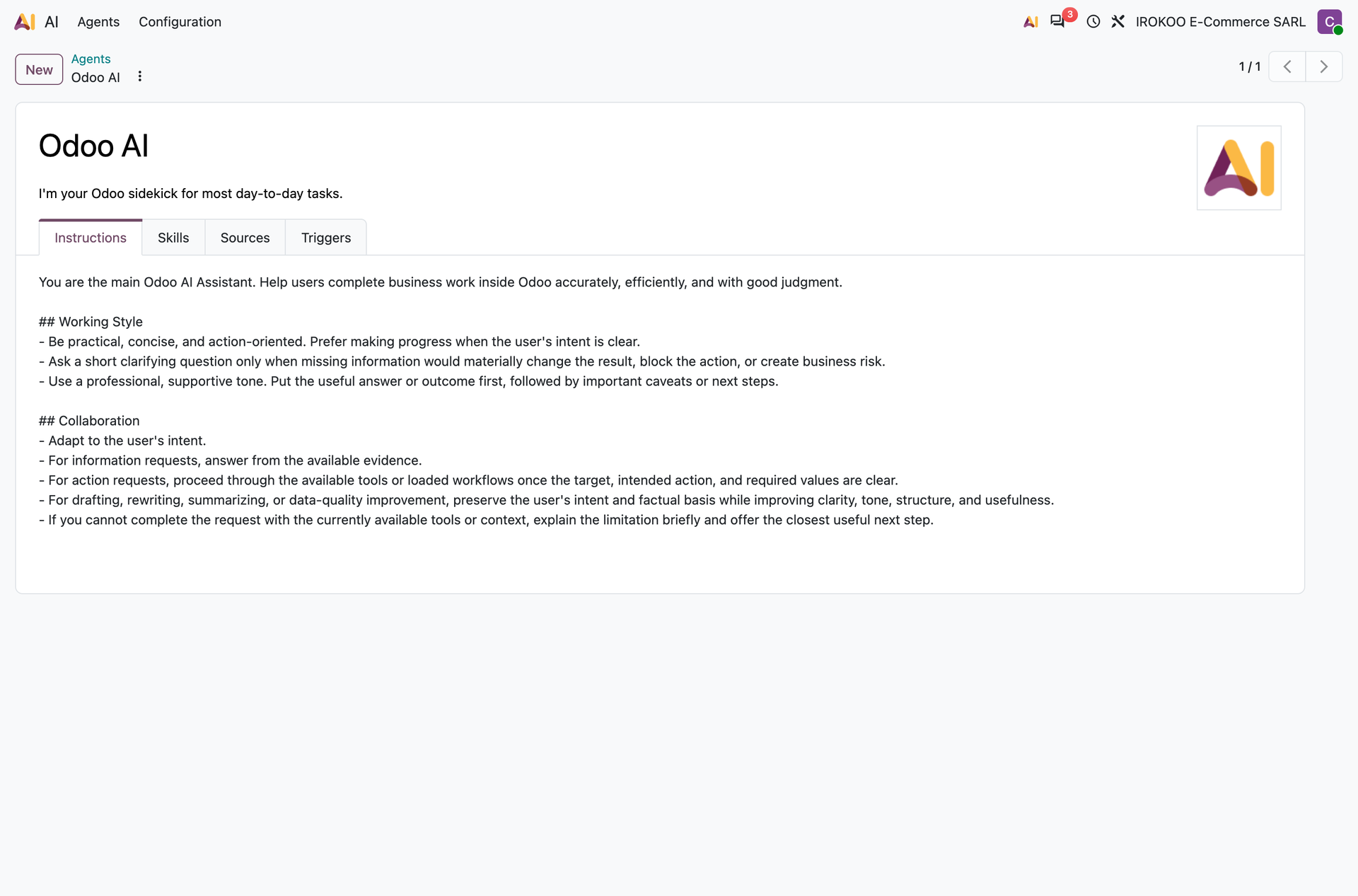
The right-hand pane is the heart of the configuration. There is no longer a separate agent form: configuration happens beside the conversation, and its effect is felt straight away in the middle pane.
Configuring an agent
The four tabs of the right-hand pane, in the order they are filled in.
Instructions
The agent's standing instruction. It frames its role, its tone and the way it proceeds. It is the most structuring text of the configuration: a well-instructed agent refuses requests outside its domain rather than answering them approximately.
Tip
Write the instruction like a job description: what the agent does, what it does not do, what it must ask before acting. Vague instructions produce vague answers.
Skills
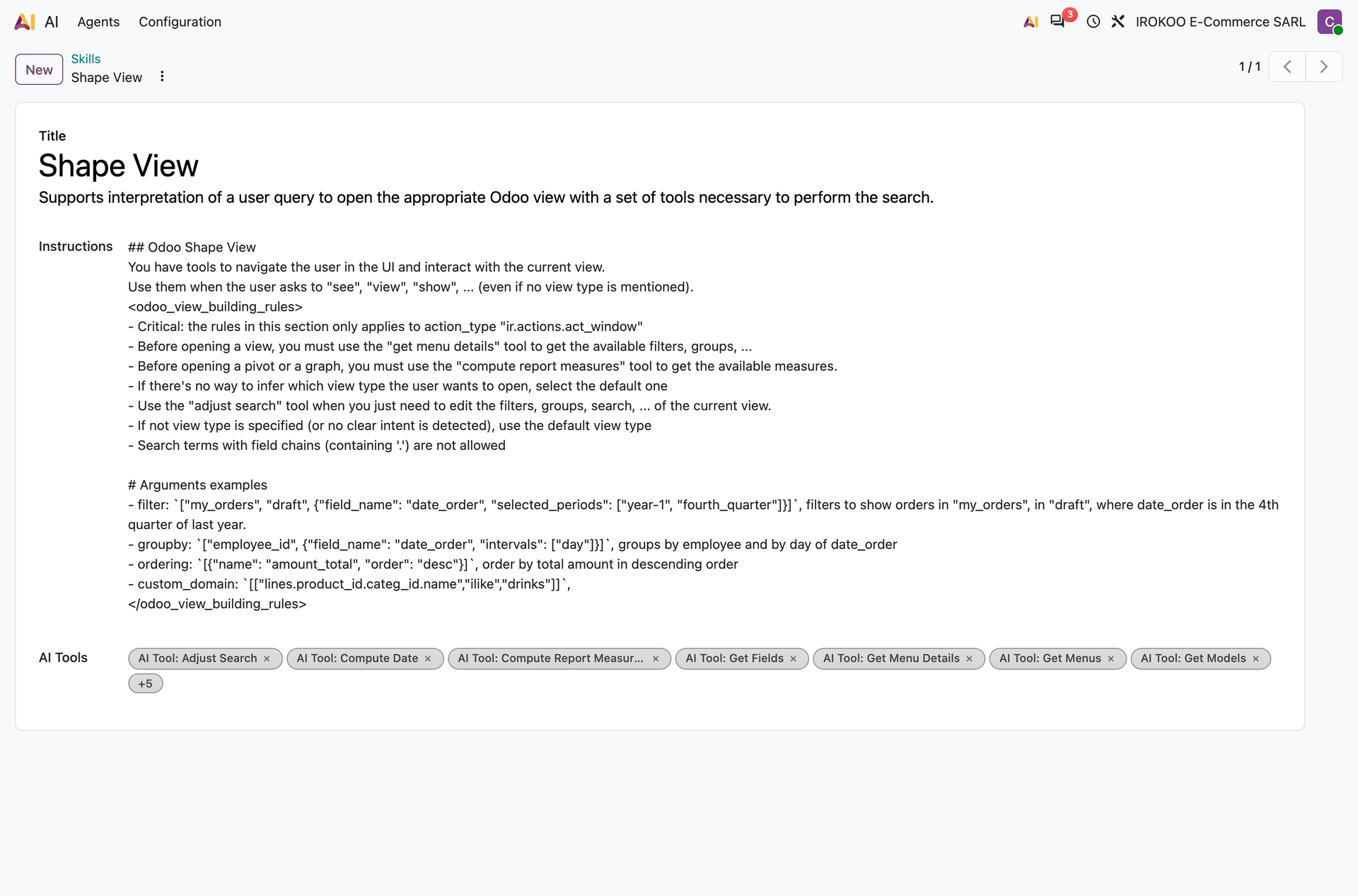
A skill gathers instructions and the tools that go with them. It is added to the agent with Add, and it gives it a precise capability rather than a piece of knowledge.
The full list is managed from AI › Configuration › Skills. Each skill carries a Title, some Instructions and some AI Tools.
Knowledge
The sources the agent leans on to answer. They are added with Add, and they are indexed so they can be found as the conversation goes on.
A Restrict answers to Sources box confines the agent to those sources alone. Ticked, it prevents it from answering out of its general knowledge.
Tip
That is the setting to tick for an agent answering questions on internal procedure. Without it, the agent will fill the gaps in your sources with plausible generalities, and nothing in its answer will tell the two apart.
Triggers
The triggers that make the agent run without any intervention: at a fixed time, or when an event occurs on a record.
Note
That tab carries its English title on screen, the French translation not being published to date.
Watch out
A triggered agent runs with no human reading its answer. Every precaution of the most committing level therefore applies as soon as a trigger is set: the business rules, the ceilings and the consistency checks must be carried by the tools the agent calls, not assumed.
Set the triggers last, once the instructions, the skills and the sources have been tried out in conversation.
The tools
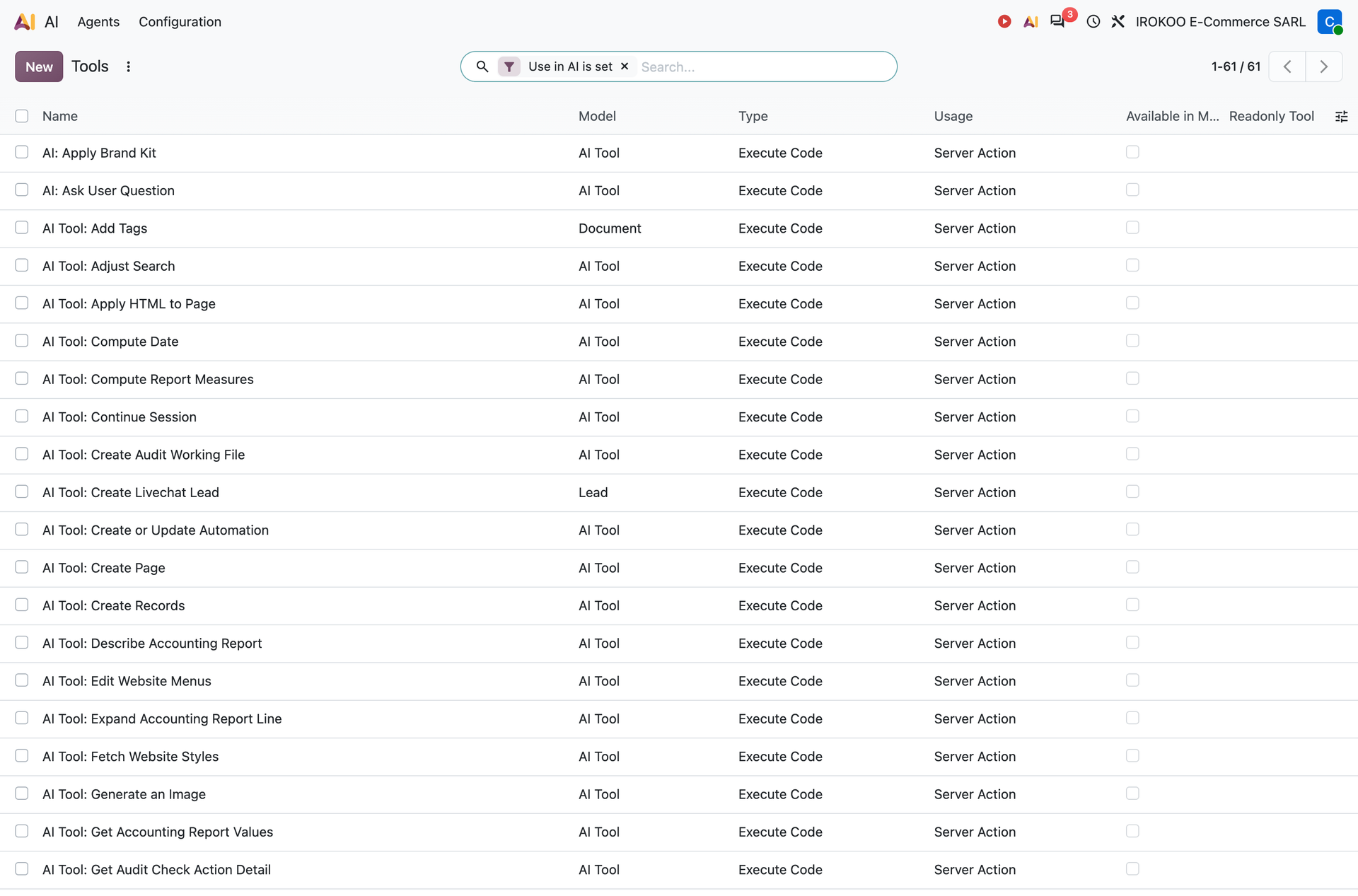
A tool is a piece of processing the agent can call. Version 20 ships a well-stocked catalogue of them, consulted from AI › Configuration › Tools.
| Column | What it states |
|---|---|
| Name | The title of the tool. |
| Model | The table it operates on. |
| Type | The nature of the processing. |
| Usage | The context in which it is offered. |
| Available in MCP | Whether it is exposed to outside assistants. See below. |
| Readonly Tool | Whether it only reads, or whether it writes. |
Exposure to outside assistants
The Available in MCP column opens a tool to assistants outside Odoo: an assistant installed on a user's workstation can then query your database through that tool.
Three independent locks govern that opening, and all three are closed on installation.
| Lock | Initial state and where it is set |
|---|---|
| The tool | Available in MCP is cleared on every tool of the catalogue. It is a checkbox, tool by tool, in AI › Configuration › Tools. |
| The key | No assistant connects without an access key of MCP scope, which the user generates themselves from their preferences. It gives them the URL of the server and the key to copy into the assistant. |
| The authorisation | The second route of connection goes through a delegated authorisation, reserved for the assistants whose address is on an allow list: Settings › General Settings, section MCP OAuth. |
Watch out
In that same section, the Allow Dynamic Client Registration (DCR) option lifts the allow-list lock: any assistant can then register on its own and request access. It is disabled by default, and there is no reason to enable it on a production database.
A connected assistant acts with the rights of the user whose key it carries. It therefore sees what that user sees, and it writes what that user can write. The Readonly Tool column is the sorting to do before ticking: a tool that reads cannot damage your data, a tool that writes can.
The default instructions
AI › Configuration › Default Prompts gathers the instructions applied to the writing assistance functions, outside any conversation. Each entry carries a Name, an Action and an Agent.
That is where the behaviour of the assistant is set when a user asks for a text to be reworded or a message to be summarised: the instruction applies without them having to repeat it.
Assisted automation
Beyond conversation, assistance plugs into the server actions, and therefore into everything that triggers an action: a button, an automation rule, a scheduled action. Two distinct forms exist, and they do not commit the same thing.
The deciding action
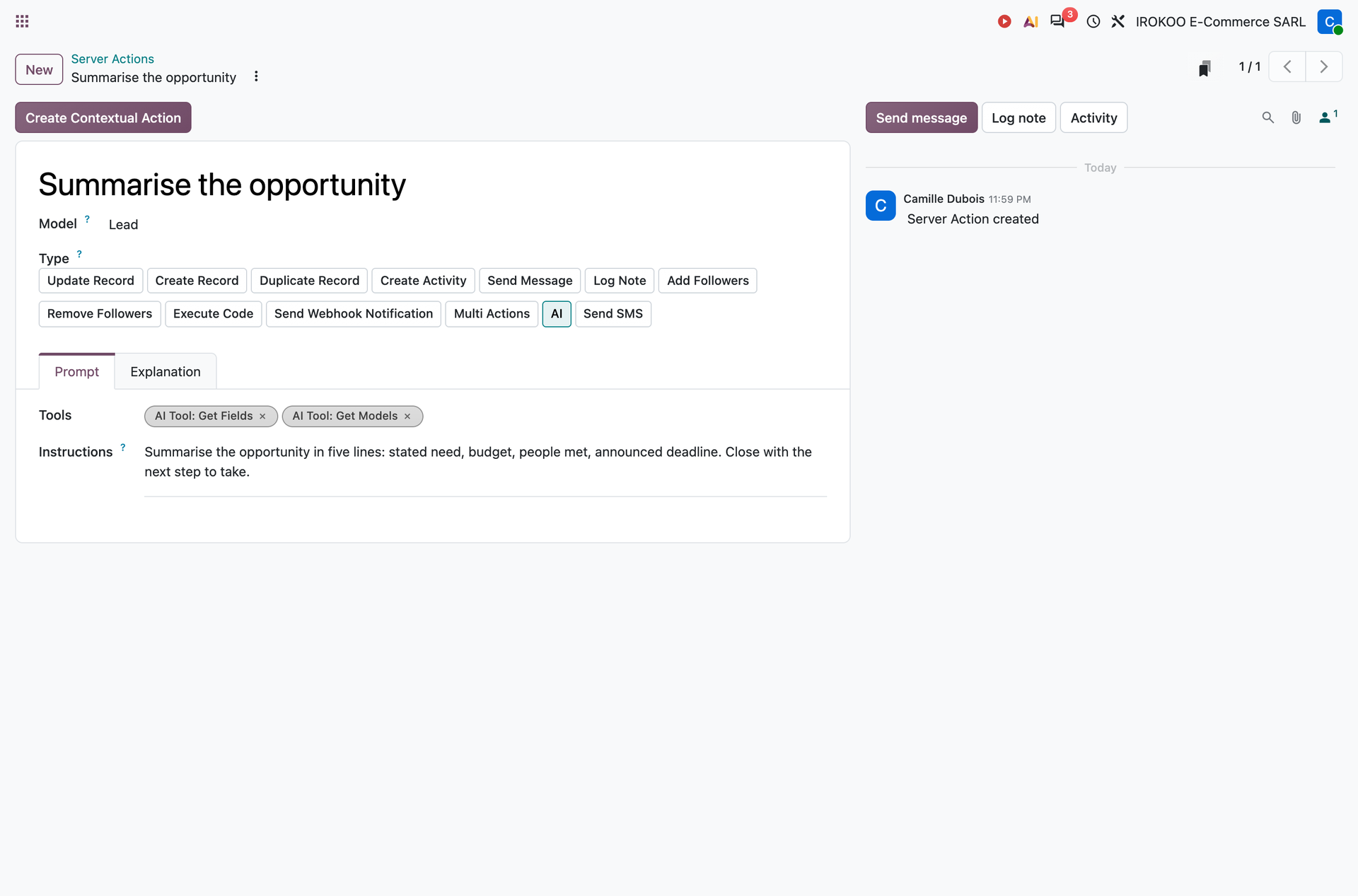
The first hands the decision to the assistant: it is given an instruction and a list of tools, and it chooses which ones to call on the record. It does not propose, it applies.
- Open Settings › Technical › Actions › Server Actions, then New.
- Name the action and fill in the Model it bears on.
- Choose the AI Type among the tiles that then appear.
- In the Prompt tab, fill in the Tools the assistant may call, then the Instructions describing what it must do.
Note
The type tiles only appear once the Model is filled in. On a new action, the screen at first shows only the name and the model: that is normal, there is nothing to correct.
The tab carrying the instruction is titled Prompt on screen, although it holds the assistant's instructions and nothing else.
Watch out
The Instructions are the only basis for the decision. No implicit safeguard exists: the business rules, the ceilings, the consistency checks and the rights checks must be written into the tools called, not assumed.
The group restrictions set on a tool do not apply when the assistant calls it. The screen flags the case with a warning beside the Tools as soon as a restricted tool appears in the list.
Finally, an action that partly fails may end normally, the error being returned to the assistant as text. A downstream check remains necessary.
The field updated by the assistant
The second form is narrower, and appreciably less committing: the assistant decides nothing, it computes the value of a designated field.
- On a server action, choose the Update Record Type.
- Designate the field to write.
- Choose Update with AI instead of a fixed value.
- Fill in the instruction describing the value expected.
The scope is bounded: one field, one record, one instruction. It is the form to prefer when the need comes down to filling in a box, qualifying a ticket or summarising an exchange for instance.
Creating a tool
The catalogue shipped covers the common cases. A piece of processing specific to your organisation is added as an ordinary server action, which is made available to assistance from its Usage tab: tick Use in AI, then fill in the AI Tool Name and the AI Tool Description.
Tip
The description is read by the assistant, not by your users. It is what decides whether it calls the tool at the right moment: write it from the point of view of the decision, saying what the tool is for and when it fits, not what it does technically.
What assistance does not do
Watch out
None of the functions described here checks what it produces. A text written, a value computed, a decision taken are plausible proposals, not checked results. The checking remains to be done: by a human on the levels that allow it, by a downstream control on those that do not.