Importing and exporting data
By the end of this chapter
- extract any set of records to a spreadsheet;
- understand the external identifier and what it makes possible;
- load data without creating duplicates;
- link records to one another at import time;
- diagnose a failed import.
A single mechanism for the whole database
Import and export are not features specific to an application. They are core operations, available from any list view: products, contacts, invoices, tasks, journal entries, stock locations. The procedure is the same everywhere, only the fields change.
That generality makes it the reference tool for three needs:
- data migration at go-live, from the previous system or from spreadsheets;
- mass modification of existing records: a price increase, a change of owner on three hundred files;
- extraction to a spreadsheet, for an analysis or for passing on to a third party.
Tip
These three uses rely on the same round trip: you export what exists, you modify it in a spreadsheet, you re-import it. That is the way of working to favour, it guarantees that the file has exactly the shape Odoo expects.
Exporting
- Open the list view and apply the filters that delimit the scope you want.
- Tick the records, or tick the header box to select everything.
- Click Actions then Export.
- Compose the list of Fields to export: look for the field you want in the Available fields column, then click the plus to its right. It joins the right-hand column.
- Remove a field from the selection with the bin icon beside it, and change the column order by dragging a field by its handle.
- Choose the Format: Excel Workbook (.xlsx) or Plain Text (.csv).
- Click Export.
Tip
Fields marked with a chevron expand: they designate a linked record, and their content gives access to that record's fields. That is how you export a contact's country or an order's salesperson, without a second export.
The search box at the top of the column saves browsing a list that often runs to several hundred entries.
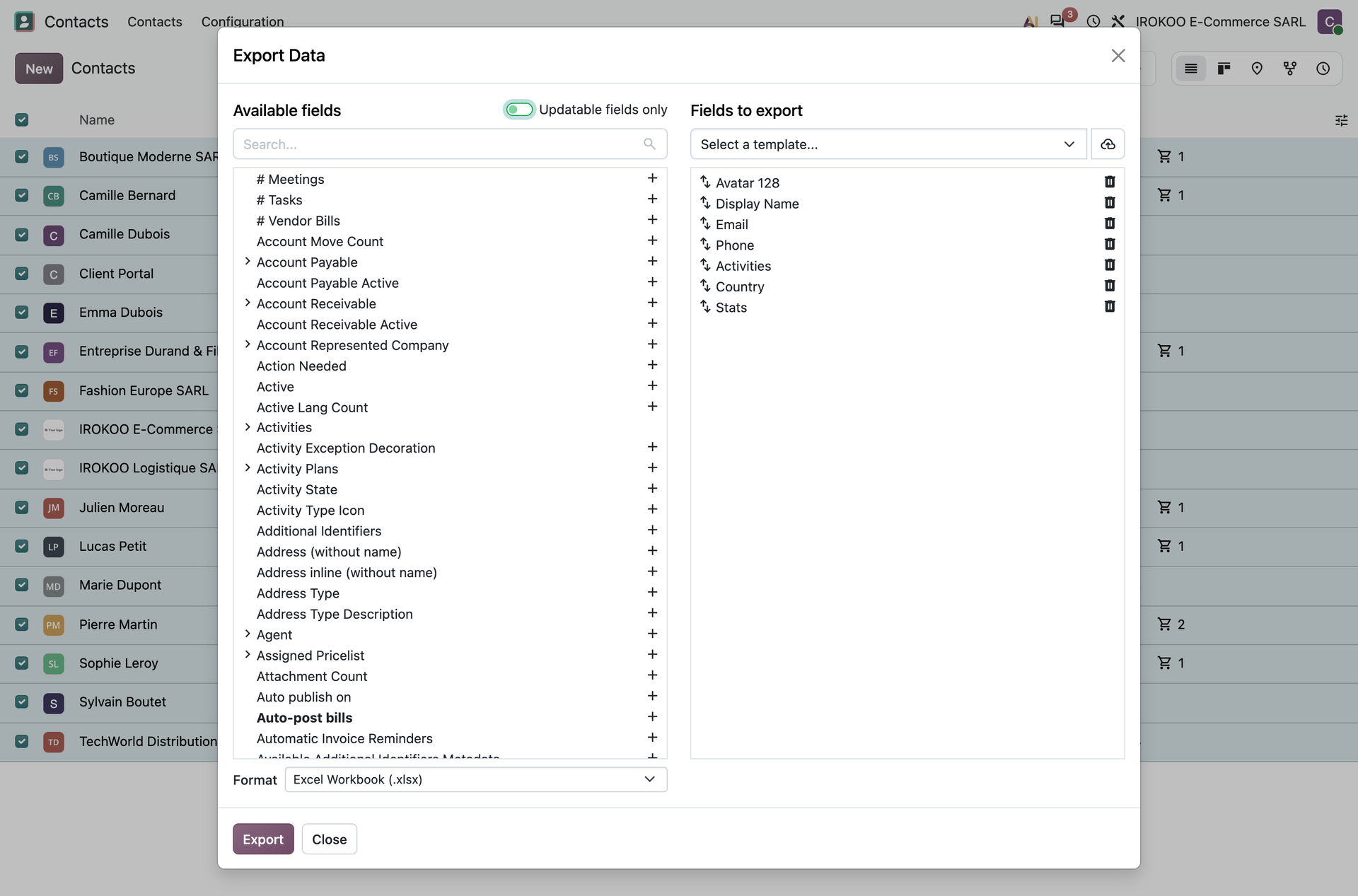
Choosing the format
| Format | Use |
|---|---|
| Excel Workbook (.xlsx) | Spreadsheet. Reading, formatting, passing on to a third party. The columns are typed and the numbers directly usable. |
| Plain Text (.csv) | Text file. Re-import, automated processing, large volumes. Raw format, with no formatting, but accepted everywhere. |
Preparing a re-importable export
The Updatable fields only switch, placed beside the Available fields title, changes the nature of the file produced. It reduces the list of fields offered to those Odoo will know how to read back, includes External ID among them, and above all writes the technical names of the fields into the heading row instead of their labels. It is that technical heading row that makes the file re-importable.
It is therefore that switch which distinguishes an export for consultation from an export for work. Without it, the file can be read but cannot be re-imported.
Watch out
The switch does not place the identifier column into the file by itself: add External ID to the list of fields to export. Without that column, the re-import will create duplicates instead of updating.
Tip
When a list of fields is to serve again (a monthly statement, a file intended for a partner), save it as a template. The dropdown list at the top of the right-hand column recalls the selections already named; the icon next to it saves the current selection under a name, and the two icons that then replace it allow it to be renamed or deleted.
Exporting translated fields
When several languages are installed and at least one translatable field appears in the right-hand
column, a language selector appears under that column. Each language kept produces its own column
for each translatable field, the heading carrying the field name followed by an at sign and the
language code: name@fr_FR. The column with no suffix disappears, so that the same value
is not exported twice under two different headings.
Note
The import recognises the same notation: a name@fr_FR column feeds the French
translation of the field, and not the value of the active language. The round trip between the
two gestures therefore stays possible on multilingual databases.
The external identifier
This is the notion to understand before any import. It explains both why an import creates duplicates and how to prevent it.
Every record in Odoo carries an internal number, invisible and specific to the database. It cannot
serve as a reference point: product number 412 in one database is not the same in another. The
external identifier is a second name, textual and stable, which you choose yourself: for example
product_screw_m6_stainless.
It serves as the matching key at import:
- if the value in the External ID column is unknown to the database, Odoo creates the record and assigns it that identifier;
- if it is already known, Odoo updates the existing record instead of creating another one.
Why this is decisive
Without an external identifier, re-importing the same file twice creates two sets of records. With it, the second import simply corrects the first. That is what makes a data migration repeatable: you can load, spot an error, correct the spreadsheet and reload, as many times as needed, without ever polluting the database.
Tip
Adopt a readable and durable convention: the reference from the original catalogue, the customer code from the previous system, the account number. The external identifier is the bridge between the two systems, and it outlives the migration.
Importing
- Open the list view of the record type concerned.
- Open the actions menu through the three-dot icon in the top bar, which only appears if no record is ticked, then click Import.
- Load the file with Upload, or drop it straight onto the central area. Once the preview is shown, the button becomes Re-Upload and serves to replace the file.
- If the workbook has several tabs, designate the right one in Sheet:. That selector does not appear if the file has only one.
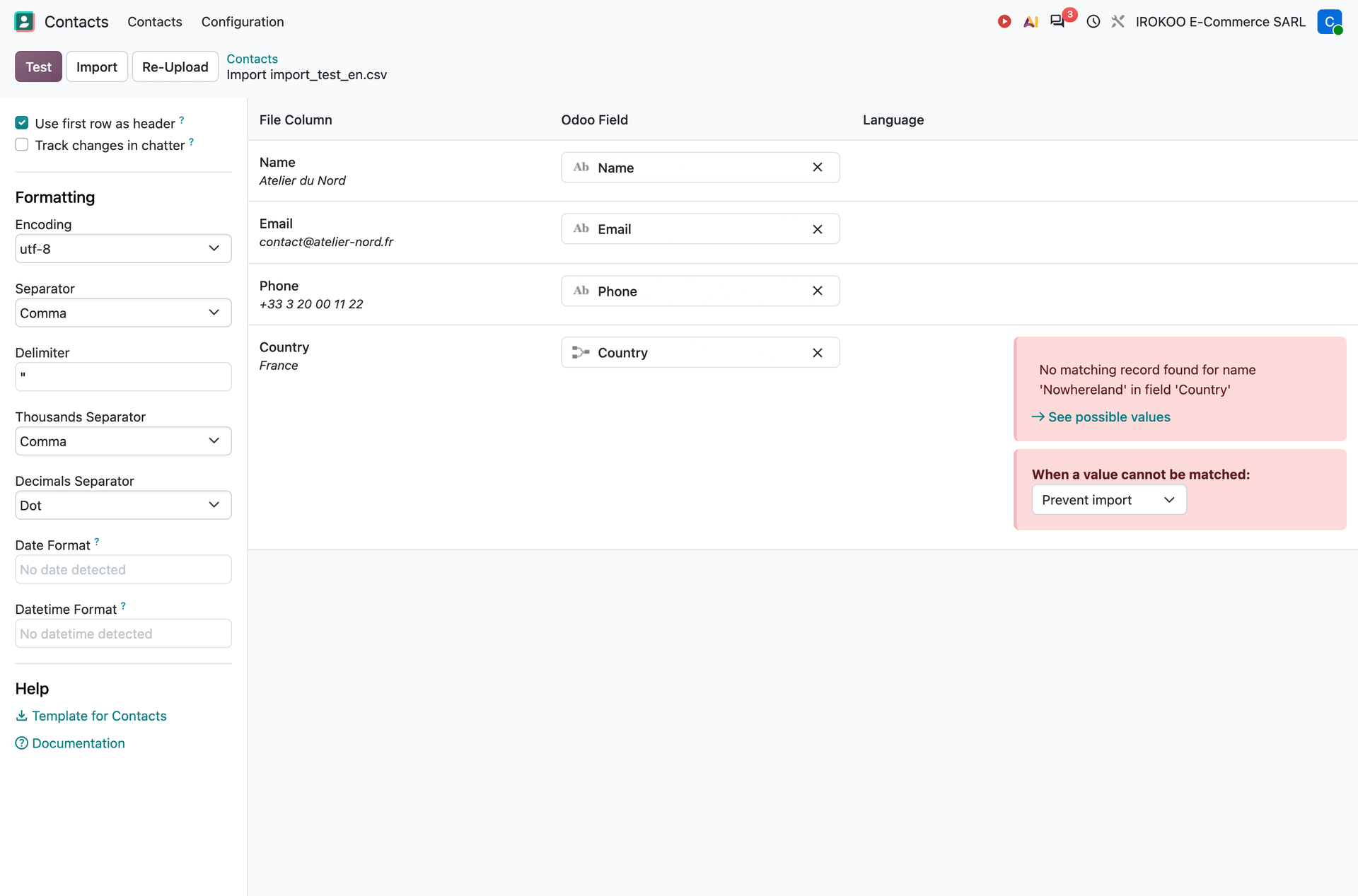
- Check that Use first row as header is ticked when the file carries a heading row.
- Check line by line the match between the File Column and the Odoo Field. Odoo proposes a mapping for each column, which a cross allows you to remove and redo.
- Read the last column of the table, which carries no title: it flags errors, but also the expected entry conventions.
- Click Test: Odoo analyses the whole file without writing anything.
- Correct the errors, retest, then click Import.
Tip
The Help pane, on the left, offers a ready-to-use import template for the main record types: contacts, products, orders, tasks, employees, journal entries. It carries the right columns, in the right order, with an example row. Less common types have none. It is the safest starting point: safer even than an export, since it contains only what is really importable.
Note
Test writes nothing: the database stays intact, whatever errors are encountered, and a conclusive trial answers Everything seems valid. There is therefore no reason to skip it.
The side panel
Besides the Help pane, the left-hand panel carries the loading settings:
- Sheet:, the tab of the workbook to read;
- Use first row as header;
- Track changes in chatter, cleared by default: ticked, every write is recorded in the history of the document and its followers are notified, which slows the load down;
- Attachments, which only appears on the models carrying a file field: a second Upload button there takes the images and documents the cells of the table name.
The Formatting pane governs the interpretation of the file: column separator, decimal separator, date format, encoding. Odoo detects them on its own in most cases; they are corrected here when numbers or dates come out wrong in the preview.
Note
This pane only appears for CSV files. An XLSX workbook carries its own data types, and these settings would serve no purpose: that is in fact a reason to prefer the spreadsheet for a migration, decimal separator errors being the leading cause of wrong amounts at import.
Linking related records
A product refers to a category, a contact to a country, an invoice to a customer. These links are loaded by the value that designates the target record, in one of three possible ways.
| Column | Content | When to use it |
|---|---|---|
Category |
The displayed name | Readable, but fails if the name is missing or ambiguous. |
Category/External ID |
The external identifier | The safest. Insensitive to renaming and to homonyms. |
Category/Database ID |
The internal number | Reserved for transfers between two copies of the same database. |
Watch out
The three ways are mutually exclusive: filling in both the name and the external identifier for the same field makes the row fail, Odoo being unable to decide between the two indications.
For a field that accepts several values (a contact's tags, a line's taxes) separate them with
commas in the same cell: Prospect,Key Account,Export.
Tip
These composite columns are painful to write from memory. First export two or three already correct records with Updatable fields only enabled: the headers obtained give the exact syntax, including for linked fields.
Note
On a database where several languages are installed, the import dialog adds a Language column
beside each translatable field. It designates the language the file column feeds, and saves
writing the @fr_FR suffix into the heading yourself.
Updating in bulk
Modifying several hundred records always follows the same round trip:
- Filter the list on the records to modify.
- Export them with Updatable fields only enabled, External ID column included.
- Open the file in a spreadsheet and modify only the columns concerned, without touching the external identifier column.
- Re-import the file.
Odoo recognises each row by its external identifier and applies the modifications to the existing records.
Watch out
Do not delete rows from the file "so as not to modify them": it serves no purpose, an unchanged row is rewritten identically. Above all, do not delete the external identifier column, which would turn the update into the creation of duplicates.
Sequencing a data migration
A file that references a non-existent value fails, row by row. The loading order therefore follows from the dependencies: what is designated must exist before what designates it.
- Reference data: categories, units of measure, payment terms, taxes, tags.
- Third parties: contacts, companies, then their linked delivery addresses.
- The catalogue: products, then vendor prices and pricelists.
- Transaction data: opening stock, orders in progress, opening entries.
Tip
On a file of several thousand rows, first isolate a couple of dozen representative rows in a separate file and import them. A format error spotted on twenty rows is corrected in a few minutes; the same error noticed after the full load forces a redo.
Diagnosing a failure
The errors reported carry the row number and the field at fault. The most frequent ones:
| Message | Usual cause |
|---|---|
| Value not found | The name or identifier designated does not exist yet. Check the import order, the spelling, trailing spaces in the cell. |
| Ambiguous value | Two records carry the same name. Switch to the external identifier. |
| Unknown field | The header matches no field. Correct the mapping in the dialog, or take the header from an export. |
| Date or number format | The file does not use the expected separators. Adjust them in the Formatting pane. |
Watch out
An import is atomic per batch, not over the whole file. If a row is refused, no row of the current batch is written and the import stops, but the batches already processed, of 2,000 rows by default, remain in the database. On a file of fewer than 2,000 rows, everything therefore happens as if the import failed as a whole; beyond that, a partial import is possible, and it is the Resume button that carries the load on from the first row not processed.
Loading large volumes
Beyond a hundred rows, Odoo splits the load into batches of 2,000 rows. A progress window announces the current batch, the total number of batches and the estimated time remaining; the red cross at the end of the bar interrupts the load, after letting the current batch finish.
There is nothing to fill in to resume a load stopped before the end, whether it was interrupted or refused on a row: the Import button becomes Resume and a message states the row the resumption will start from. The batches already written stay in the database, and you can test or reload the file before resuming.
Note
The Batch Size is only set in developer mode, in the side panel, and only beyond a hundred rows. Reducing it eases the load on the database for heavy models; the default value suits every other case.
Note
The size of the file loaded is capped at 128 MB, unless the server is configured otherwise.
Tip
Schedule bulk migrations outside working hours. A massive import loads the database and slows other users down.