Access rights and scopes
By the end of this chapter
- understand how Odoo decides whether a user sees a document or not;
- assign the access levels by domain and know what each one restricts;
- reuse an existing profile by duplicating a user;
- tell internal, portal and public users apart;
- partition data between several companies;
- inspect the rights actually applied to a person.
Creating a user is described in chapter 5. This chapter covers what comes next: setting precisely who reaches what, and knowing how to diagnose an unexpected situation.
The principle
Understanding how Odoo decides whether a user sees a document avoids proceeding by trial and error. Everything rests on a single object, the access right, and on the way those rights combine.
What an access right carries
An access right names a type of document and states three things.
| What it carries | What that governs |
|---|---|
| The operations | Read, create, write, delete: those the right allows, taken separately. |
| A group, or none | Who is concerned. That point changes the effect of the right entirely. |
| A condition | Called a domain, it bounds the right to part of the documents: those where the user is the salesperson, those of their company, those of their team. Left empty, it holds for all of them. |
A single type of document therefore carries several access rights, and it is their combination that settles what each person sees.
Groups
A group is a named set of rights. The user does not receive those rights one by one: they receive groups, and the rights follow.
A group may imply another one: its members then automatically belong to the implied group, and accumulate the rights of both. That is what builds the levels of a single domain, the higher level implying the lower one and adding its own rights to it.
Note
A user therefore often belongs to many more groups than were explicitly assigned to them. The Groups button on their record displays the real list, implications included (see section 6.6).
With a group, the right grants
A right attached to a group grants the operations it lists, on the documents its condition retains, to the members of that group.
Rights of that kind concerning the same user combine with or: it is enough for one of them to accept the document for the user to see it. Adding one therefore widens the scope.
Watch out
No right attached to a group ever takes anything away: they add up. For a person to stop seeing a type of document, the group that opens it to them must be removed, not something added that would forbid it.
Without a group, the right restricts
A right with no group applies to everyone, with no exception, the administrator included. It grants nothing: it takes away everything its condition does not retain. Rights of that kind combine with and with everything else. It is the only mechanism that really restricts.
Partitioning between companies is the most common example. On sales orders, a right with no group carries the condition "the company of the document is among the active companies": on its own, it makes the multi-company setup watertight.
A user's final scope is therefore: every right with no group, and at least one of the group rights that concern them.
Watch out
A group right only limits the members of the groups it targets. If, for a type of document, none of the user's groups carries a condition, nothing limits them on that side any more: they see everything the rights with no group let through. That is the most frequent cause of a scope wider than expected.
Two symptoms, two causes
If no group right grants the operation requested, the user receives an explicit refusal, which names the groups liable to allow it. If a right grants it but the conditions exclude every document, they see an empty screen, with no error message. That difference in symptom already points to where to look.
A complete example
The sales levels illustrate the whole model. On sales orders, Odoo ships the following rights.
| Right shipped | What it does |
|---|---|
| Attached to the group User: Own Documents Only | Grants reading, creation and writing, on the condition that "the salesperson is me, or the salesperson is not set". |
| Attached to the group User: All Documents | Grants the same operations, with no condition. |
| Attached to the group Administrator | Grants deletion as well, with no condition. |
| With no group | Takes away from everyone the documents whose company is not among the active companies. |
The User: All Documents level implies the previous one: the user is therefore in both groups and falls under the first two rights. They combine with or: "my documents" or "everything". The second wins, and the user sees the whole set. The right with no group applies whatever their level.
What this example shows
Odoo did not remove the restriction in order to widen the scope: it added a right that neutralises it. That is the pattern of the whole architecture, you widen by adding, never by taking away.
It also shows that deletion is handled like the other operations: the User: All Documents level sees everything but can delete nothing, for want of a right granting it.
Working without breaking anything
These mechanisms call for a few rules of conduct.
- Do not modify a right shipped by Odoo. It applies to every member of its group, including uses you do not know about, and your modification is visible nowhere to whoever diagnoses the situation later. Create an additional right instead, targeting a dedicated group.
- To widen, add a group right, rather than extending the condition of an existing right. The effect is the same for the people targeted, with no consequence for the others.
- To restrict, only a right with no group gets there: and it imposes itself on everyone, the administrator included. Check it on a real case before leaving it in place.
- To withdraw an access, remove the group that grants it. Looking for something that might forbid it is a dead end: that mechanism does not exist.
- Create a dedicated group rather than adapting a standard one: and really create it, do not duplicate it (see section 6.1.8). A group belonging to no module is an addition; a modified standard group is a debt.
- Have lasting additions carried by a module. A right typed straight into the database exists on that database only: it is found neither on the test environment, nor after a restore, nor on a database created later.
Watch out
That first rule is enforced by Odoo itself: an access right shipped by a module cannot be modified, its fields are displayed read-only. The form offers instead to customise it, which creates an editable copy of it and disables the original. That is the gesture to use, it leaves the original right intact and findable.
Note
The first three rules cover the bulk of configuration needs. The following ones concern work meant to last, which is better entrusted to your integrator.
What duplicating a group does (and does not) copy
Duplicating a group to make a variant of it looks economical. The result is not the expected one: depending on the item, the copy receives independent instances or mere links to the originals.
| Item of the group | What the copy gets |
|---|---|
| Access rights, conditions included | Duplicated. The copy owns its own rights, editable with no effect on the original group. |
| Menus and views reachable | Shared. Nothing is recreated: the same menus and the same views are now attached to both groups. |
| Implied groups | Shared. The copy pulls in the same groups as the original. |
| Members | Carried over. The users of the original group end up in the copy. |
Watch out
The copy inherits the members of the original. The new group, and the rights it carries, are therefore granted silently to people who were not targeted. That is the first point to take up after a duplication: empty the Users tab of the copy.
Tip
For a variant, create an empty group instead, attach to it the rights that are its own, then add the people concerned. That is three more manipulations and no surprises.
Assigning the access levels
The domains and their levels
The Access Rights tab of the user record presents the functional domains grouped by category. Each domain is set from a dropdown list offering its levels, from the most restricted to the widest. A domain left at No (or at the label standing for it) means the user has no access at all to that scope.
Above those domains, the Roles group carries the user's general role and, in a multi-company setup, the companies they reach.
For sales, for example:
| Level | Scope granted |
|---|---|
| No | No access to sales documents. That is the default value of any domain not assigned. |
| User: Own Documents Only | Sees only the quotations and orders where they are the salesperson. |
| User: All Documents | Sees every sales document, whoever the salesperson is, and can edit them. They cannot delete them. |
| Administrator | Full access, deletion and configuration of the application included. |
- Open Settings › Users & Companies › Users and select the user.
- Open the Access Rights tab.
- For each domain that matters, choose the level from its dropdown list; leave the others at No.
- Save.
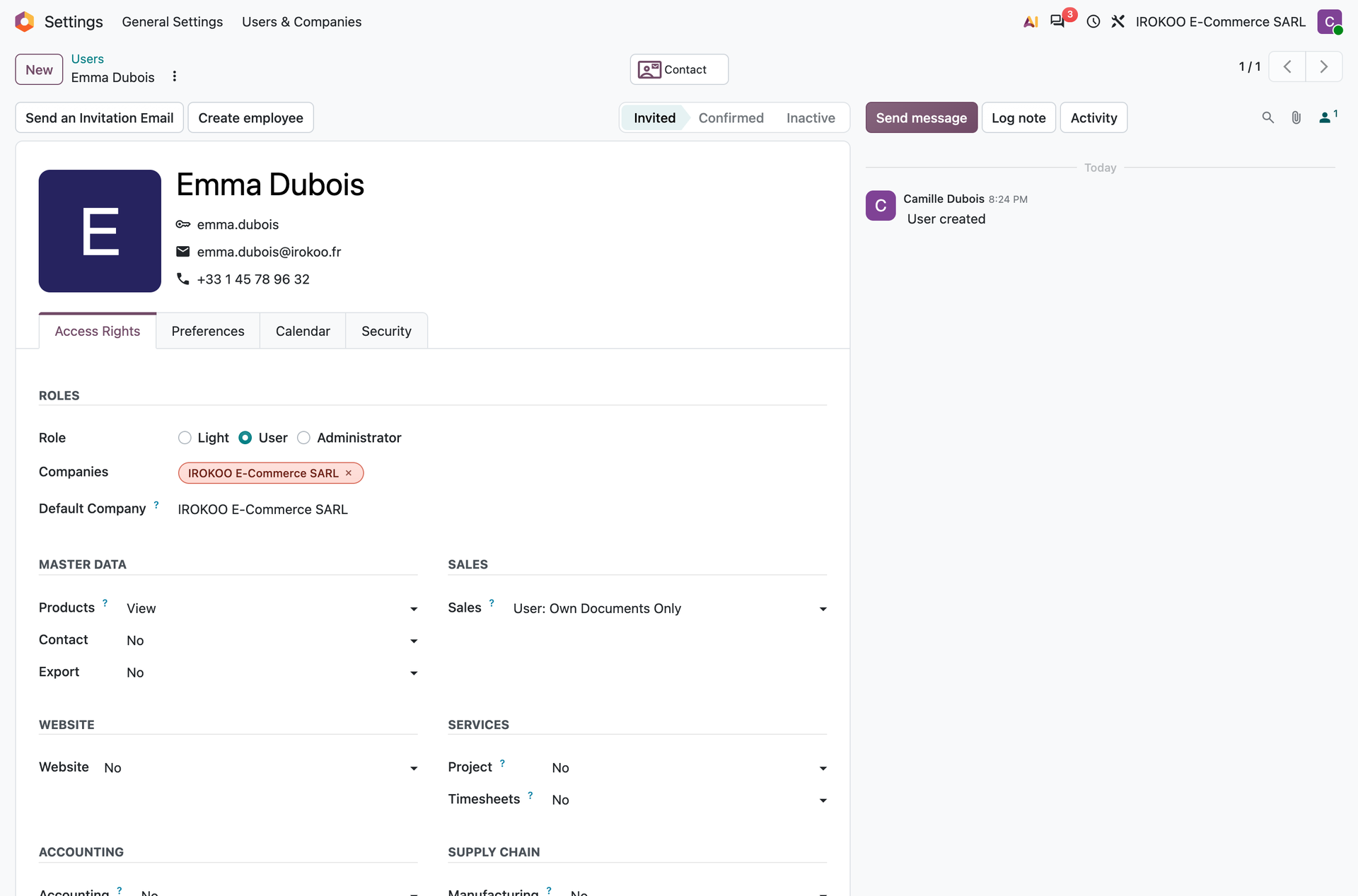
What "own documents only" really restricts
That level is the one that surprises most. It does not hide an application: it restricts the records visible to those the user is responsible for.
Watch out
The restriction bears on the document, not on the data it contains. A salesperson limited to their own orders still reaches the full customer records, the products and the prices, they need them to draw up a quotation. If confidentiality bears on the customer file itself, that level is not enough.
The field that determines "their" documents varies with the application: the salesperson on an order, the assignee on a task, the employee on an expense. In case of doubt, the check is made on a real case rather than by deduction (see section 6.6).
Going beyond the standard levels
Some groups belong to no domain: they therefore appear in no dropdown list. They are the ones that open the cross-cutting or secondary capabilities: handling several units of measure, reaching the pricelists, working in several currencies.
Watch out
In everyday use, the user record only drives the levels by domain: the groups outside any domain do not appear there. They become visible and editable in developer mode only.
To grant or withdraw a right outside any domain:
- Enable developer mode (see chapter 3).
- Open the user's record, Access Rights tab.
- Scroll down to the Extra Rights section, which only appears in developer mode: each right outside any domain is a checkbox there.
- Tick or untick, then save and check the result obtained (see section 6.6).
The operation can also be carried out from the group, which suits handling several people at once better: open Settings › Users & Companies › Groups, then the Users tab of the group wanted.
To withdraw a right outside any domain, the simplest is to start from the person rather than look for the group:
- Open Settings › Users & Companies › Users and select the user.
- Click the Groups smart button: the list of their groups appears, with the Scope each one falls under.
- Open the group to withdraw.
- In the Users tab, remove the person.
- Save.
Tip
The Dependencies tab of the group shows the groups it pulls in and those that pull it in. That is the best place to measure the real reach of a right before granting it: a discreet group may imply several others.
Tip
Developer mode also adds an information button beside each domain. It details what the level selected really covers, which is more reliable than deducing it from its wording.
Reusing an existing profile
Rebuilding a user's rights by hand for a colleague in the same position is long and unreliable. Duplication reproduces the profile identically.
- Open Settings › Users & Companies › Users.
- Select the user serving as the reference.
- Click Actions then Duplicate.
- Odoo creates a copy carrying the mention
(copy)in the name and in the login, with the same groups and the same access levels. - Replace the name and the email address with those of the newcomer.
- Check the companies reachable and the default company.
- Save, then send the invitation.
Note
The password is not copied: the new user sets their own from the invitation link. Duplication therefore passes on no secret.
Note
Duplicating a user behaves as expected: the copy receives the same groups, and nothing else is affected. It is duplicating a group that holds surprises (see section 6.1.8).
Tip
Create one reference user per typical position (inside sales, buyer, accountant) without giving it a personal login, and archive it. It becomes a profile template to duplicate at every arrival, rather than a profile rebuilt from memory.
Watch out
Duplication faithfully reproduces the profile, its flaws included. If the reference user has accumulated rights over time, the copy inherits them. Check the source profile before making a template of it.
Internal, portal and public users
Three kinds of user coexist, and the distinction has direct consequences.
| Kind | Access and use |
|---|---|
| Internal | Employee of the company. Reaches the management interface according to their rights. |
| Portal | External third party: customer, vendor, subcontractor. Reaches only their own documents, in a simplified interface, without ever entering the management interface. |
| Public | Unidentified visitor of the website. Reaches published content only. |
An external user carries an explicit banner at the top of their record, which avoids confusing them with a colleague.
Watch out
Turning a portal user into an internal user opens to them every document allowed by their groups, not only their own. That switch is a decision, not a workaround.
The procedure for opening a portal access is described in chapter 5.
Partitioning several companies
When the database holds several entities, each user has a list of companies reachable and a default company.
- Open the user's record, Access Rights tab.
- Fill in the Companies they have access to.
- Fill in the Default Company, active when the session opens.
What the user really sees
The company switcher of the top bar allows several of them to be active at the same time. The user then sees the documents of all the companies ticked, not only of the default company.
Some data stays shared whatever the active company: products and contacts in particular, when they are attached to no company. Accounting and commercial documents, on the other hand, are always partitioned.
Watch out
A user with access to one company only will never see the documents of the others, including those a colleague sends them by direct link: the document then displays as non-existent. That is the expected behaviour, not an anomaly.
Inspecting the rights applied
Rather than reconstructing the effect of the groups in your head, Odoo displays the result.
- Enable developer mode (see chapter 3).
- Open the record of the user concerned.
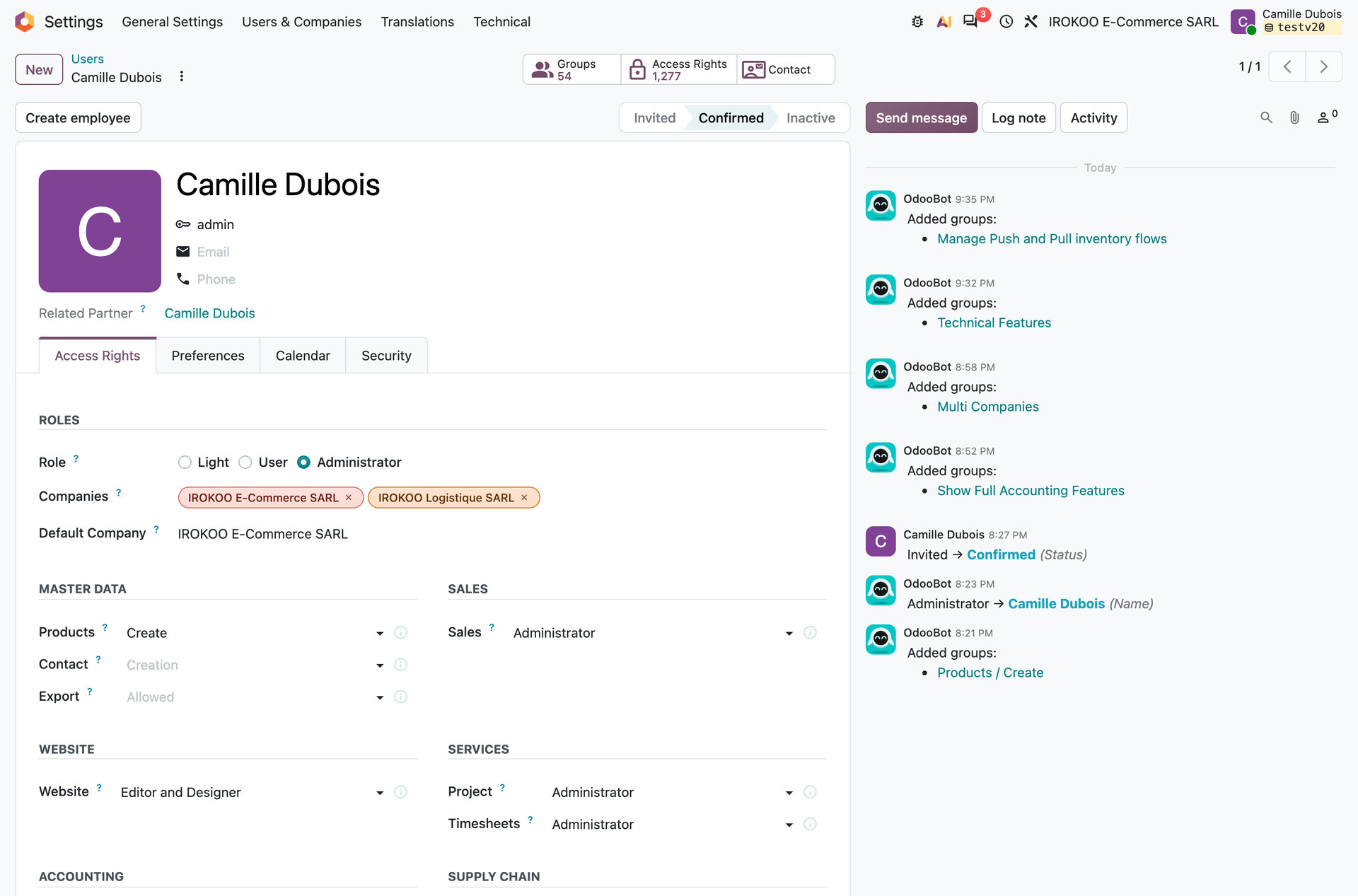
- Two smart buttons appear at the top of the form, each carrying its count: - Groups: the complete list of the groups applied, implications included. It has two columns: Scope, which states the domain the group falls under, and Name. An empty Scope column flags a group outside any domain, one of those the dropdown lists do not offer; - Access Rights: the rights attached to those groups, one per row, with the type of document, the operations allowed and the scope condition. The count commonly runs into the hundreds: that is normal, every application brings its own.
Those two screens are inventories: they render the state obtained. They allow neither creation nor deletion, but the values displayed stay editable there. Treat them as consultation screens: a change made here bears on the general configuration, not on the single user being inspected.
Note
The list of access rights only shows those attached to a group of the person. The rights with no group, the ones that restrict everybody, do not appear there: they are consulted from the matching technical screen (see below). A scope narrower than that list suggests often comes from there.
Tip
That is the first thing to consult when a user reports not seeing a document. The answer reads straight off it, whereas a discussion about the groups expected quickly turns into hypotheses.
Going further
For a need the standard levels do not cover, the technical screens give access to the objects themselves. They assume developer mode is active.
| Screen | Contents |
|---|---|
| Settings › Users & Companies › Groups | The existing groups, their members, the groups they imply and the rights they carry. |
| Settings › Technical › Security › Scopes | The functional domains and the order of their levels. |
| Settings › Technical › Security › Access Rights | Every access right of the database, with or without a group. |
An access right reads in four points: the type of document concerned, the group it applies to (a right with no group imposes itself on everyone), the operations it carries and the condition that bounds its scope. The list tells the two kinds apart by a coloured tag, and groups by group, by type of document or by kind.
Tip
The filter isolating the rights added to the database, apart from those shipped by the modules, gives in one screen the inventory of everything configured on that database. It is the first place to consult to understand a behaviour that exists nowhere else.
Watch out
Modifying an access right shipped by Odoo produces effects at a distance, often noticed weeks later on a function with no apparent connection. For a lasting need, a dedicated module adding its own groups and its own rights keeps over time; a direct modification of the standard rights is lost at the first update.
Note
Those screens are consulted without risk: they explain the behaviour observed. It is the changes that call for care.
Tracing the changes
On sensitive documents, Odoo records in the chatter (the exchange and history area present at the bottom of every document, described in section 4.1) who changed what, when, and what the previous value was. The tracking bears on the fields declared as tracked, and that scope varies from one application to another (see section 4.1).
For accounting operations, locking the periods completes that tracking by preventing any change before a given date (see chapter 14).
Good practice
Rights that hold over time
- Start from the position, not from the person: reason by function rather than case by case, and embody each typical position in a reusable template (see section 6.9.1).
- Grant the minimum: widening a right takes ten seconds; working out afterwards who could have changed what takes a day.
- Review at every move: a change of position must come with a re-examination of the rights, failing which they pile up.
- Archive rather than delete: an archived user can no longer log in, but stays attached to the history of the documents they created.
- Document the exceptions: note why a person departs from the template of their position, otherwise the reason is lost and nobody dares touch it.
Embodying a typical position
Odoo has no "profile" object: nothing lets you declare a position and assign it in one gesture. Two techniques nevertheless produce that effect, with different properties.
| Technique | Properties |
|---|---|
| Reference user, duplicated at every arrival | No technical notion to create, no developer mode. On the other hand the template is only one record among others: nothing marks it as a reference, and a change to the template does not carry over to the people already created. |
| Position group, implying others | A named object, assigned in one go, and editable for everyone at once: adding a right to the group grants it to all its members. Requires developer mode, and is better carried by a module. |
For the first, the procedure is the one in section 6.3.
For the second:
- Enable developer mode (see chapter 3).
- Open Settings › Users & Companies › Groups and create a group carrying the name of the position.
- In the Dependencies tab, fill in the Implied Groups: the levels and the rights the position must grant.
- Assign that single group to the people concerned, from its Users tab.
Note
The rights obtained by implication appear on the user record as implied and not as explicitly assigned: the dropdown lists of the domains concerned fill in by themselves. That is the expected behaviour, and it makes readable what comes from the position and what was added for the person.
Tip
The position group quickly becomes the better of the two: a change of organisation carries over by modifying a single object, instead of taking up every user record created from a template that has become obsolete.